

14 Best Squarespace One Page Templates 2026
Welcome to our curated list of the best Squarespace one-page templates, which will bring your online presence to life with simplicity and style.
Whether you’re a freelancer, a small business owner, or someone looking to create a personal portfolio, we’ve got you covered.
Our selection is tailored to help you find the perfect template that fits your unique needs and elevates your content with its design and functionality.
We all know how beautiful Squarespace templates are, right?
Discover the ideal backdrop for your story, project, or business, all within the smooth and Squarespace platform.
Let’s make your online journey unforgettable with a template just right for you!
Table of contents — all 14 squarespace one page templates
- Wycoff
- Essex
- Belisa
- Mariana
- Manual
- Oranssi
- Toledo
- Terranova
- Electra
- Evergreen
- Book Page
- Social Motion
- Degraw
- Lusaka
Also on this page: How To Make A One Page Website With Squarespace · How To Make A Sales Page With Squarespace · FAQs About Squarespace One Page Templates
Best Squarespace One Page Templates
These selections are not just about looks; they’re about providing a smooth user experience, functionality, and the perfect canvas for your content.
1. Wycoff

The Wycoff one page Squarespace template captivates with its transparent header and stunning full-page image background. It sets a visually immersive tone right from the start.
Embracing minimalism, it utilizes plenty of white space to ensure content breathes and stands out. (You might also like to check these epic minimalist website examples.)
Convenient features like an Instagram button in the header and footer for easy social connectivity complement the design’s simplicity.
Also, a subtly integrated RSVP button opens a detailed form on a new page, enhancing user engagement without cluttering the design.
2. Essex

The Essex Squarespace template stands out with its mobile-like design, featuring rounded corners that evoke a modern, app-like feel.
Its cool, vibrant detailing and light color scheme create an inviting and professional online presence.
The template is designed to catch the eye, with a prominent download CTA button in the header that encourages immediate engagement.
A subscription form in the footer offers visitors a seamless way to stay connected, rounding off this functional and stylish template.
3. Belisa

The Belisa Squarespace template showcases a beautiful full-width design anchored by a captivating full-screen image above the fold with an elegant text overlay, immediately drawing visitors in.
It also has a transparent header that makes the above-the-fold section cleaner but turns solid black on the scroll.
It smartly incorporates accordions for neatly presenting location details and opening hours, keeping the page clean yet informative.
Belisa features an advanced table reservation form, streamlining the booking process for users.
An integrated Instagram feed at the bottom keeps the site dynamic, showcasing the latest visuals and engaging the audience.
4. Mariana

The Mariana template features a unique floating transparent header. The logo is elegantly positioned on the left, and social media and shopping cart icons are on the right. This creates a sleek, modern navigation experience.
Its one page website design charms with on-scroll content loading, adding an interactive element as each section seamlessly appears.
The inclusion of a subscription form section invites user engagement and connectivity.
Notably, Mariana opts for a minimalist approach by going without a traditional footer, maintaining a clean, focused presentation.
5. Manual
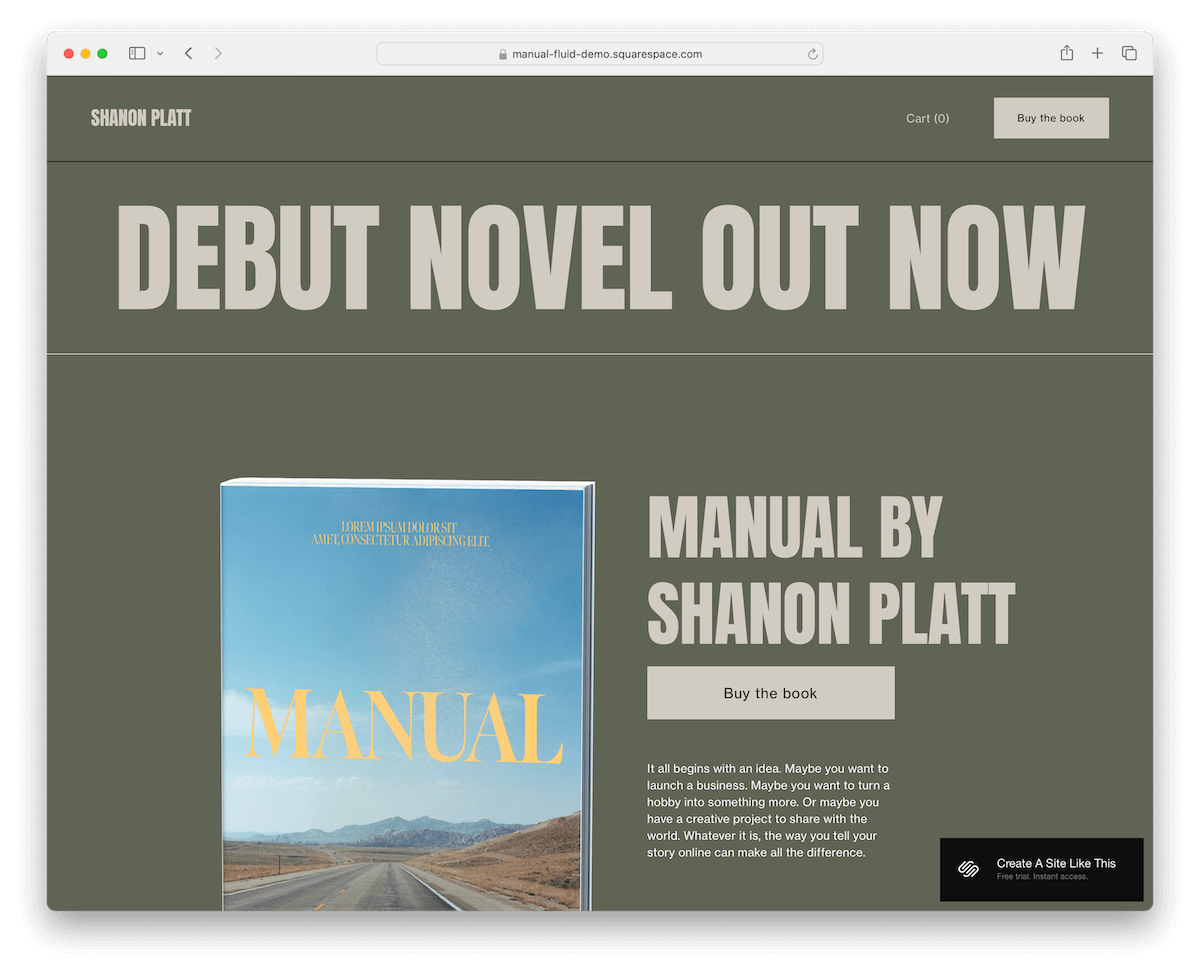
The Manual Squarespace template distinguishes itself with a classic boxed layout, creating a structured, focused user experience.
The header prominently features a shopping cart link and a “Buy the book” button, encouraging immediate user action.
Testimonials and an About section are thoughtfully integrated to build trust and connect with visitors.
A subscription form in the layout invites engagement, and the footer is adorned with social icons for Instagram, Facebook, and X, ensuring broad social reach.
Looking for a real website made with Squarespace? Here are the best one page Squarespace websites made by regular users.
6. Oranssi
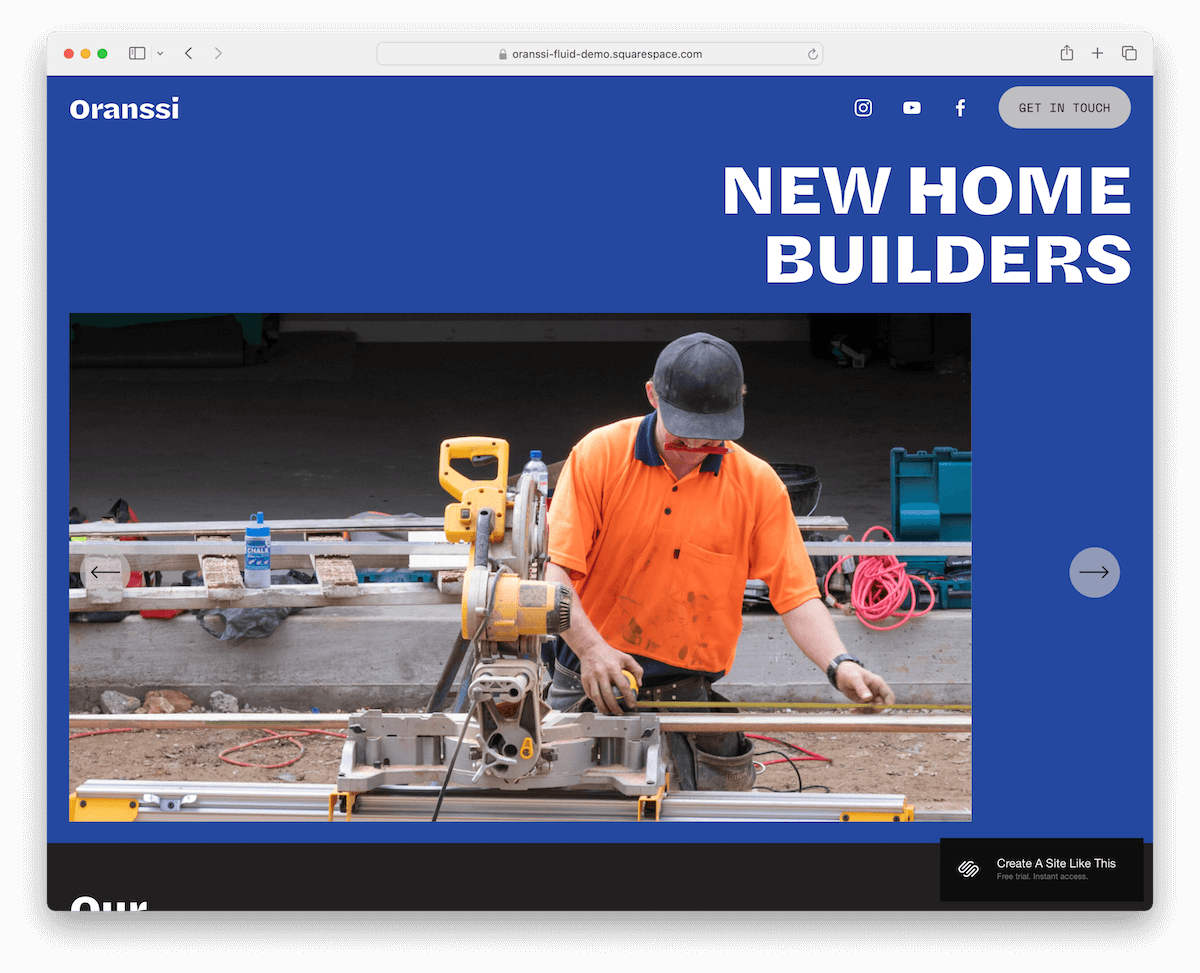
Oranssi Squarespace one page template attracts with an image-only slider above the fold, designed to spark curiosity instantly.
Its intriguing black-blue-white color scheme is interesting and adds a distinctive, professional touch. (I was once told that black and blue don’t go together – oh, how untrue!)
The sticky navigation bar enhances usability, featuring social links and a contact button for easy access.
A carousel for project showcases and a client testimonial slider highlight work and feedback dynamically.
The footer stands out with its catchy design, incorporating an animated background that adds a lively finish to the page.
7. Toledo
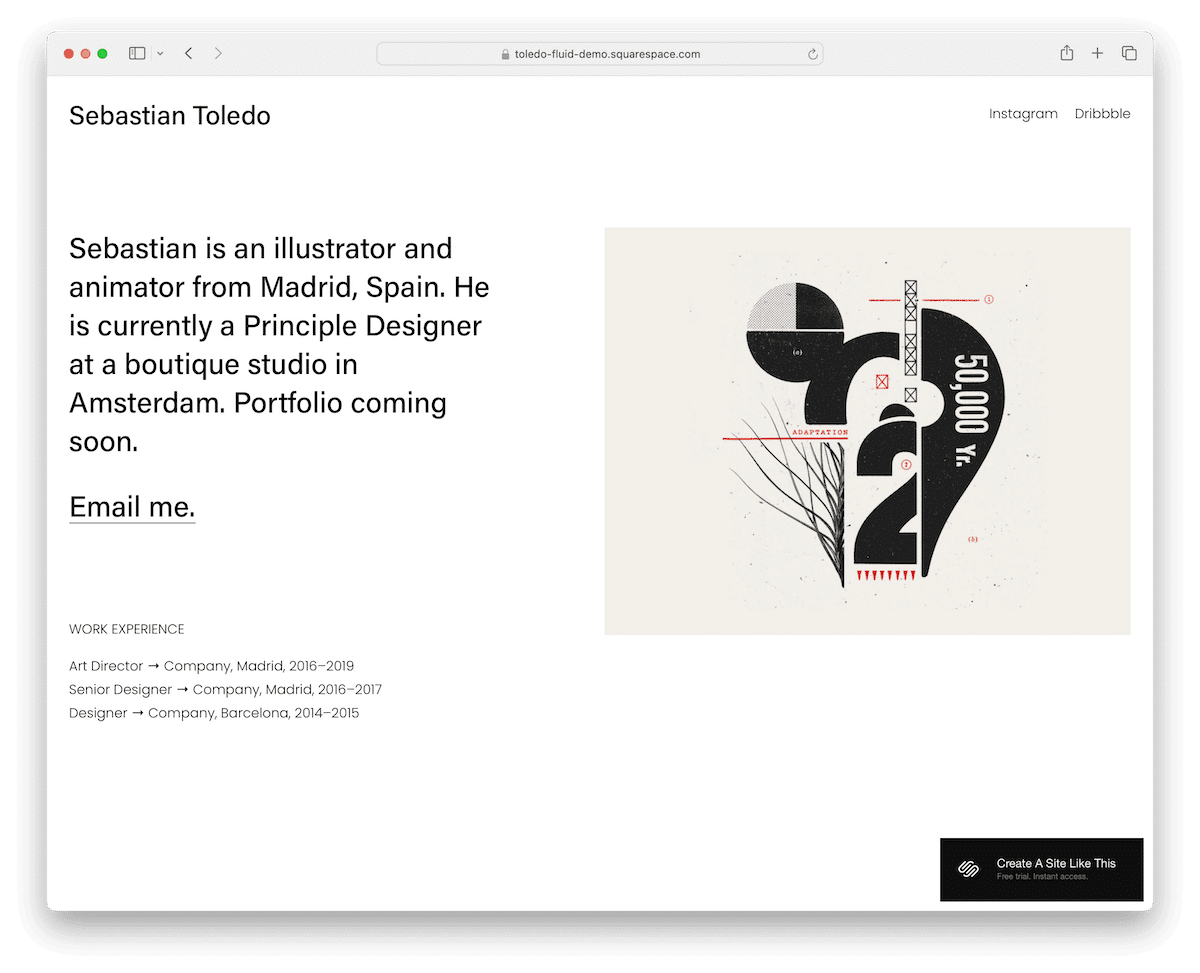
Toledo is a Squarespace one-page template with a pristine and minimalist format. It features an “above-the-fold-only” section.
It has a concise bio on the left and a complementary image on the right, blending simplicity with personal storytelling.
A direct email link and a visually engaging work experience timeline beneath provide a straightforward yet comprehensive overview of professional milestones.
The header is neatly organized with the name/logo on the left and social media icons on the right, ensuring easy navigation and connectivity.
8. Terranova
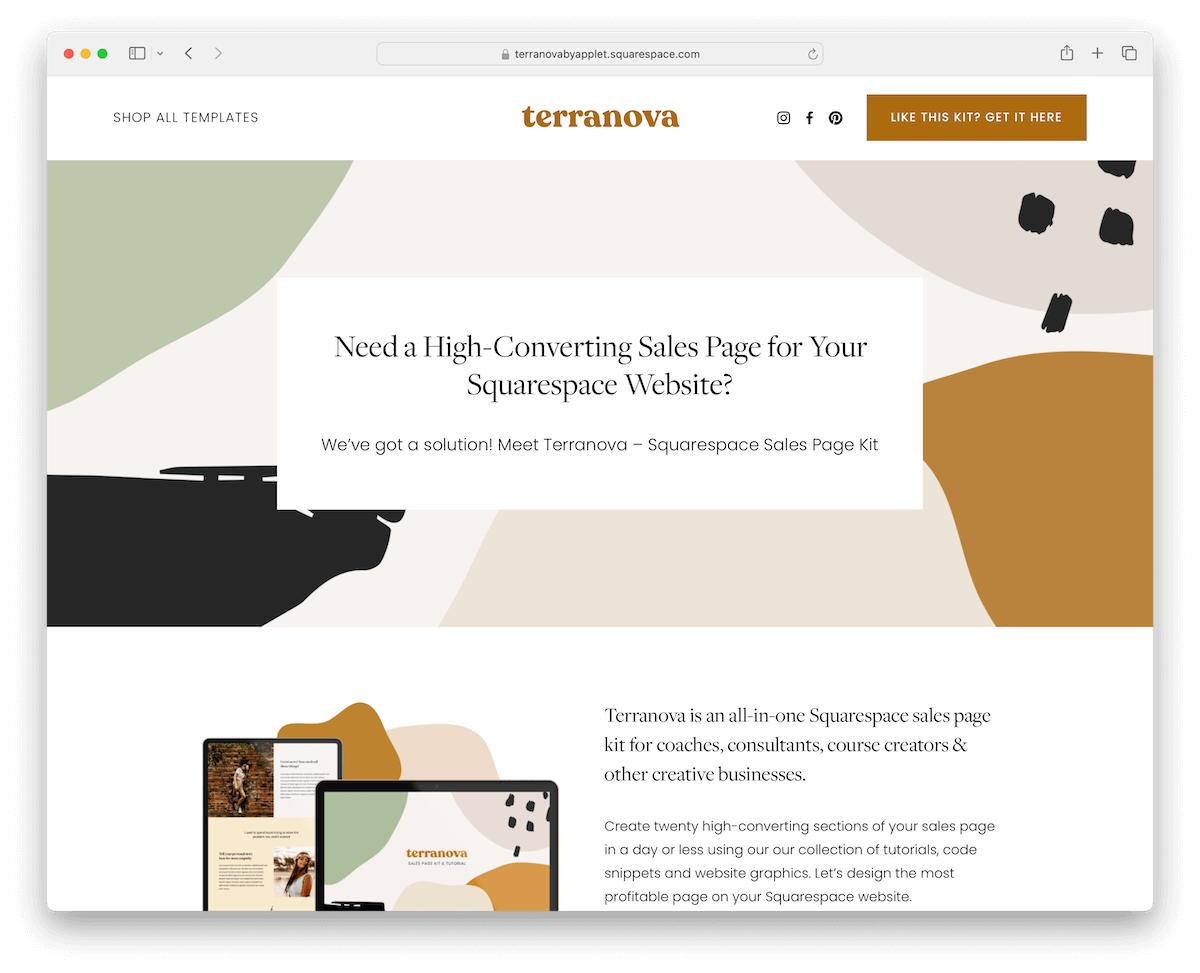
Terranova is a comprehensive Squarespace one-page template featuring twenty distinct page sections designed to accommodate a wide range of content needs.
It comes enriched with Canva graphics, offering visually appealing elements ready for customization.
Testimonials and pricing plans are strategically placed to build credibility and clarify offerings. Moreover, CTA buttons are scattered thoughtfully across the template, encouraging user interaction.
For detailed inquiries, accordions for FAQs provide concise answers, and a dark contrasting footer adds a strong visual anchor, enhancing the overall user experience.
9. Electra

Electra offers fantastic flexibility with fourteen distinct layouts, making it effortless to craft a personalized look that perfectly aligns with your brand. (You can create a one- or multi-page website with Electra.)
Its minimal design aesthetic ensures a clean, focused UX, highlighting content without unnecessary distractions.
An “As seen in” section lends credibility, while pricing packages are displayed to guide potential clients.
Engaging carousels for success stories and testimonials add a dynamic element. Moreover, a neatly integrated contact form invites inquiries, making Electra an ideal blend of form and function.
10. Evergreen

Evergreen is designed to beautifully showcase long-term sales content, featuring over fifteen versatile page sections.
This Squarespace one page template strategically uses white space to enhance readability, making it easier for visitors to absorb information.
Testimonials are accompanied by client images, adding a personal touch that builds trust. The pricing presentation is also simple yet bold, highlighting key offerings.
Last but not least, accordion elements efficiently organize detailed information, ensuring the page remains uncluttered while providing valuable content depth.
11. Book Page
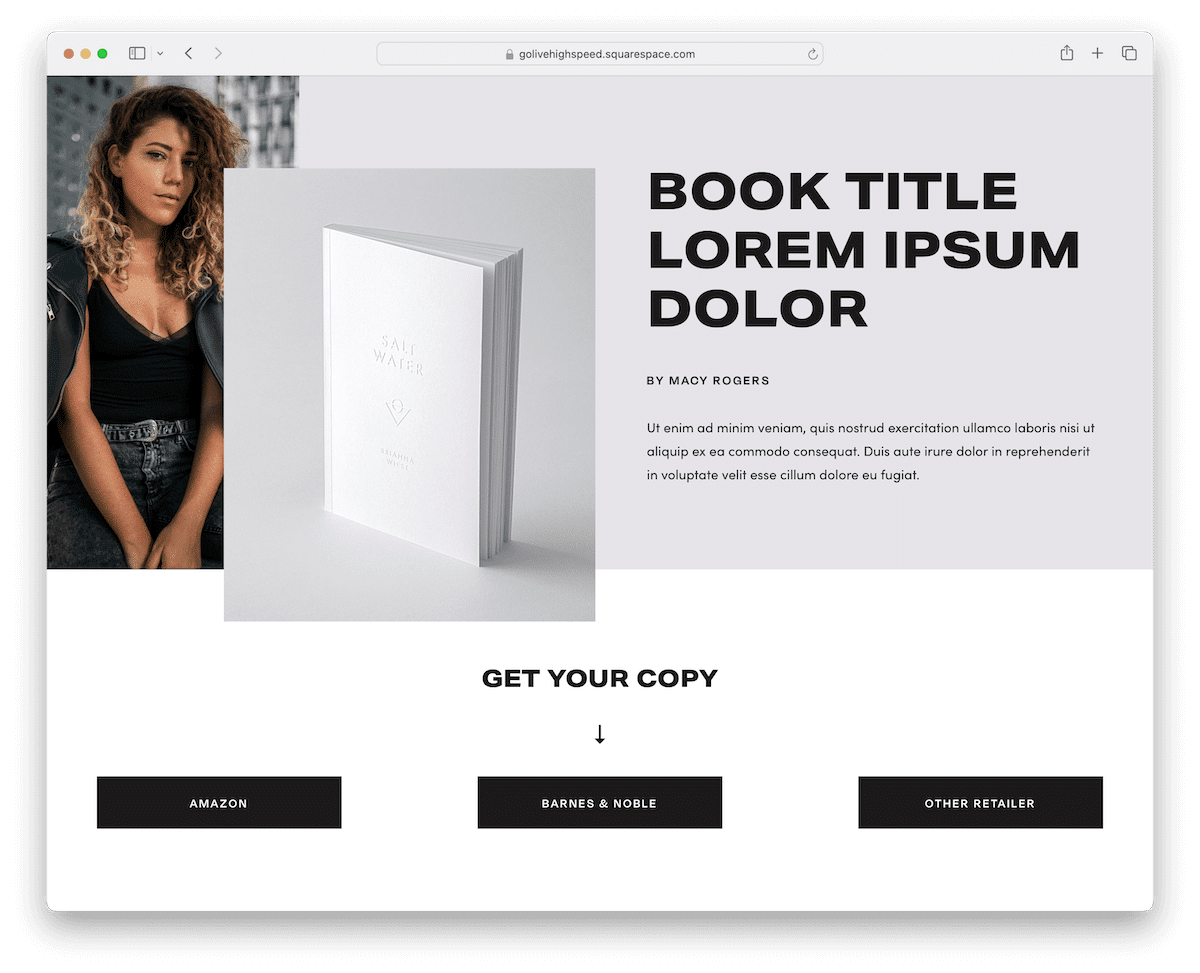
Book Page Squarespace one-page template strikes a harmonious balance with its pleasant combination of dark and light design elements, creating an engaging visual experience.
Bold black CTA buttons stand out, compelling visitors to take action. An inviting About section offers insight into the story or mission, while a dedicated video section adds a dynamic, interactive layer.
A seamlessly integrated subscription form encourages ongoing engagement, and a testimonial slider showcases positive feedback, adding credibility and trust.
Couldn’t find the right design for your website? You can continue your search with the following Squarespace website templates ranked and reviewed by web design experts.
The next three are built for a single sales page.
12. Social Motion

Social Motion is a Squarespace sales page template that exudes femininity and sophistication, making it ideal for brands seeking to convey elegance.
It features seven pre-made long-form pages for detailed storytelling and comprehensive information display.
The template enhances engagement through a sleek testimonials slider and a subscription form for lead capture.
An integrated Instagram feed enables a dynamic display of social proof, while the clean footer (check out more great footer examples) neatly houses essential links and social buttons.
13. Degraw

Degraw is a Squarespace sales page template that captivates with a text-heavy section above the fold, delivering key messages up front. It’s not something every day, and that’s precisely what makes it special.
Its navigation bar smartly disappears as you scroll down, reducing distractions, yet reappears when you scroll back up, ensuring ease of access.
Strategically placed CTAs throughout guide users towards key actions. Finally, the three-column footer is meticulously organized, offering business details, contact information, and social links, making it practical and user-friendly.
14. Lusaka

Lusaka is a template that impresses with a full-width image background above the fold, setting an enticing stage for your content.
The transparent navbar integrates seamlessly with the design and features a clear CTA that engages visitors from the start.
This template masterfully blends text and images, creating a visually appealing narrative that guides the viewer through the page.
A concise contact form invites interaction, while the minimalist footer neatly wraps up the page, providing essential links and business details without overwhelming the design.
How To Make A One Page Website With Squarespace
Creating a one-page website with Squarespace won’t take you long. All it takes are just a few steps, and you’re ready to rock-and-roll.
- Sign up or log in: Start by visiting Squarespace.com. If you’re new, sign up for an account; if you’re a returning user, simply log in.
- Choose a template: Browse the Squarespace library and select a one-page template that best fits your needs. Hint: Choose any from the collection above and save yourself time.
- Customize your template: Once you’ve selected it, you can customize it to your liking. Use the Squarespace editor to add and edit sections like About, Services, Portfolio, and Contact. You can adjust fonts, colors, and layout options to match your brand identity.
- Add your content: Insert text, images, and other media to each page section. Ensure your content is engaging and informative, providing value to your visitors.
- Set up your domain: Choose a domain name that reflects your brand or project. You can purchase a new domain through Squarespace or connect an existing one.
- Review and publish: Take a final look at your website to ensure everything is as you want. Check the mobile view to ensure it’s responsive and user-friendly on all devices. Once satisfied, hit the “Publish” button to make your one-page website live.
Need inspiration? Then don’t miss our list of the best Squarespace website examples.
How To Make A Sales Page With Squarespace
Creating a compelling sales page with Squarespace is easy and quick, even if you’re new to web design.
Why?
Because you don’t need coding or design skills.
Follow these five simple steps to get your sales page up and running:
- Sign up or log in: Start by signing up for a Squarespace account or logging in if you already have one. Choose the plan that best fits your needs, and let the fun begin.
- Choose a template: Browse through our Squarespace sales page template list and select one that aligns with your brand and the product or service you’re selling. Remember, you can always customize and fine-tune the template.
- Customize your template: Use the Squarespace editor to personalize your chosen template. Add your branding elements, such as logos and color schemes. Craft compelling content and visuals for your sales page, ensuring your unique selling propositions (USPs) are prominently featured. Incorporate images, videos, and testimonials to enhance credibility and appeal.
- Add eCommerce features: If you’re selling a product or service directly from your sales page, integrate Squarespace’s eCommerce tools. Set up product blocks, add pricing information, and configure payment options for smooth transactions.
- Preview and test: Before going live, preview your sales page to ensure everything looks and works as intended. Check the page on different devices and browsers to ensure compatibility and responsiveness. (Don’t forget to test the order/payment process!)
Before taking action, you may also want to review these Squarespace website examples to see what’s possible.
FAQs About Squarespace One Page Templates
Can I use Squarespace for a one-page website?
Yes, Squarespace supports one-page websites. You can choose a single-page template or customize a template to fit all your content on one page using anchor links for smooth navigation.
Are Squarespace one-page templates mobile-friendly?
Yes, all Squarespace templates are designed to be responsive, ensuring your one-page website looks and functions well on desktop and mobile devices.
How do I add anchor links in Squarespace for one-page navigation?
To add anchor links, you’ll need to use the “Edit” mode to add a “Text” block where you want your link to jump to, then assign a unique ID. Next, create navigation links to point to those IDs using the format “#youruniqueid.”
Can I integrate eCommerce into a Squarespace one-page site?
Yes, you can integrate eCommerce elements into a one-page site on Squarespace. Add Product Blocks or using the Commerce platform to sell products or services directly from your one-page website.
Is it possible to add a blog section to a Squarespace one-page website?
While a one-page website typically focuses on concise, straightforward content, you can technically add a blog section. However, each blog post will be a separate page outside the one-page structure.
How do I optimize my Squarespace one-page site for SEO?
Squarespace provides built-in SEO tools to help optimize your site. Ensure your page has a clear title and meta description, use structured headings (H1, H2, etc.) throughout your content, add alt text to images, and use Squarespace’s clean URLs and site speed optimization features.
Can I customize Squarespace sales page templates to match my brand?
Yes, Squarespace templates are highly customizable. You can adjust colors, fonts, layouts, and add branding elements like logos and images. In short, make the sales page reflect your brand identity.
Is it possible to integrate 3rd-party tools with Squarespace sales pages?
Yes, Squarespace allows integration with various 3rd-party tools and services, including email marketing platforms, social media, analytics tools, and more.
Can I track the performance of my Squarespace sales page?
Yes, Squarespace provides built-in analytics that allow you to track your sales page performance, including page views, conversion rates, and other key metrics, helping you understand your audience and optimize your page.

Related Posts




Comments (0)