
49 Free Bootstrap Dropdown Menu Examples (2026)
By Aigars Silkalns · 20-min read
User profile menus, action kebabs, mega menus, filter dropdowns, language switchers and notification bells: Bootstrap’s .dropdown component sits behind nearly every modern web app’s chrome. This collection gathers 49 free Bootstrap dropdown menu examples: 20 dropdown snippets we built ourselves, two 2026 Colorlib snippets with a dropdown built in (a header mini cart and a breadcrumb with a sibling-pages menu), a uiCookies pack of eight menu patterns, and 26 Bootstrap 5–compatible examples covering the patterns developers actually ship: nav-bar dropdowns with rich items, account menus with avatars, mega menus with multi-column grids, filter dropdowns with form controls, split buttons, directional variants, and Bootstrap 5.3’s native dark-mode treatment. Every third-party screenshot is a working BS 5.3 implementation; each of those links to its original inspiration on CodePen, Bootsnipp, or GitHub for those who want to fork or compare. If you’re rebuilding a navbar, designing a settings menu, or hunting for a specific dropdown pattern, start here.
Our own Colorlib dropdown snippets are free downloads with live demos, rebuilt as dependency-free HTML, CSS and vanilla JavaScript. They work on their own or inside Bootstrap 4, 5 and 6 projects without jQuery or Bootstrap’s JavaScript, and their menus keep keyboard navigation.
What is a Bootstrap dropdown?
A Bootstrap dropdown is a toggleable menu that displays a list of links or actions when its trigger element is clicked. Dropdowns are the foundation of nearly every web app’s navigation, settings menu, action menu (⋮), and user account menu. Bootstrap 5 ships dropdowns with Popper.js-based positioning, ARIA-compliant keyboard navigation, and built-in support for nested elements like dividers, headers, and forms.
When to use a dropdown:
- Nav-bar links with sub-pages (“Products › Categories”)
- Action menus on table rows or cards (
⋮ More) - User account menus with profile, settings, logout
- Filter or sort selectors that don’t fit in a flat row
- Split buttons (primary action + secondary options)
Bootstrap 5 vs Bootstrap 4 dropdowns: Bootstrap 5 replaced jQuery with vanilla JavaScript across all components, and dropdowns received API changes: data-toggle became data-bs-toggle, the global bootstrap.Dropdown namespace replaced jQuery plugins, and the auto-close behavior gained finer control via data-bs-auto-close="inside" | "outside" | "true" | "false". The HTML structure is otherwise compatible — most Bootstrap 4 dropdowns work in 5 with attribute renames.
Browser support: All modern browsers. Popper.js handles positioning edge cases automatically (flipping menus when they’d overflow the viewport). Hover-triggered dropdowns require custom CSS — Bootstrap defaults to click-trigger for accessibility (hover excludes keyboard and touch users). All 26 third-party examples below were tested in Chrome 124, Safari 17, and Firefox 125 on May 2026.
How to use Bootstrap dropdowns (basic markup)
<!-- Standard dropdown -->
<div class="dropdown">
  <button class="btn btn-secondary dropdown-toggle" type="button" data-bs-toggle="dropdown" aria-expanded="false">
    Dropdown button
  </button>
  <ul class="dropdown-menu">
    <li><a class="dropdown-item" href="#">Action</a></li>
    <li><a class="dropdown-item" href="#">Another action</a></li>
    <li><hr class="dropdown-divider"></li>
    <li><a class="dropdown-item" href="#">Something else</a></li>
  </ul>
</div>

<!-- Split button dropdown -->
<div class="btn-group">
  <button type="button" class="btn btn-primary">Save</button>
  <button type="button" class="btn btn-primary dropdown-toggle dropdown-toggle-split" data-bs-toggle="dropdown" aria-expanded="false">
    <span class="visually-hidden">Toggle Dropdown</span>
  </button>
  <ul class="dropdown-menu">
    <li><a class="dropdown-item" href="#">Save as draft</a></li>
    <li><a class="dropdown-item" href="#">Save and publish</a></li>
  </ul>
</div>
Required JS: Bootstrap bundle (includes Popper.js, which dropdowns depend on for positioning).
Common gotcha: The trigger element must have data-bs-toggle="dropdown" AND aria-expanded="false" AND be inside the same .dropdown (or .btn-group) wrapper as the .dropdown-menu. Omit any of these and the dropdown won’t open.
Free Colorlib Bootstrap dropdown snippets (download)
We made these 20 dropdown menus ourselves, so they come first. Each has a free download and a live demo, where you can try the menu with the mouse or the keyboard.
Dropdown V01
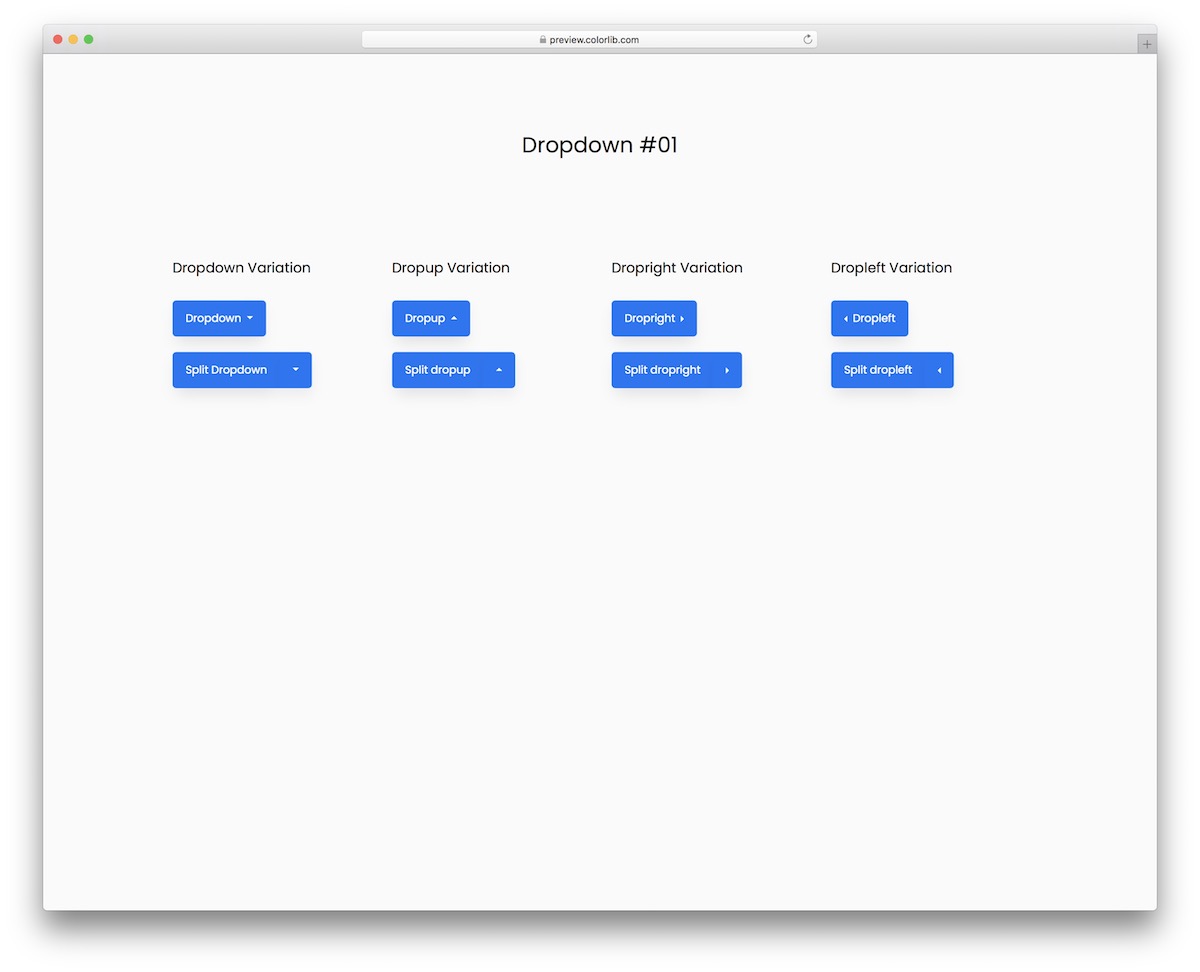
Dropdown V01 is a collection of free Bootstrap-style dropdown menus that come in two different styles and four different positions, a handy base for any button menu in your project.
Like every snippet in this section, it is plain HTML and CSS plus a few lines of vanilla JavaScript. The menus open without Bootstrap’s JavaScript, support keyboard navigation, and the download is 101 KB.
Dropdown V02
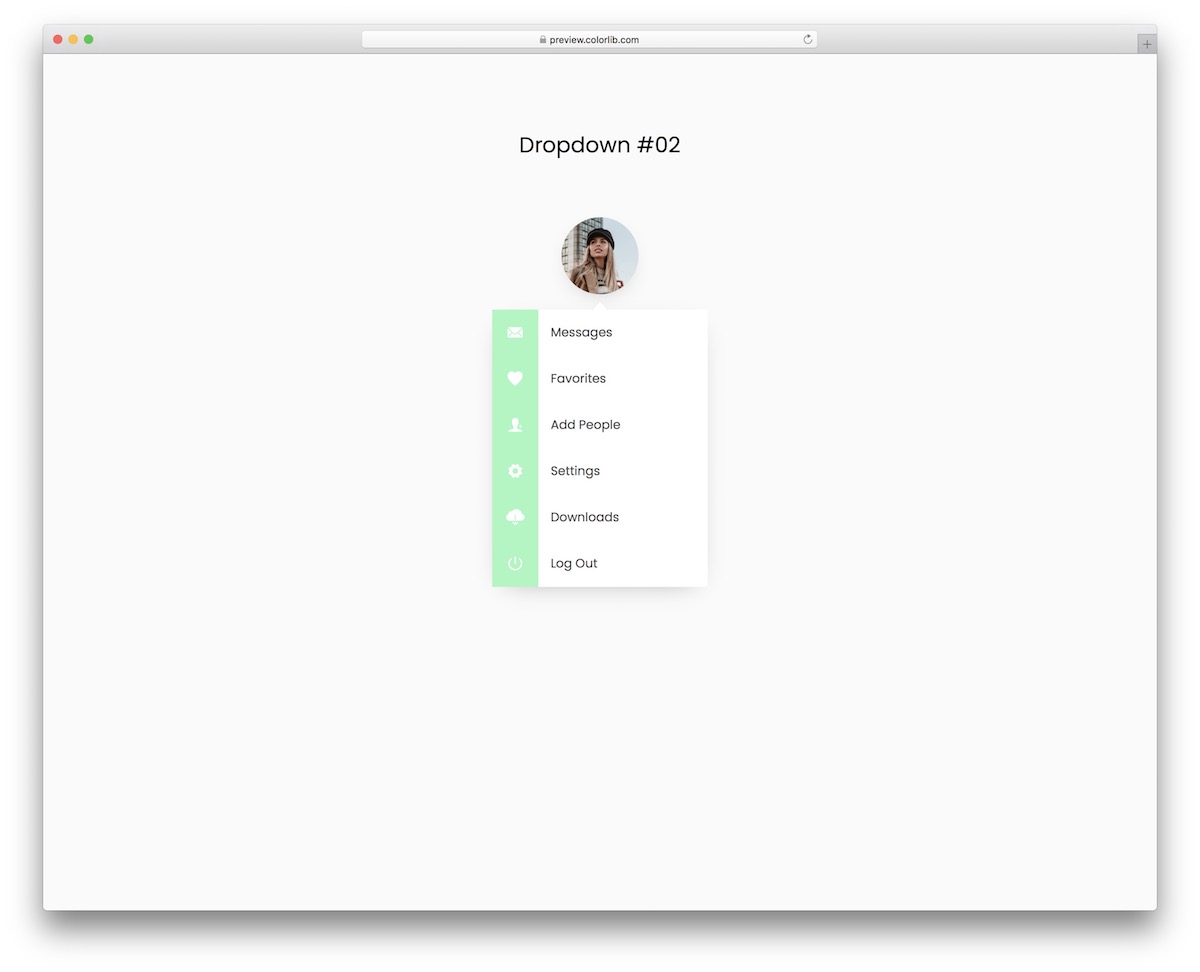
To keep things clean and minimal, Dropdown V02 is a profile dropdown menu that shows on click. The avatar reveals different menu sections with icons and a hover effect.
No jQuery or Bootstrap files are loaded, yet it looks the same when you drop it into a Bootstrap 4, 5 or 6 project.
Dropdown V03
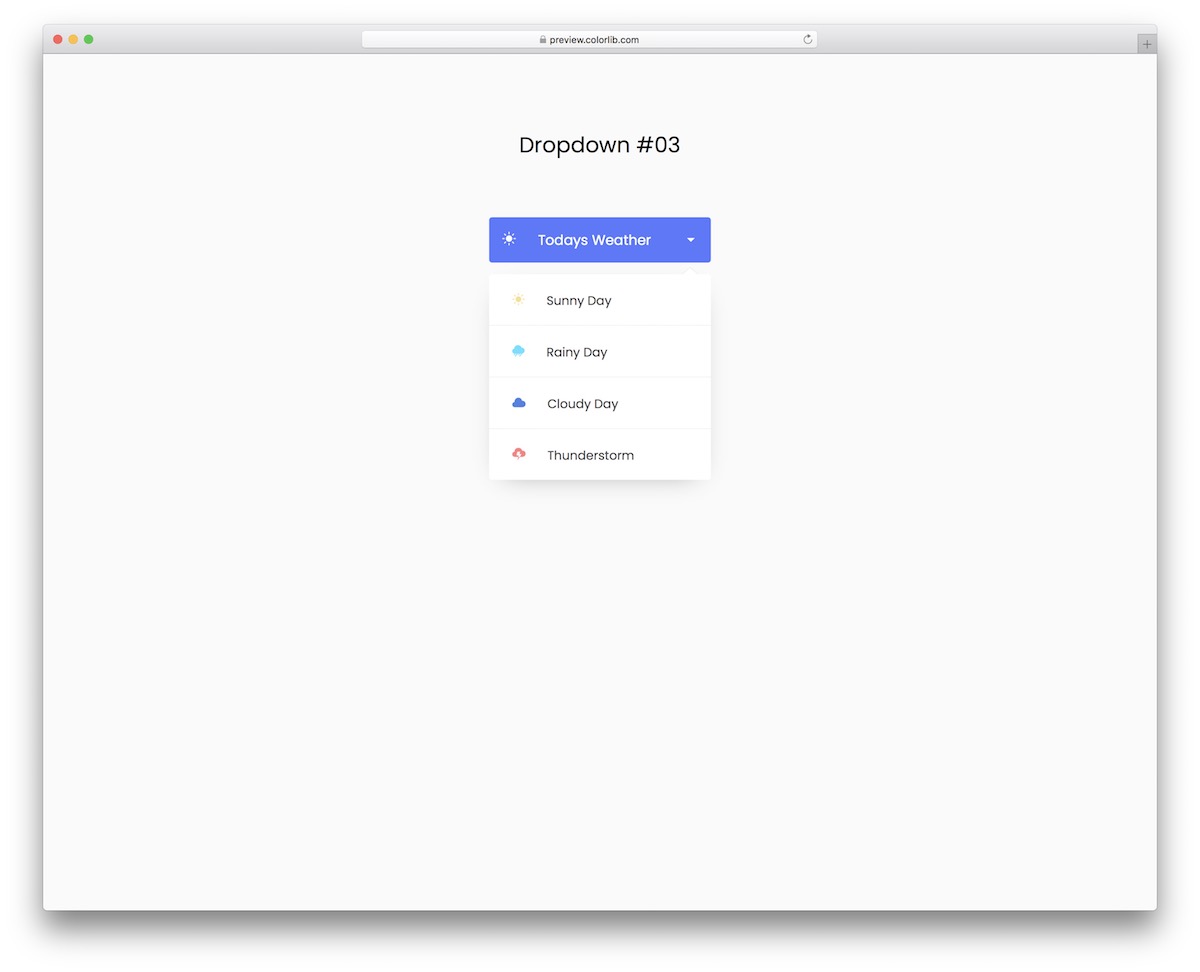
For travel and news sites, Dropdown V03 is a weather dropdown menu that adds a useful touch to your user experience. Working with the widget is easy, which makes integration smooth.
The menu opens and closes with a few lines of vanilla JavaScript, and keyboard users can operate it too.
Dropdown V04
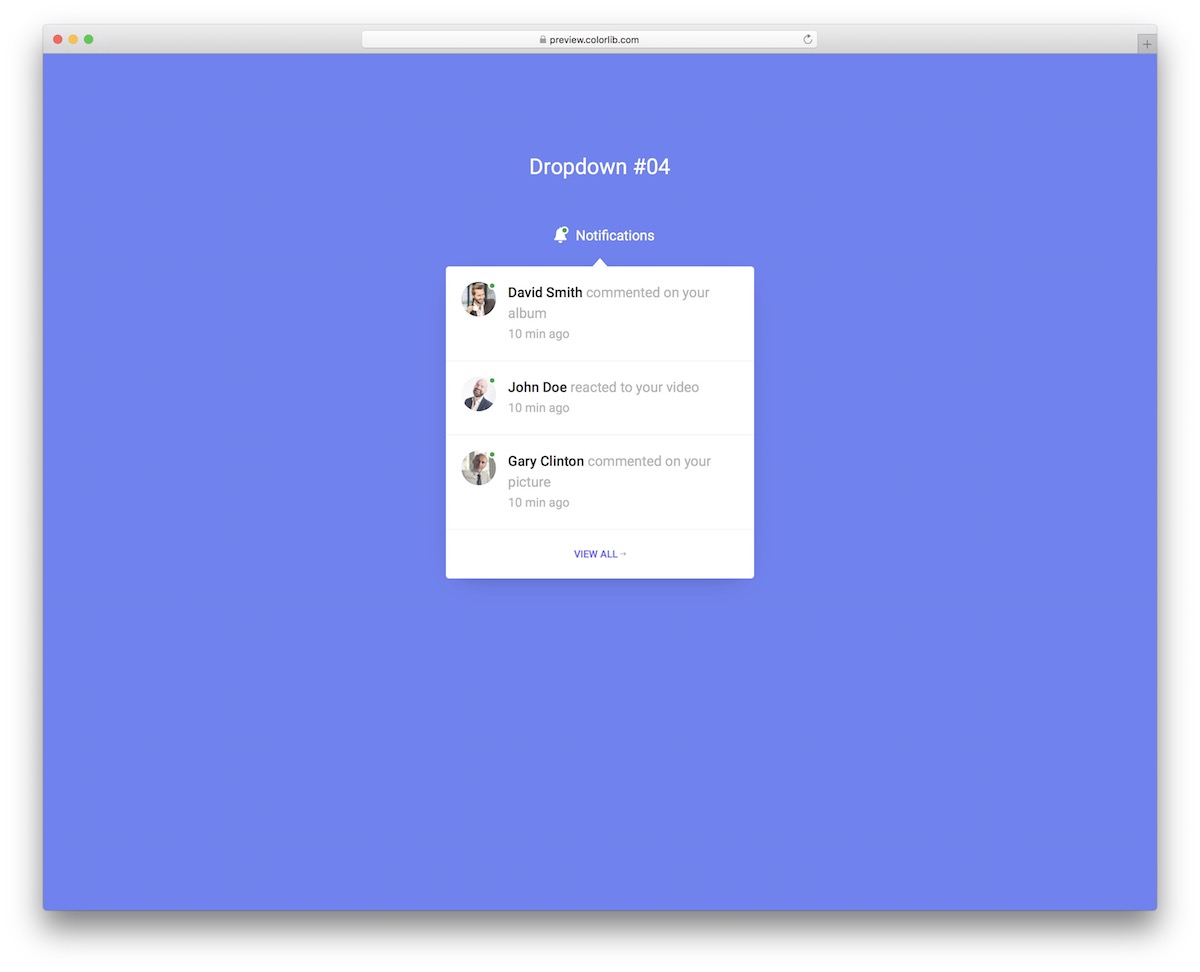
Whether you run a members area or an application, Dropdown V04 is a notifications dropdown menu. A bell and a button open a list of notifications with thumbnails.
It uses no plugins or Bootstrap scripts, and the September 2026 rebuild trimmed the download to 304 KB.
Dropdown V05
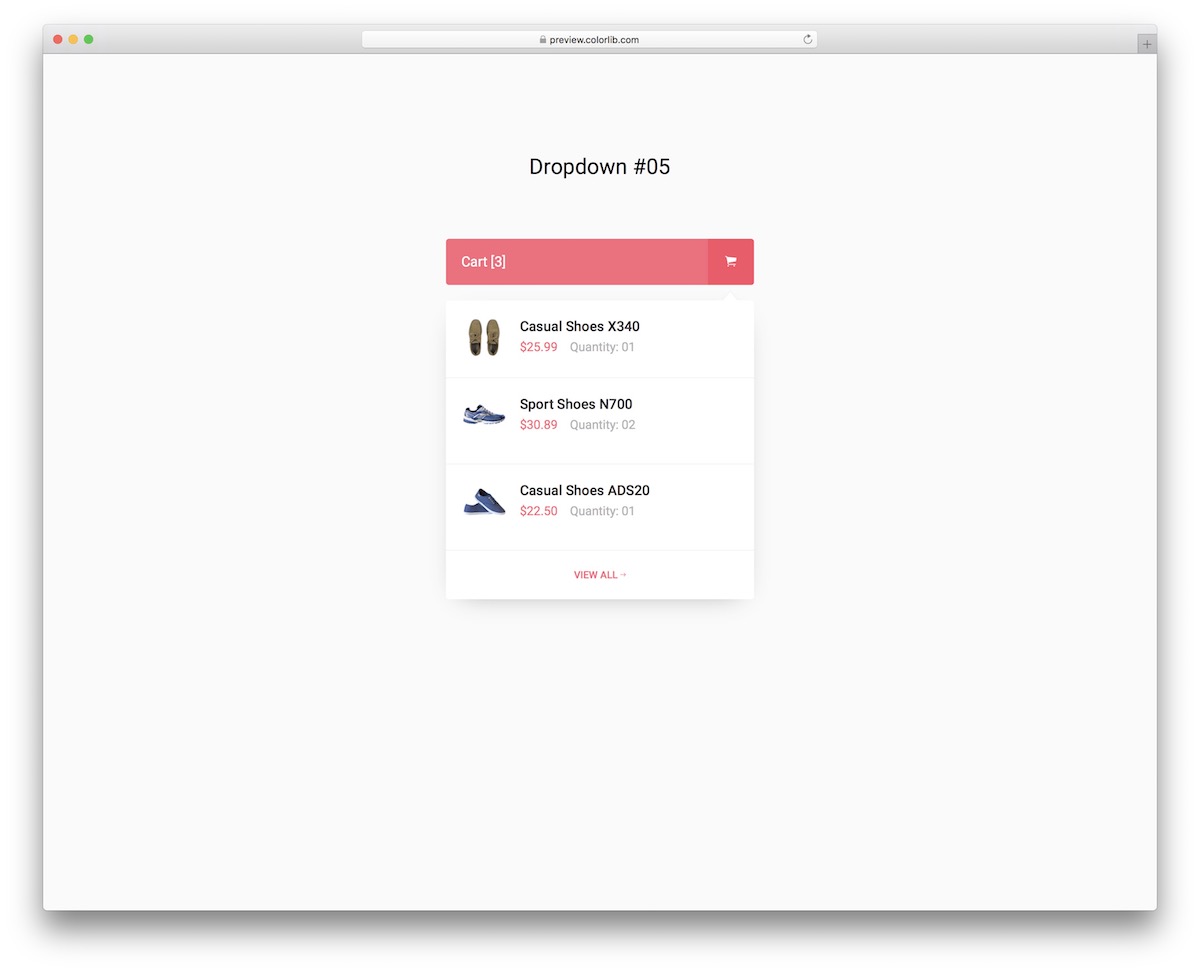
As the name implies, this cart dropdown menu works great for online stores. Instead of building one from the ground up, grab Dropdown V05 and adapt it to your shop.
It does not rely on Bootstrap’s JavaScript, and the menu supports keyboard navigation.
Dropdown V06
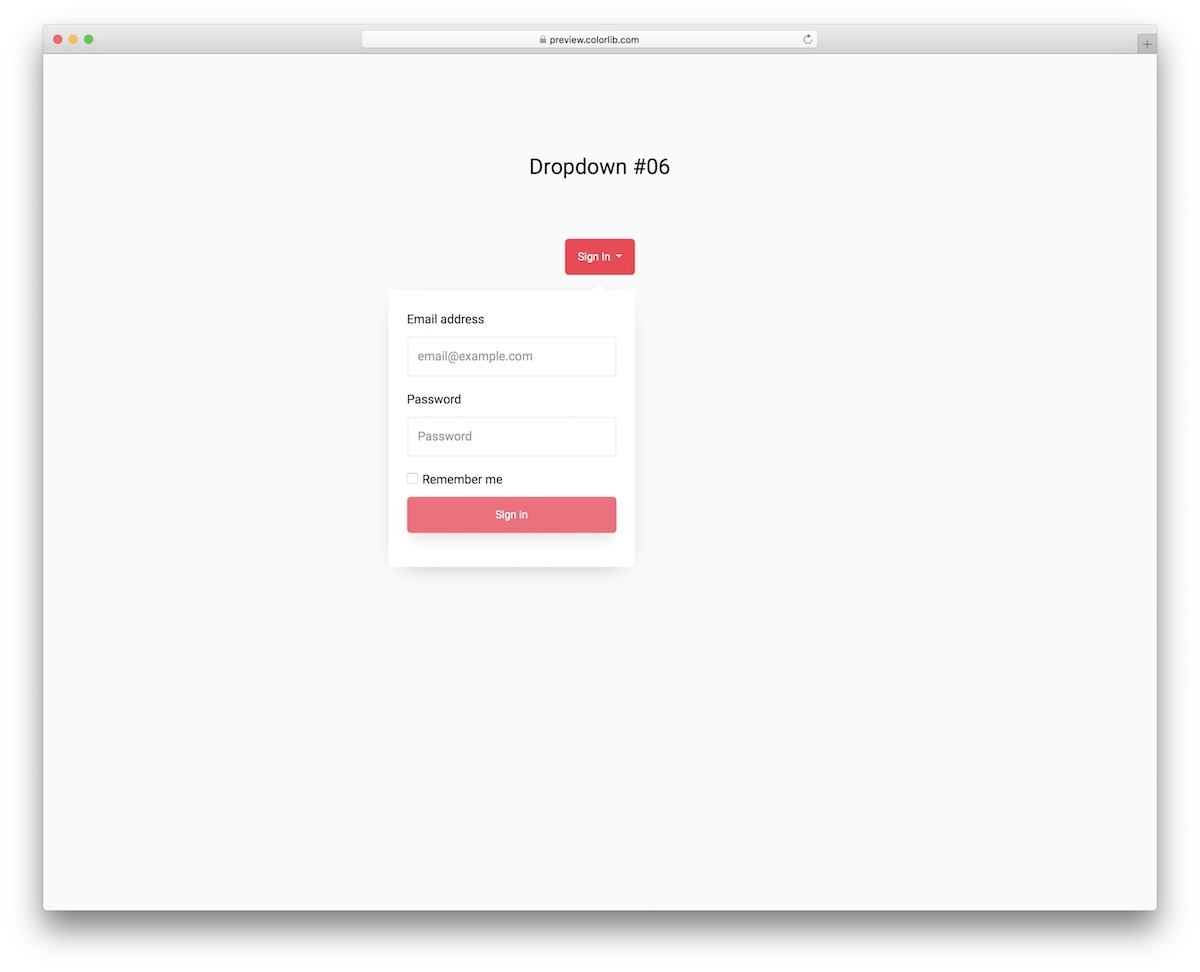
For users to access their accounts, Dropdown V06 puts a sign-in form inside a dropdown menu. The design is fully responsive and works on all modern devices and screen sizes.
It runs on its own or inside Bootstrap 4, 5 and 6 projects, with a 190 KB download and no jQuery.
Dropdown V07
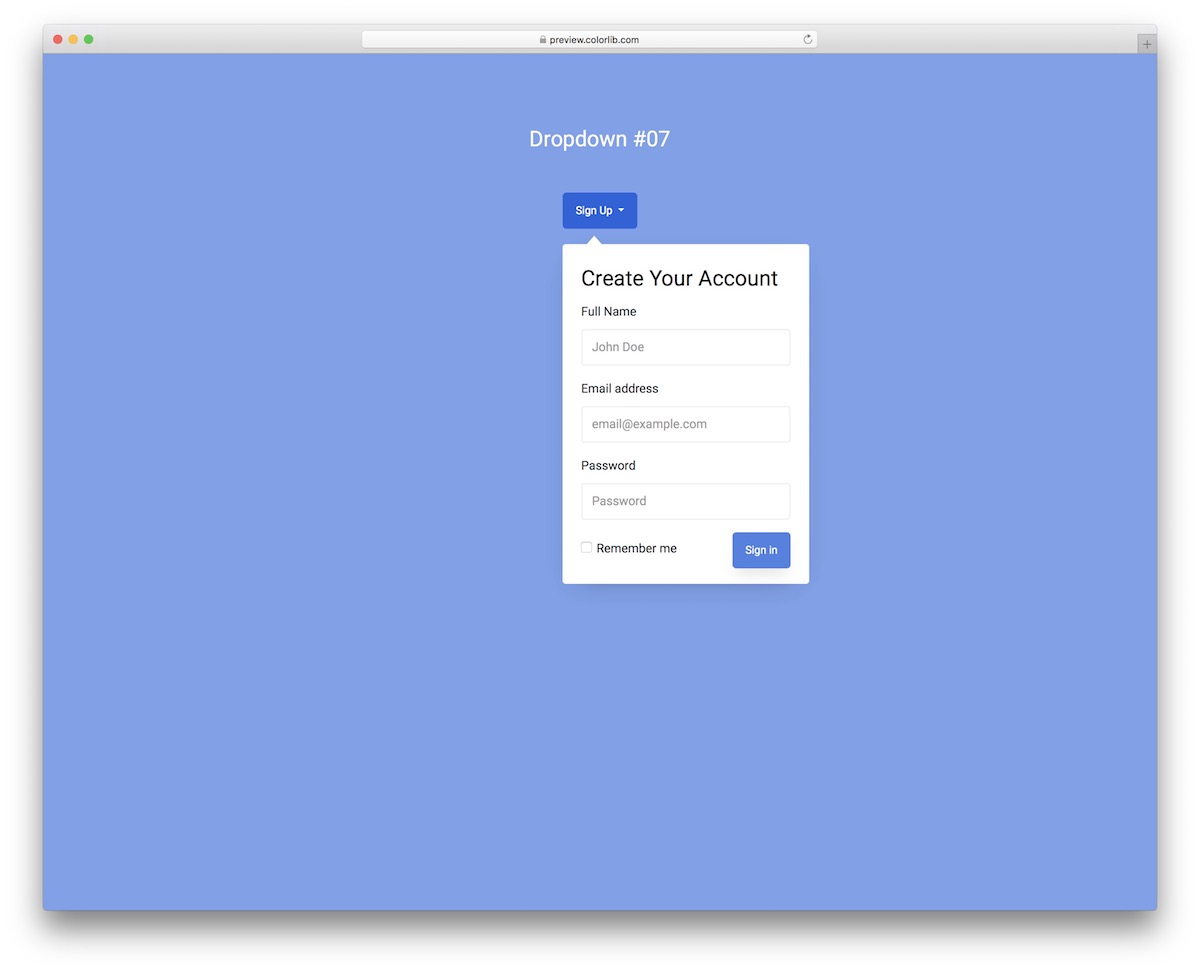
If you want to keep your website or application clutter-free, Dropdown V07 hides a sign-up form in a dropdown. Once the user hits the call to action, a full form opens for their information and password.
Plain HTML and CSS with a little vanilla JavaScript: nothing else to load.
Dropdown V08
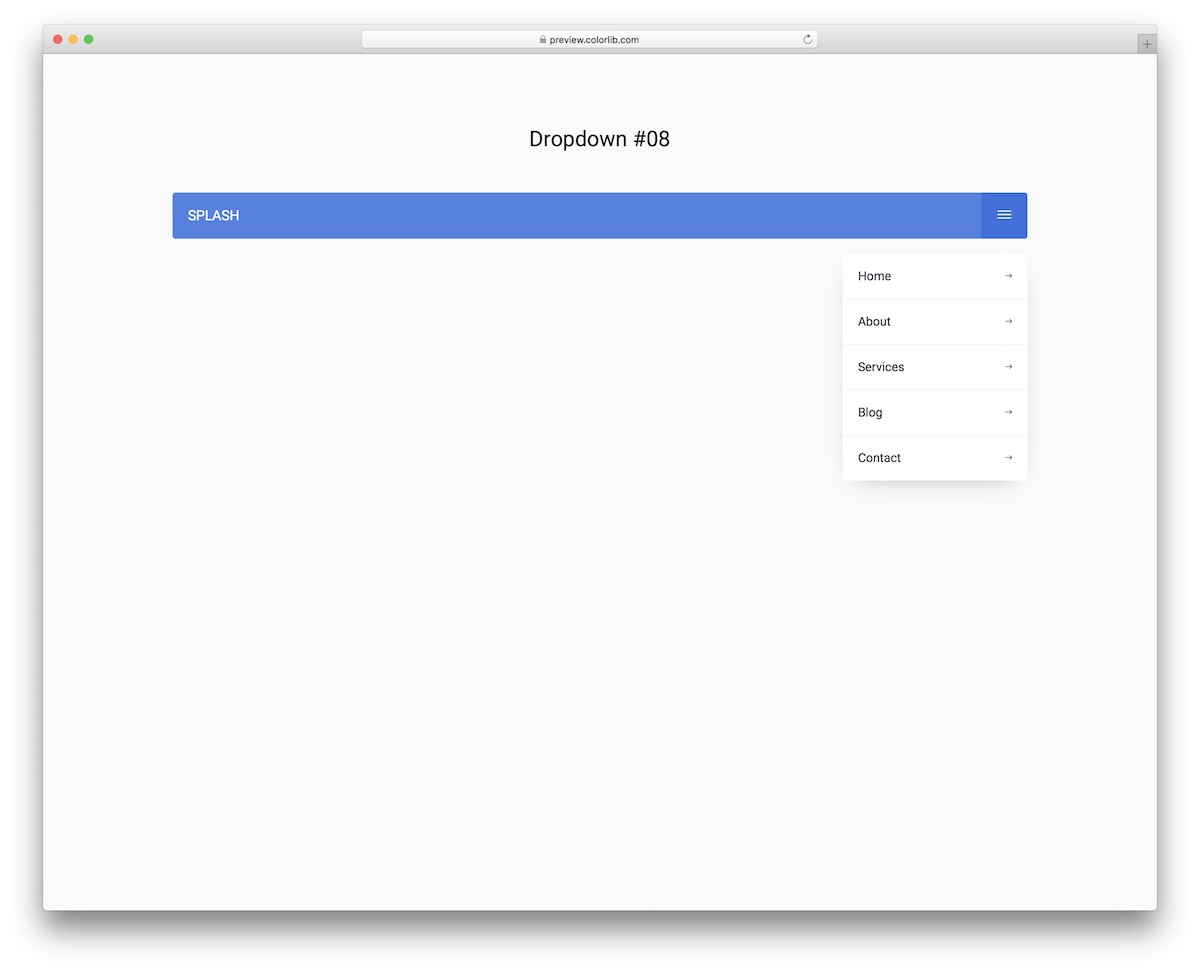
Dropdown V08 is a dropdown navbar menu in a hamburger style that gives users access to different sections with a single click. It works on every screen size, with or without Bootstrap.
The menu opens without Bootstrap’s JavaScript and can be navigated with the keyboard.
Dropdown V09
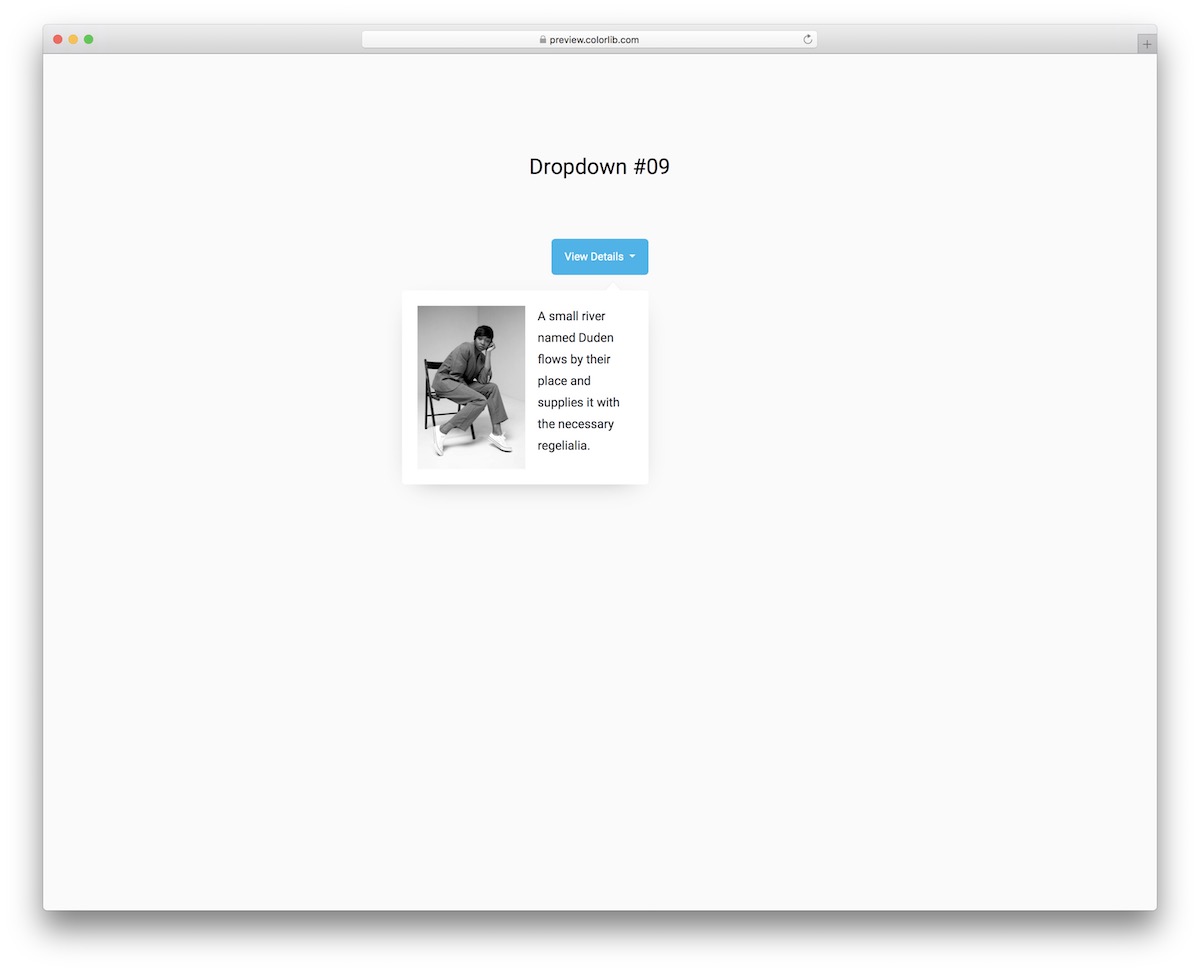
If you would like to add extra information to an item, Dropdown V09 is an additional details dropdown that supports both image and text.
It is plain HTML and CSS with a few lines of vanilla JavaScript, so it behaves the same on its own or inside a Bootstrap project. The download is 219 KB.
Dropdown V10
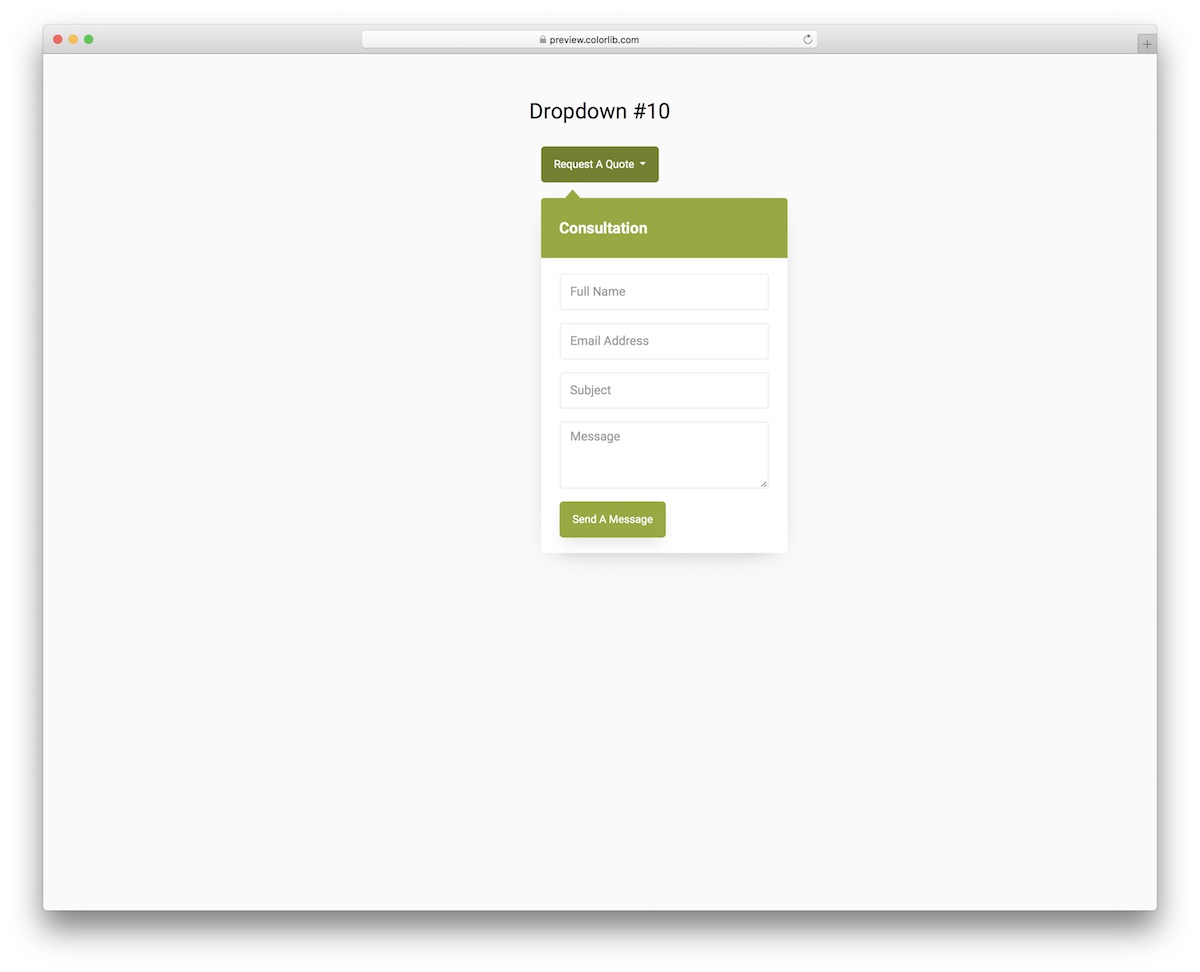
Dropdown V10 is a modern, practical request a quote form that fits many different kinds of business. The dropdown opens additional fields, like name, address, subject and message.
No jQuery, no Bootstrap files and no plugins are needed to open and close it.
Dropdown V11
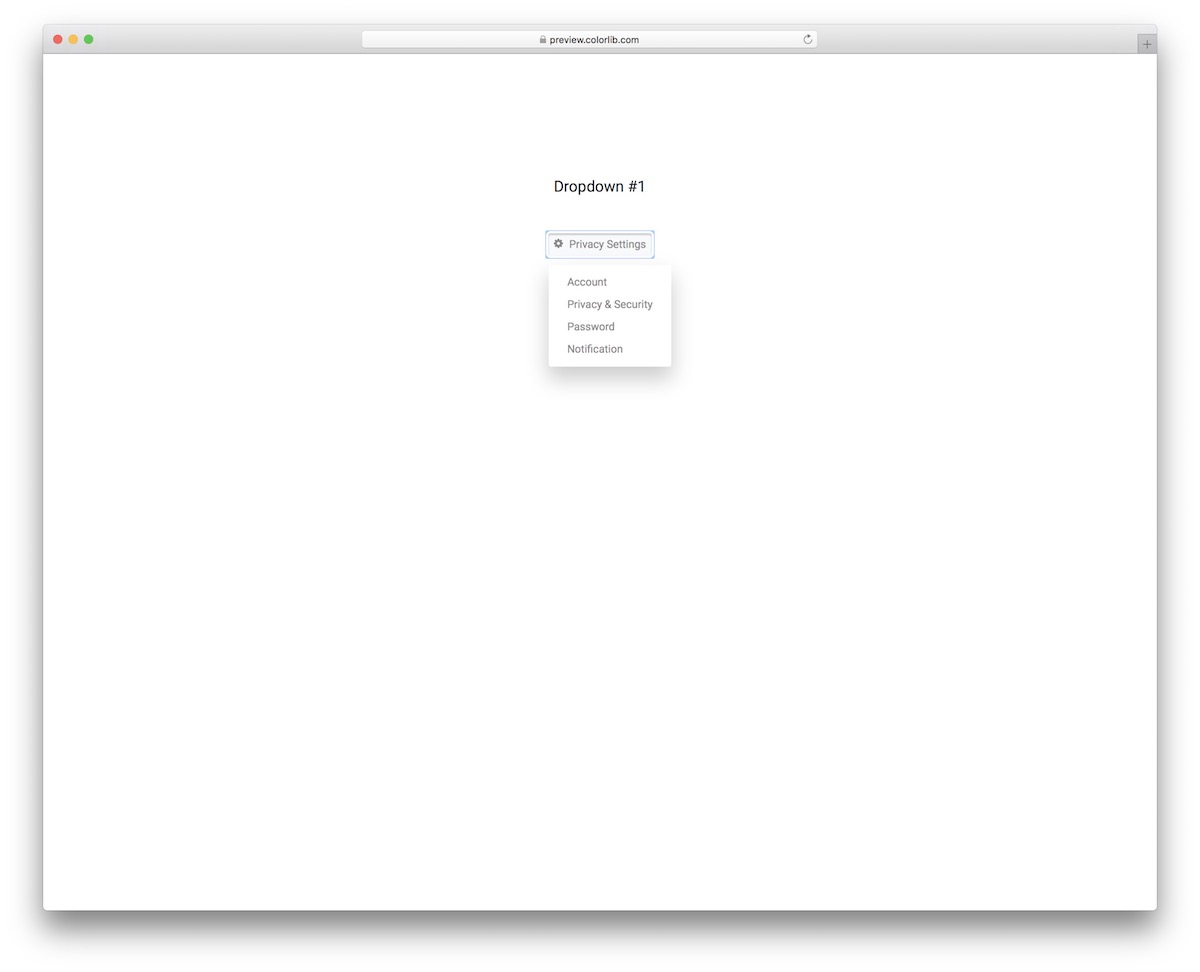
A simple button dropdown that can serve many different purposes, including settings. You can embed Dropdown V11 into your website quickly and give your application a new feature.
The rebuild took the download from 2.3 MB to 246 KB, and the menu now works without Bootstrap’s JavaScript, keyboard navigation included.
Dropdown V12

If there is extra info you would like to share and give users access to, Dropdown V12 is an advanced dropdown with a modern, clean design that works on mobile and desktop devices.
It looks the same on its own or dropped into a Bootstrap 4, 5 or 6 project.
Dropdown V13
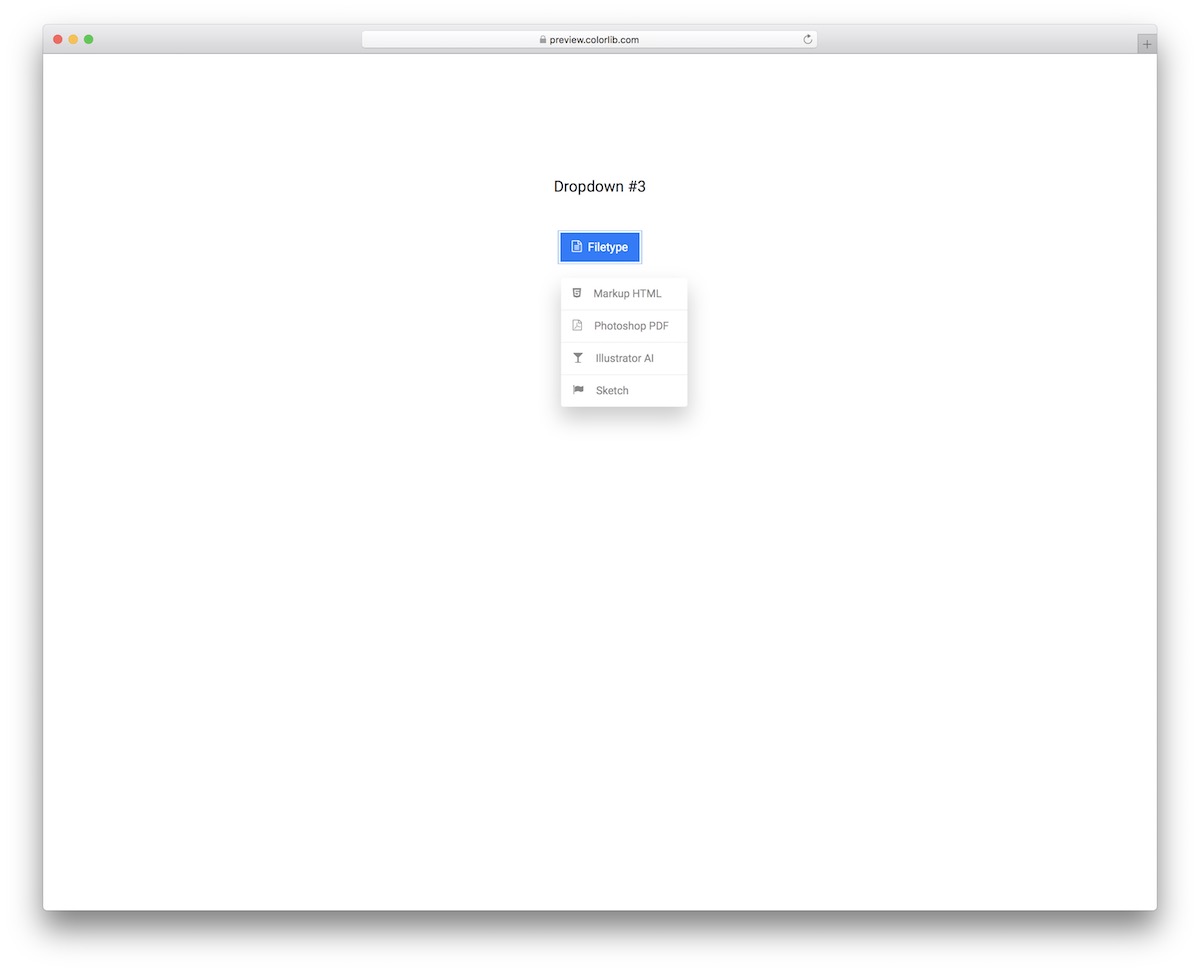
Whether it is uploading, downloading or something else, Dropdown V13 is a file select dropdown that is one click on the button away.
A few lines of vanilla JavaScript handle the menu, with no jQuery or Bootstrap scripts.
Dropdown V14
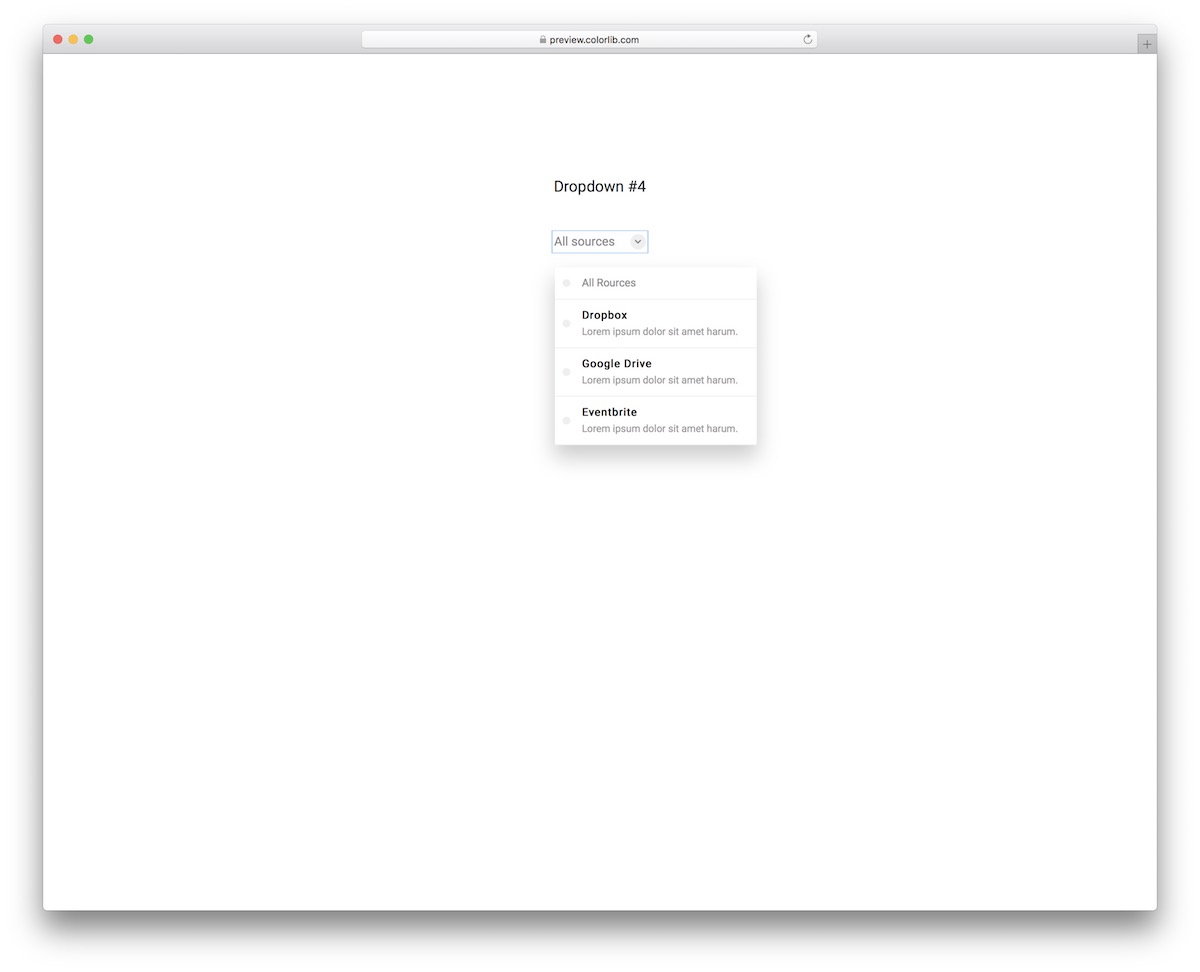
Dropdown V14 is a custom dropdown you can use for many different purposes. Its easy-to-understand structure makes it quick to integrate into your project and fill with your own options.
The menu supports keyboard navigation and needs no Bootstrap files; the download is 246 KB.
Dropdown V15
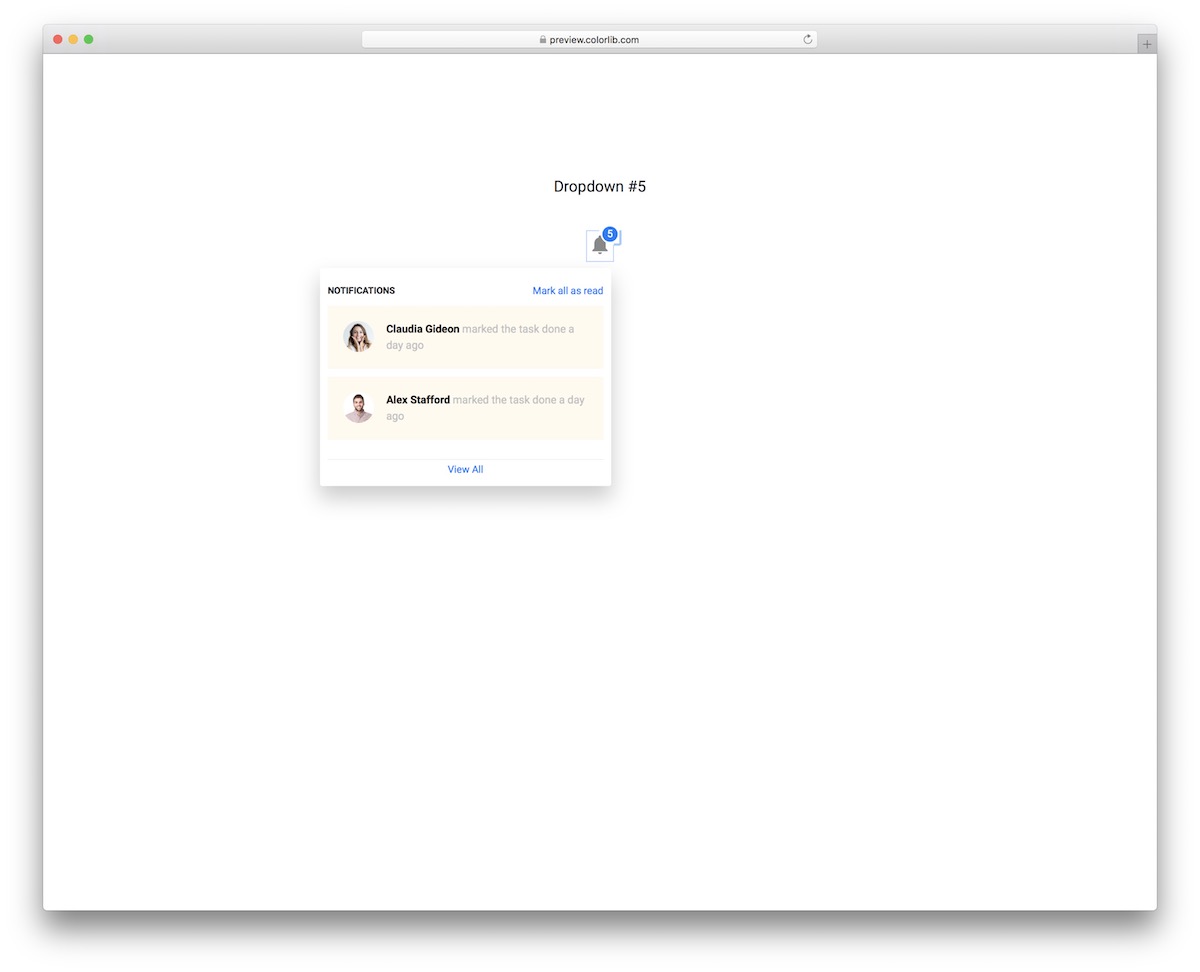
A notification dropdown with a bell icon that suits almost any project. Dropdown V15 is well organized and responsive, so it integrates quickly and works on different devices.
The download dropped from 3.5 MB to 1.1 MB in the September 2026 rebuild, and it no longer loads jQuery or Bootstrap.
Dropdown V16
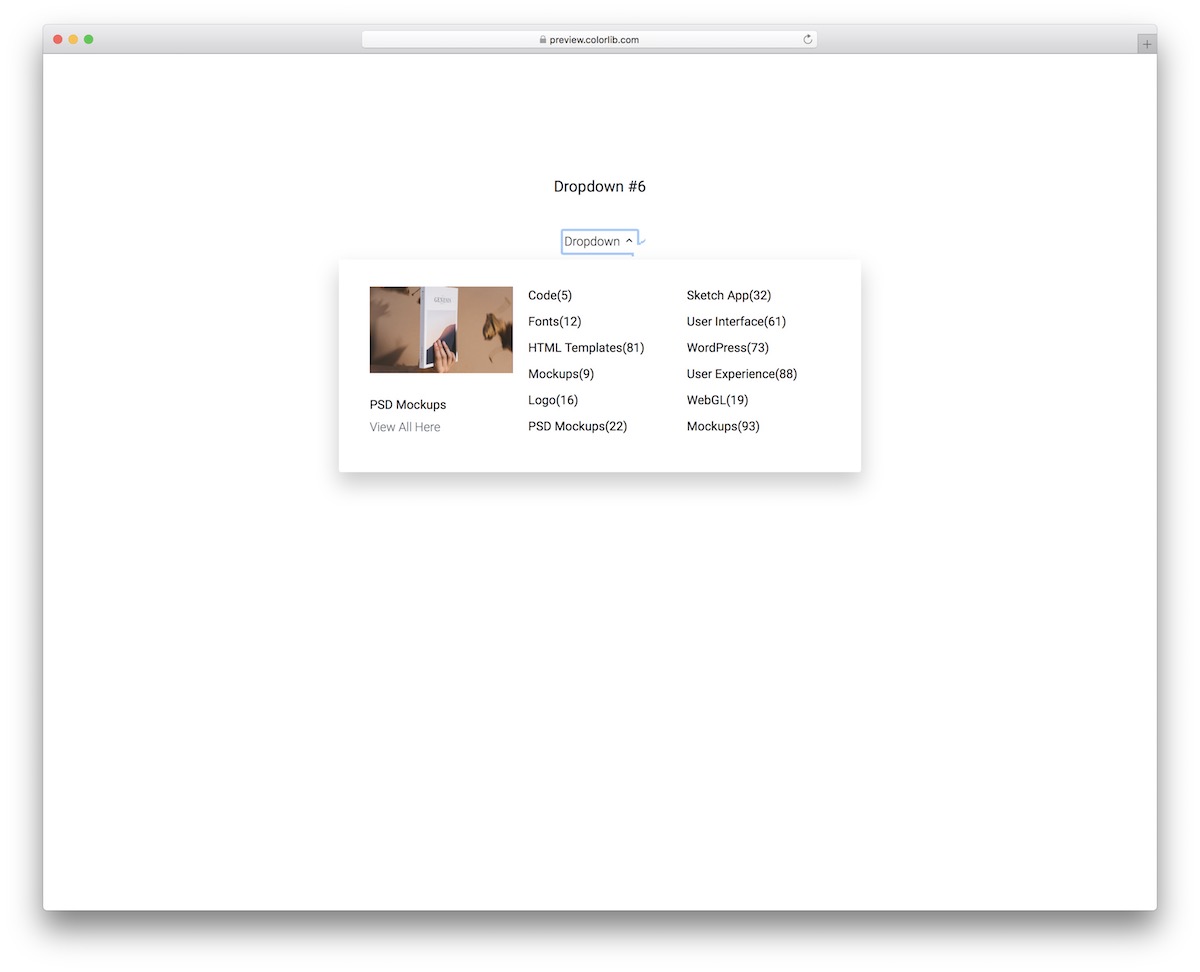
Dropdown V16 is a navigation dropdown that displays an image and different categories. Of course, you are welcome to use it for something else; the snippet will handle it.
It is plain HTML and CSS plus a little vanilla JavaScript, and it works inside Bootstrap 4, 5 and 6 projects without changes.
Dropdown V17

A dropdown menu style for your application, listing different dashboards or anything else. Dropdown V17 is bold and very clickable, so everyone can find it easily.
The menu opens without Bootstrap’s JavaScript and supports keyboard navigation.
Dropdown V18
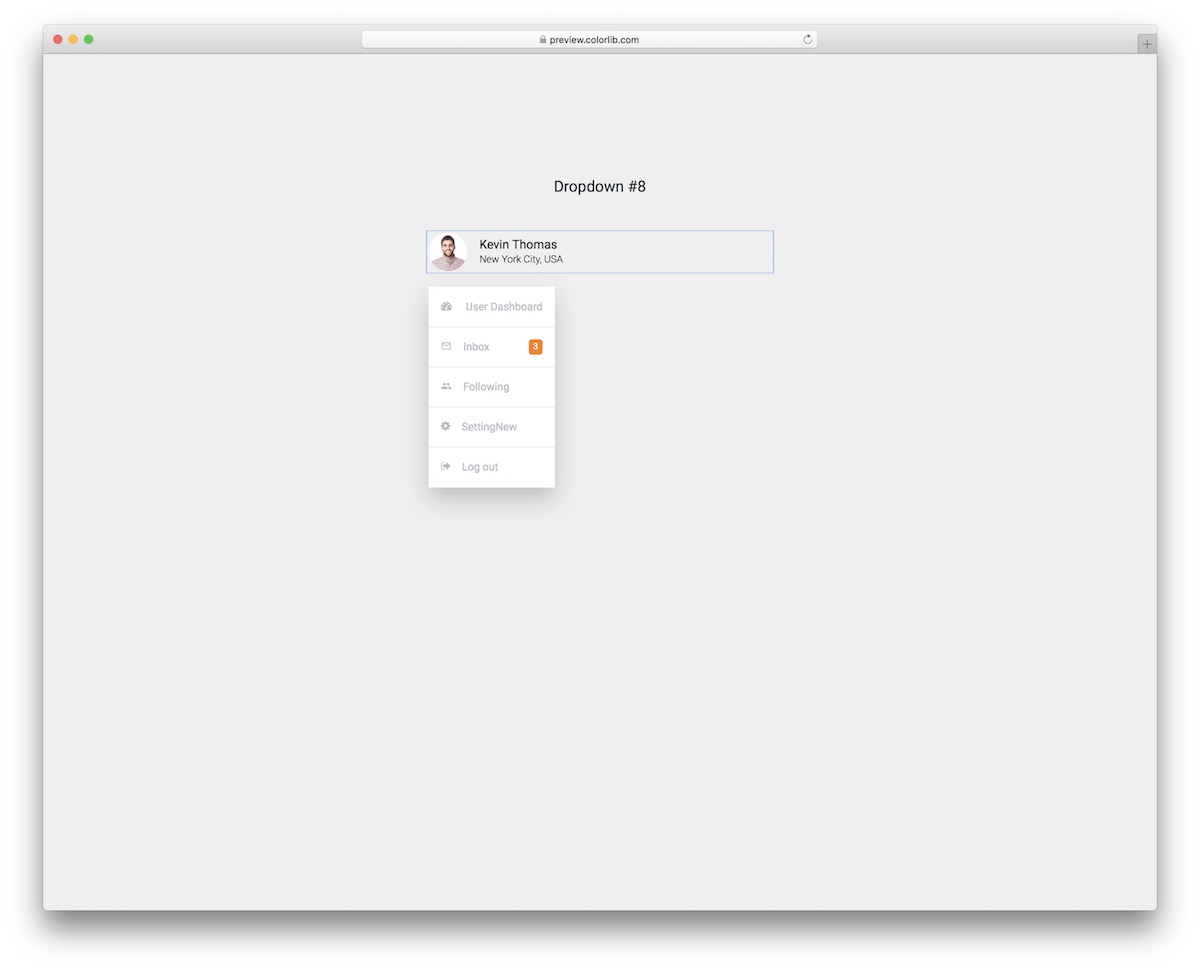
Whether you are building a membership website or a social network, Dropdown V18 is a profile dropdown with an avatar, name, location and different dropdown sections that you can extend.
No jQuery and no plugins; the download is 587 KB, down from 3.5 MB.
Dropdown V19
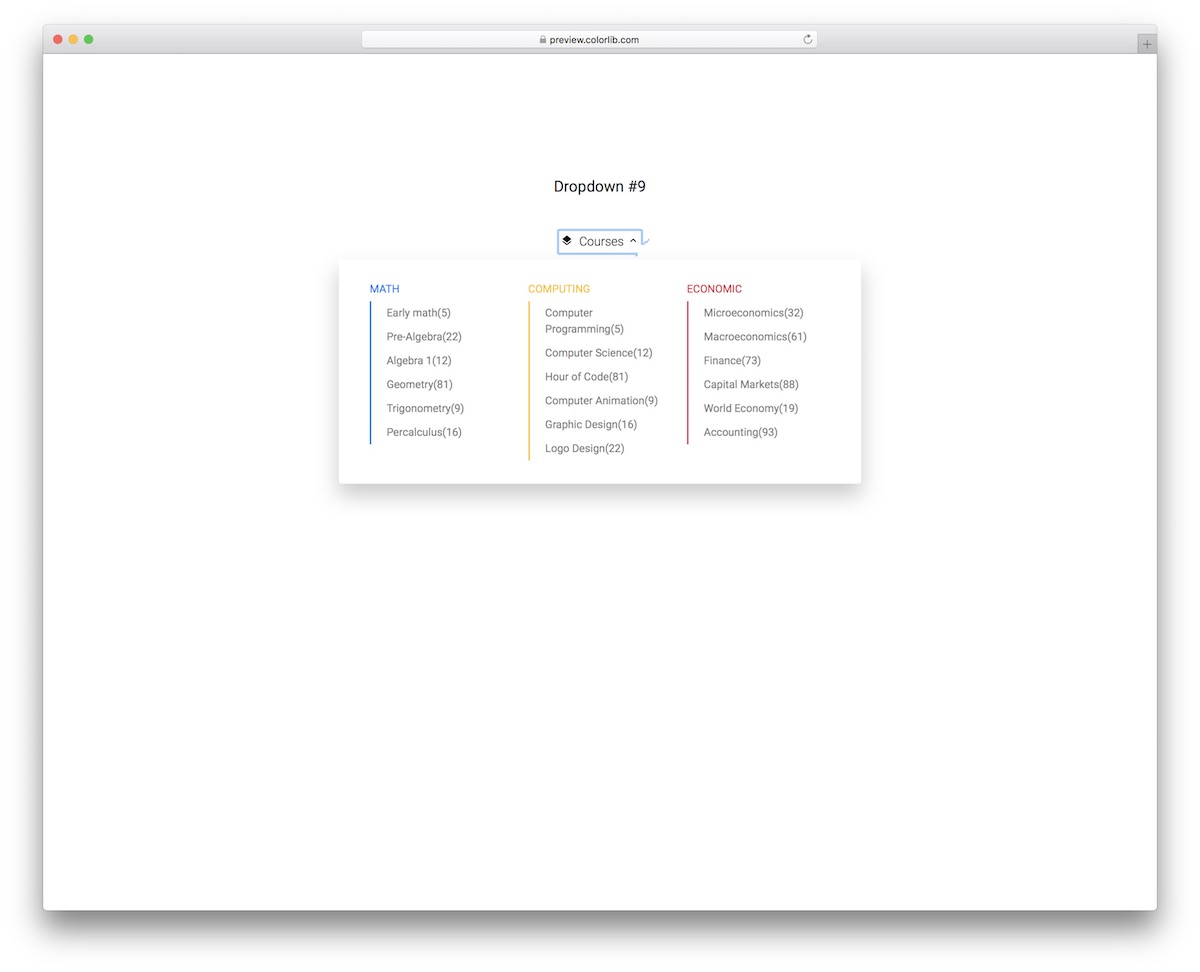
Even though this courses dropdown aims at online education platforms, you are welcome to use it for something else. Dropdown V19 distributes content in three categories, with the title above and the categories below.
It runs on its own or in a Bootstrap 4, 5 or 6 project and looks the same in each.
Dropdown V20
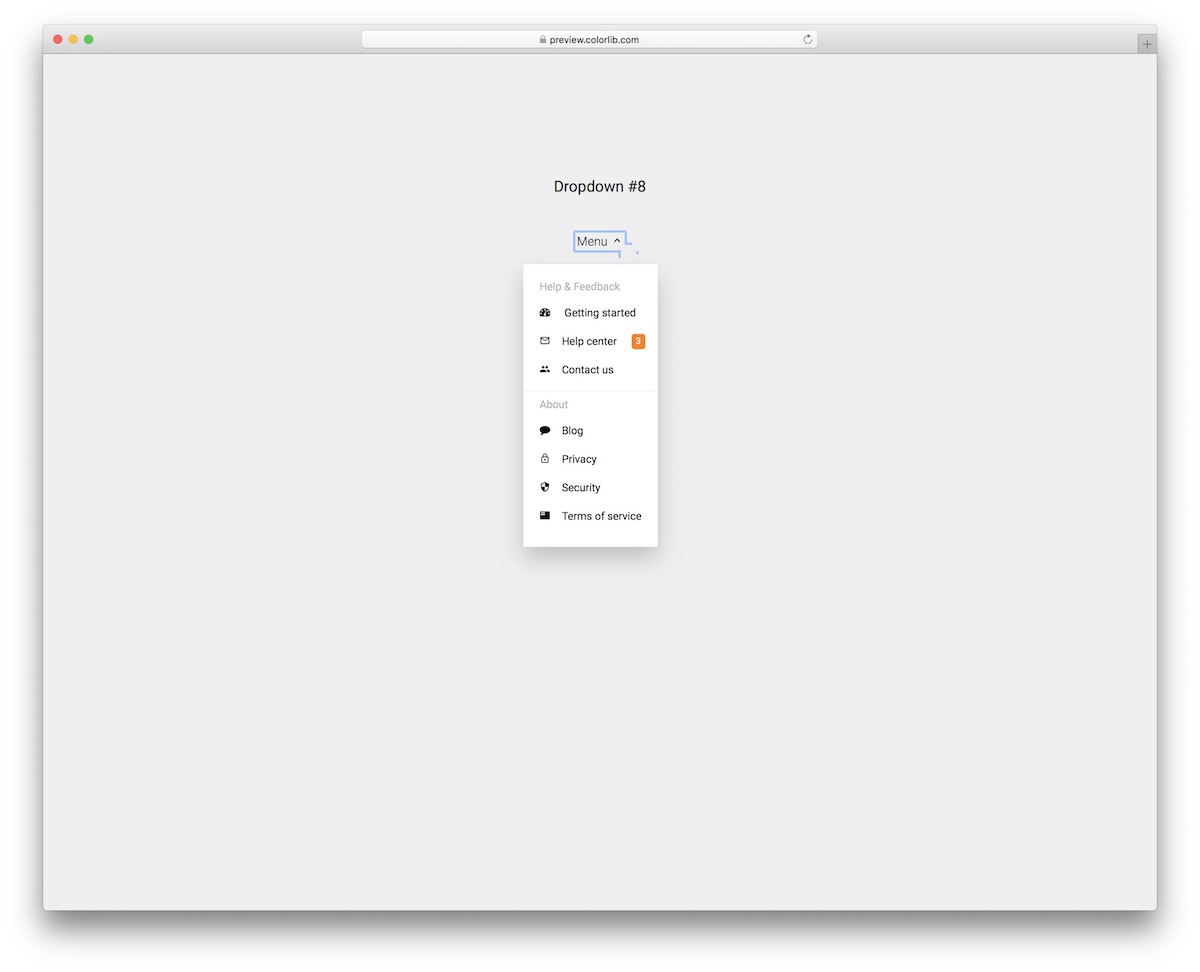
If you want to offer multiple sections in your dropdown menu, Dropdown V20 is a category and sub-category dropdown that is easy to use, clean and flexible.
Like the rest of this set, it is plain HTML and CSS with a few lines of vanilla JavaScript, and keyboard users can navigate it.
Best free Bootstrap dropdown examples
We grouped the 26 third-party picks by use case rather than ranking them — every example below is a viable production starting point. Each screenshot shows our Bootstrap 5.3 implementation of the pattern, inspired by the original designer credited beneath. The “Original demo” link goes to the source pen or repository for those who want to fork, compare implementations, or see the author’s specific code style.
Showcase — visually distinctive dropdowns
uiCookies Menu Templates (8 templates)
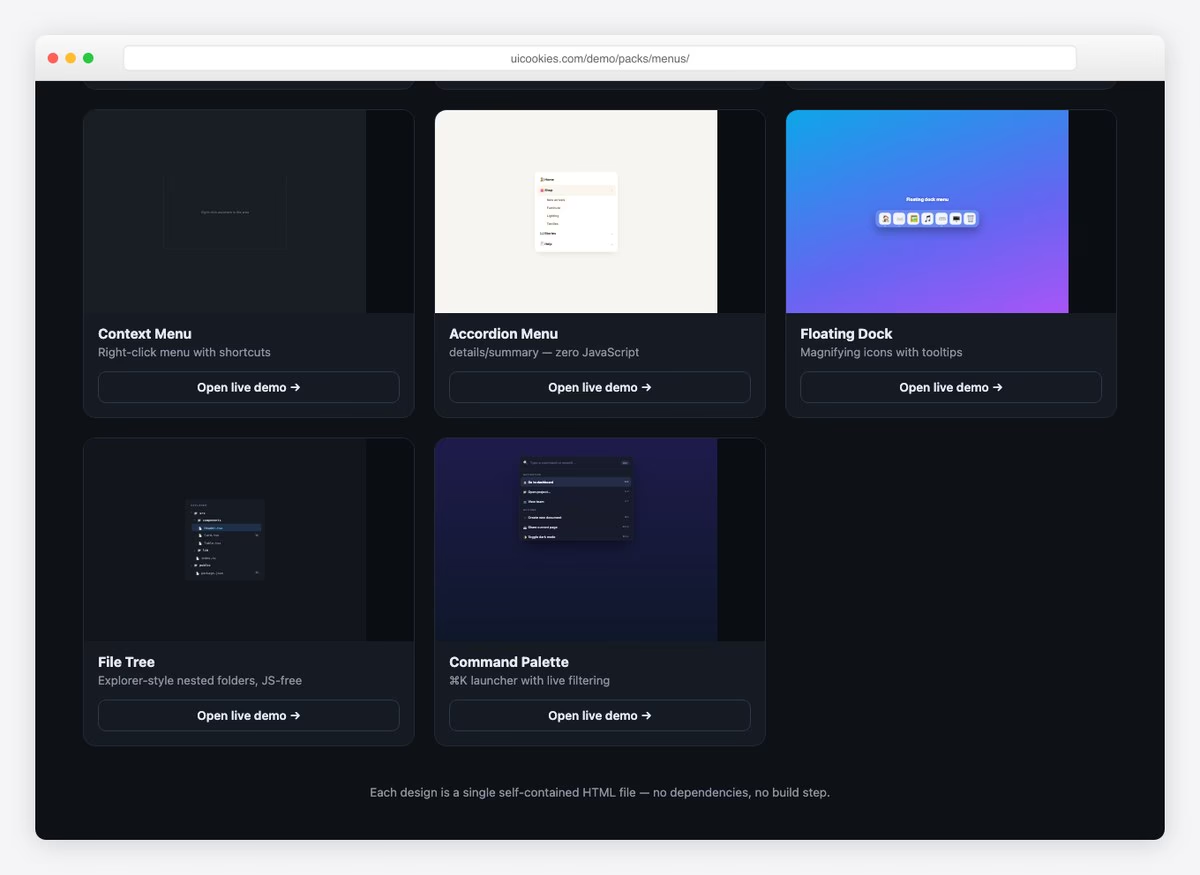
Two of the eight designs in this set are dropdowns in the sense meant here — an account dropdown that opens from an avatar, and a command palette that filters as you type. The rest cover an admin sidebar, a mobile bottom bar, a right-click context menu, an accordion menu, a floating dock and a file tree.
They are from our own uiCookies library and do not depend on Bootstrap’s JavaScript, so the dropdown behaviour stays yours to control. Free download, each design a single self-contained file.
1. Bootstrap 5.3 Multi-Level + Mega Menu
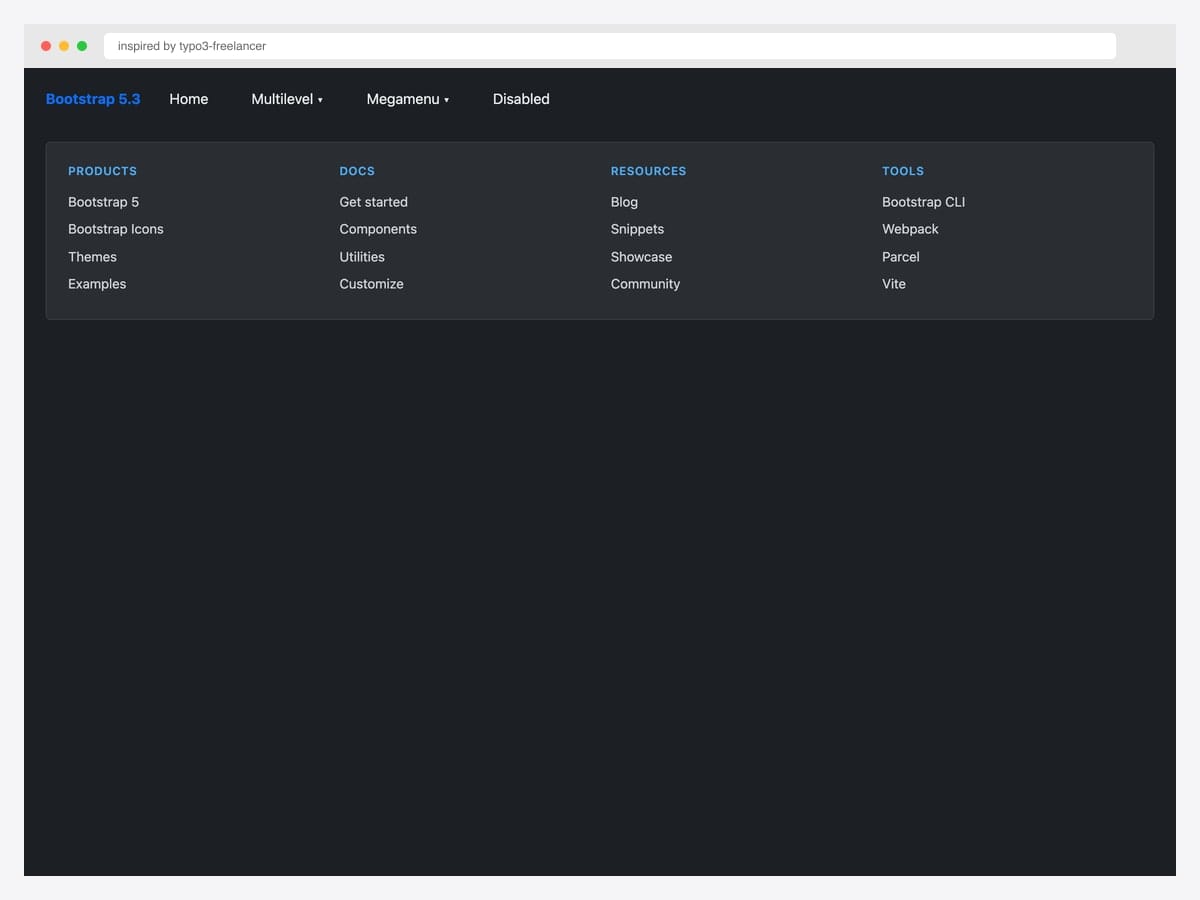
Inspired by typo3-freelancer’s CodePen showcase, this dark-theme navbar combines a multi-level menu with a four-column mega panel — categorized link lists across Products, Docs, Resources, and Tools. Best fit for documentation sites, agency portfolios, and product marketing pages where the nav needs to surface dozens of pages without overwhelming. Built on Bootstrap 5.3 with custom CSS for the mega-menu grid and column headers; no JavaScript required for the layout (only for click/hover toggle). The mega menu spans the full container width via position-static on the parent <li> — drop that class and the menu narrows to the toggle’s width.
Inspired by: typo3-freelancer · License: CodePen default (attribution required)
Source & details Original demo
2. Mega Dropdown Menu Navbar BS 5.3.8
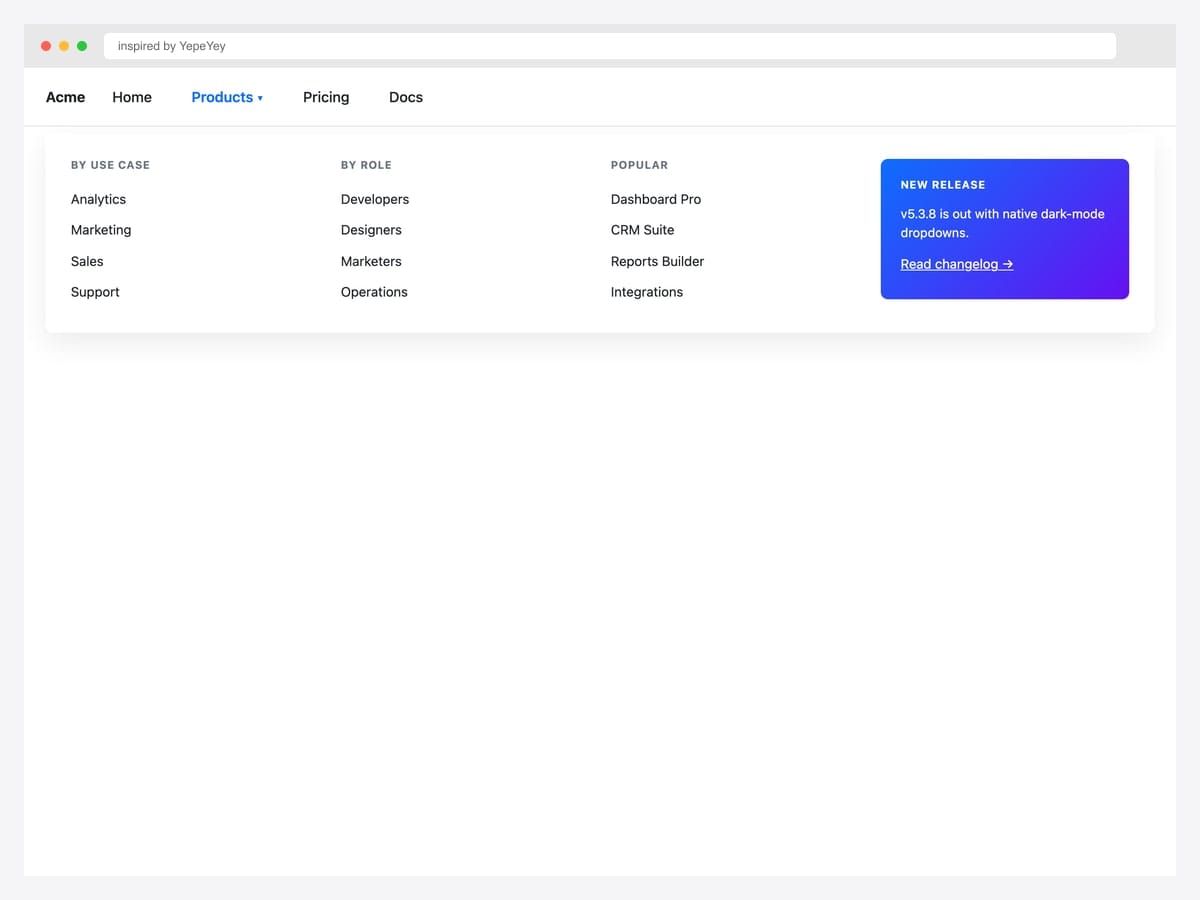
Inspired by YepeYey’s Bootstrap 5.3.8 pen, this lighter mega dropdown pairs categorized link columns (By Use Case, By Role, Popular) with a gradient promo card in the fourth column — the layout most SaaS marketing sites use to mix navigation with featured-product promotion. Best fit for B2B SaaS, agency sites, and any product navbar that needs to balance utility links with conversion-focused CTAs. Pure Bootstrap 5.3 utility classes (row, col-md-3, shadow) — no custom components. The promo card uses inline gradient backgrounds; verify your brand colors hold their visual hierarchy alongside the contextual link columns before deploying.
Inspired by: YepeYey · License: CodePen default (attribution required)
Source & details Original demo
3. Searchable Dropdown BS 5.3
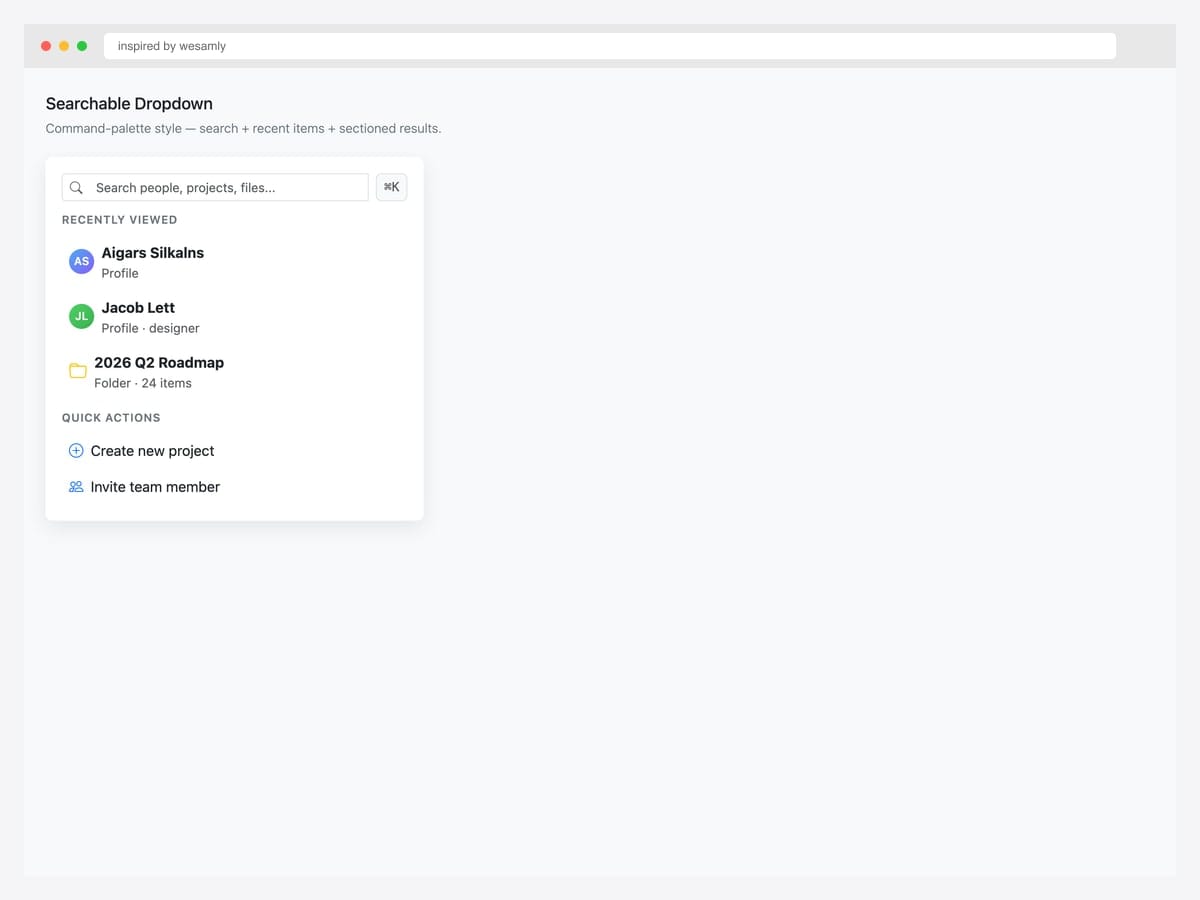
Inspired by wesamly’s BS 5.3 searchable dropdown, this command-palette style combines a search input with sectioned content — recent items with avatars, quick actions with icons, and a ⌘K keyboard hint. Best fit for productivity apps, admin dashboards, and any product where users navigate by typing rather than scrolling through menus (Linear, Notion, GitHub Copilot). Pure Bootstrap 5.3 with Bootstrap Icons; the search filtering itself requires a small JavaScript handler — start with document.querySelector('input').addEventListener('input', filterFn). Don’t over-design the search loading state — for menus under 50 items synchronous filtering is fast enough; reach for async only at scale.
Inspired by: wesamly · License: CodePen default (attribution required)
Source & details Original demo
4. Bootstrap 5.3 Dark-Mode Dropdowns
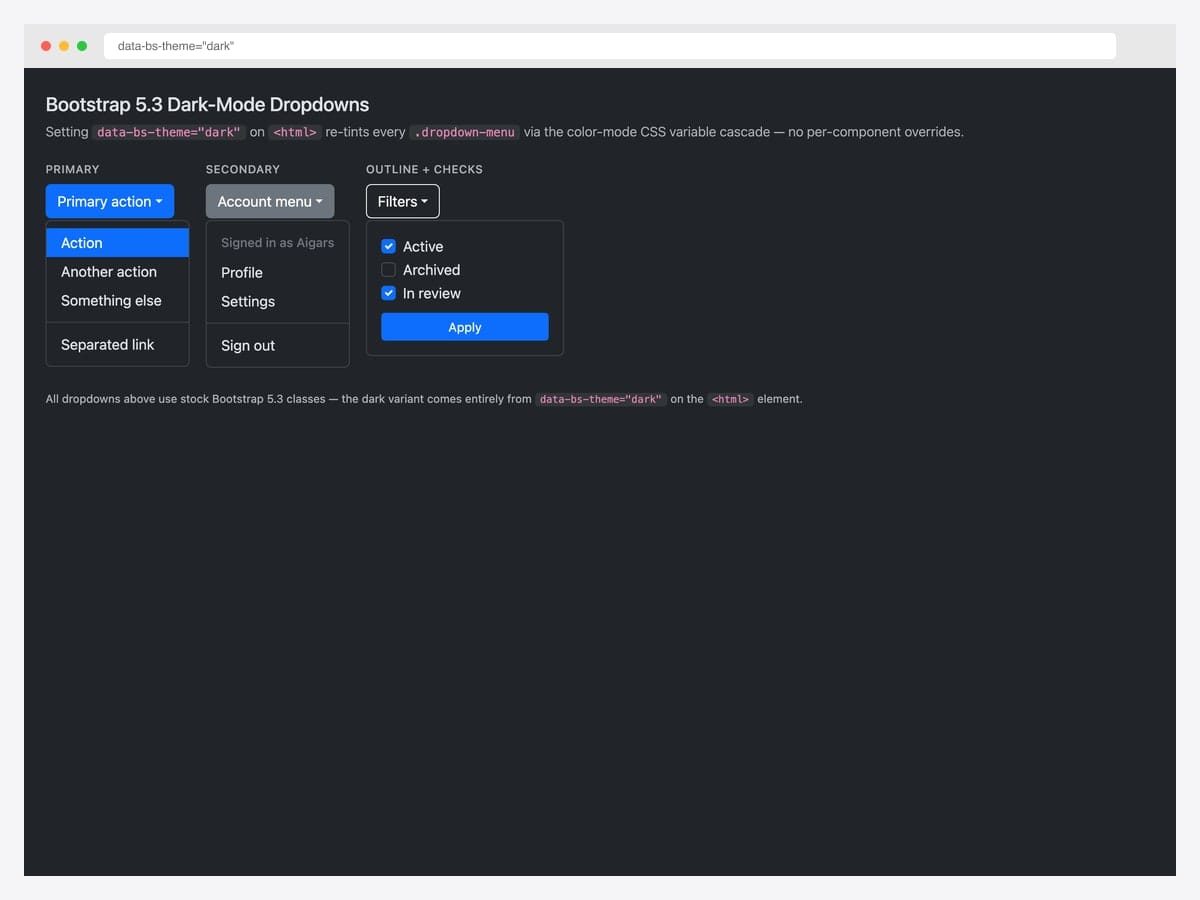
Bootstrap 5.3 introduced native dark-mode support via the data-bs-theme="dark" attribute on <html> — every .dropdown-menu re-tints automatically through the dark color-mode CSS variable cascade with zero per-component overrides. This self-hosted demo applies the attribute to a stock Bootstrap 5.3 page and renders three dropdowns (primary action with separator, account menu with header, filter form with checkboxes) in their dark-mode form. Best fit for any product that supports system color-scheme preferences or offers a manual dark-mode toggle. Customize the dark variants via [data-bs-theme="dark"] scoped CSS variables rather than overriding the base classes.
Inspired by: Bootstrap (twbs) demo · License: MIT
Source & details Original demo
Navigation dropdowns
5. Bootstrap 5 Navbar Examples
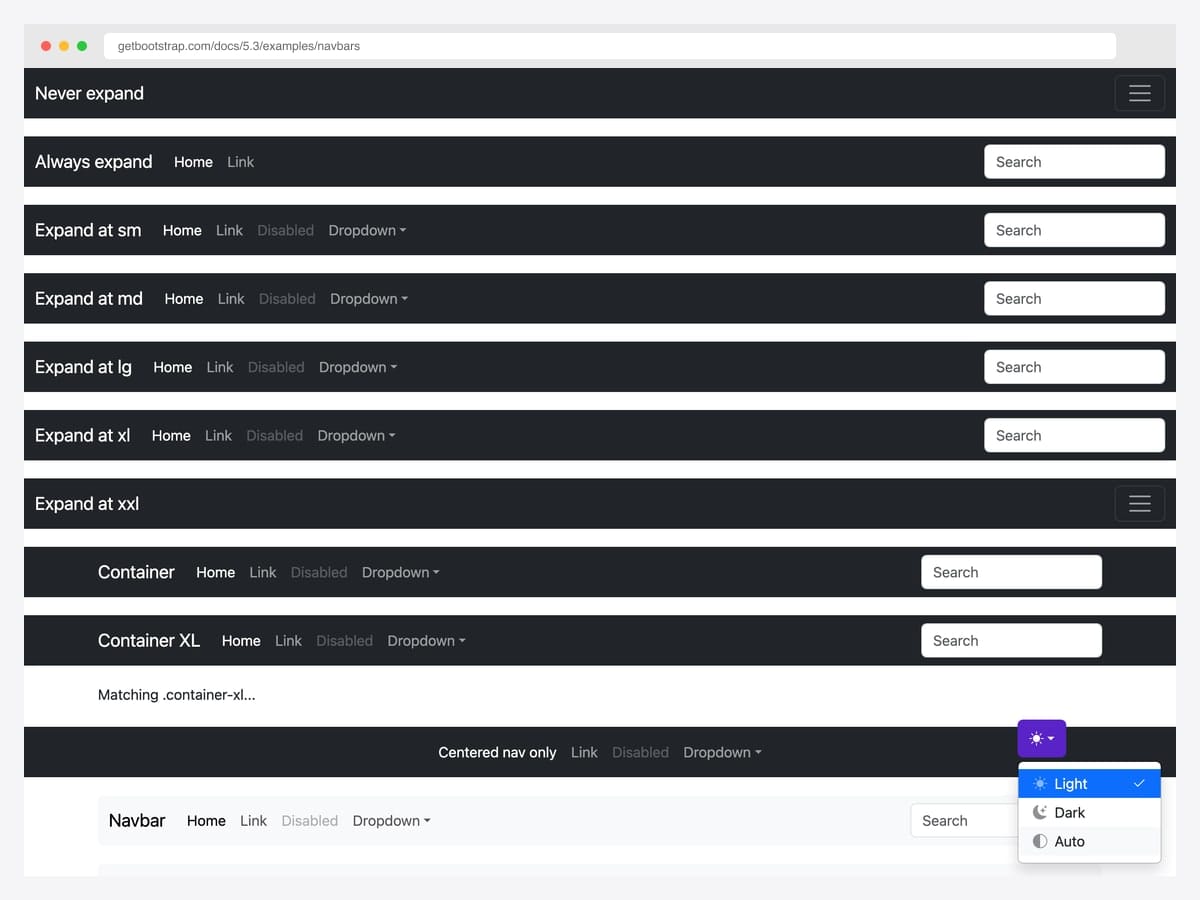
The official Bootstrap 5 navbar examples gallery — every responsive variant in one demo: Never expand, Always expand, Expand at sm/md/lg/xl/xxl, Container, Container XL, Centered nav, plus the theme picker dropdown with Light / Dark / Auto options. Best fit for the baseline: any project where you want the navbar dropdowns to look exactly like the official docs so users recognize the pattern instantly. Pure Bootstrap 5.3 with no dependencies beyond the framework itself. The theme-picker dropdown at the bottom right shows the BS 5.3 color-mode toggle in action — drop the same JavaScript into your project to flip between light, dark, and auto modes.
Inspired by: Bootstrap (twbs) · License: MIT
Source & details Original demo
6. Hover Navbar Dropdown
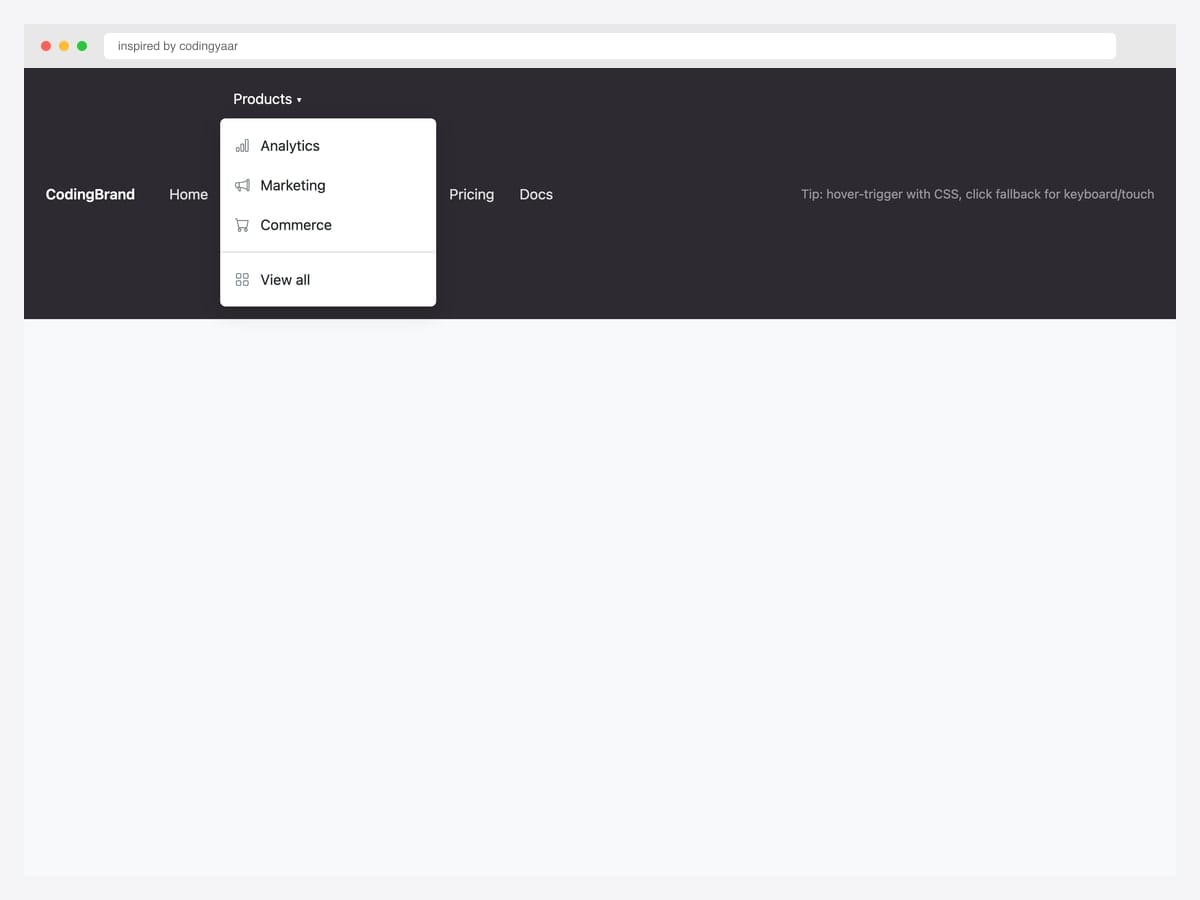
Inspired by codingyaar’s hover-navbar pen, this pattern adds CSS-driven hover-trigger on top of Bootstrap’s default click behavior — keyboard and touch users still get the click fallback. Best fit for marketing sites and landing pages where instant hover-reveal feels expected; not appropriate for in-app navigation where accessibility audit will flag missing keyboard equivalents. Pure CSS via @media (hover: hover) and (min-width: 992px) guard — desktop hover-capable browsers get the enhancement, touch devices keep the click. The dropdown uses Bootstrap Icons for inline labels; the hover behavior layers over standard .dropdown markup without modifying the underlying classes.
Inspired by: codingyaar · License: CodePen default (attribution required)
Source & details Original demo
7. Navbar with Nested Dropdowns
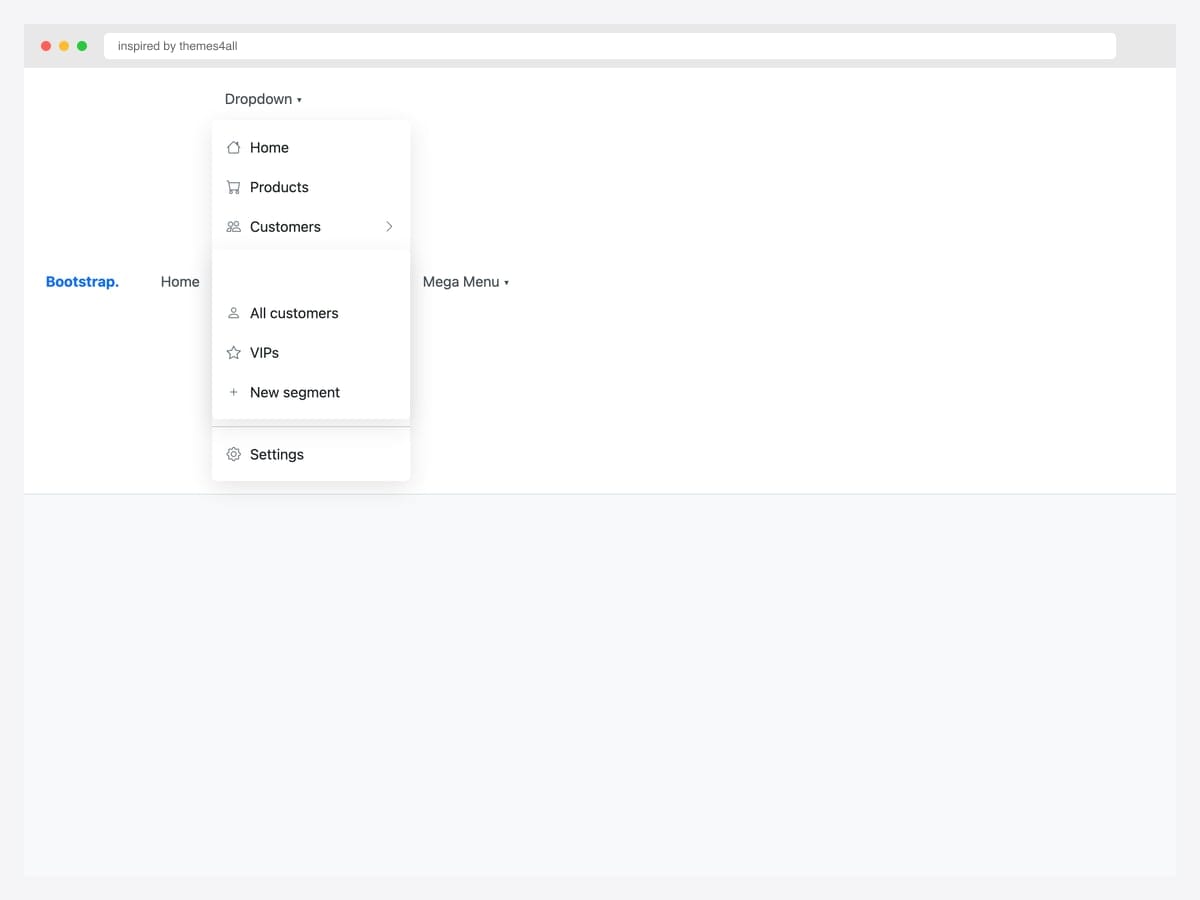
Inspired by themes4all’s nested-dropdown pattern, this layout shows a navbar dropdown with an icon for every item plus a flyout submenu that opens to the right on hover. Best fit for content-heavy products with deep category hierarchies — ecommerce sites, news portals, and B2B catalogs where flat menus would lose users. Pure CSS for the submenu positioning (position: relative; left: 100%); Bootstrap handles the parent dropdown’s open/close state. Flyout submenus break on narrow viewports — pair this pattern with .dropdown-toggle-split or accordion-style collapsible menus for mobile, and gate the flyout behind a @media (min-width: 992px) guard.
Inspired by: themes4all · License: CodePen default (attribution required)
Source & details Original demo
8. Nested Dropdown on Hover
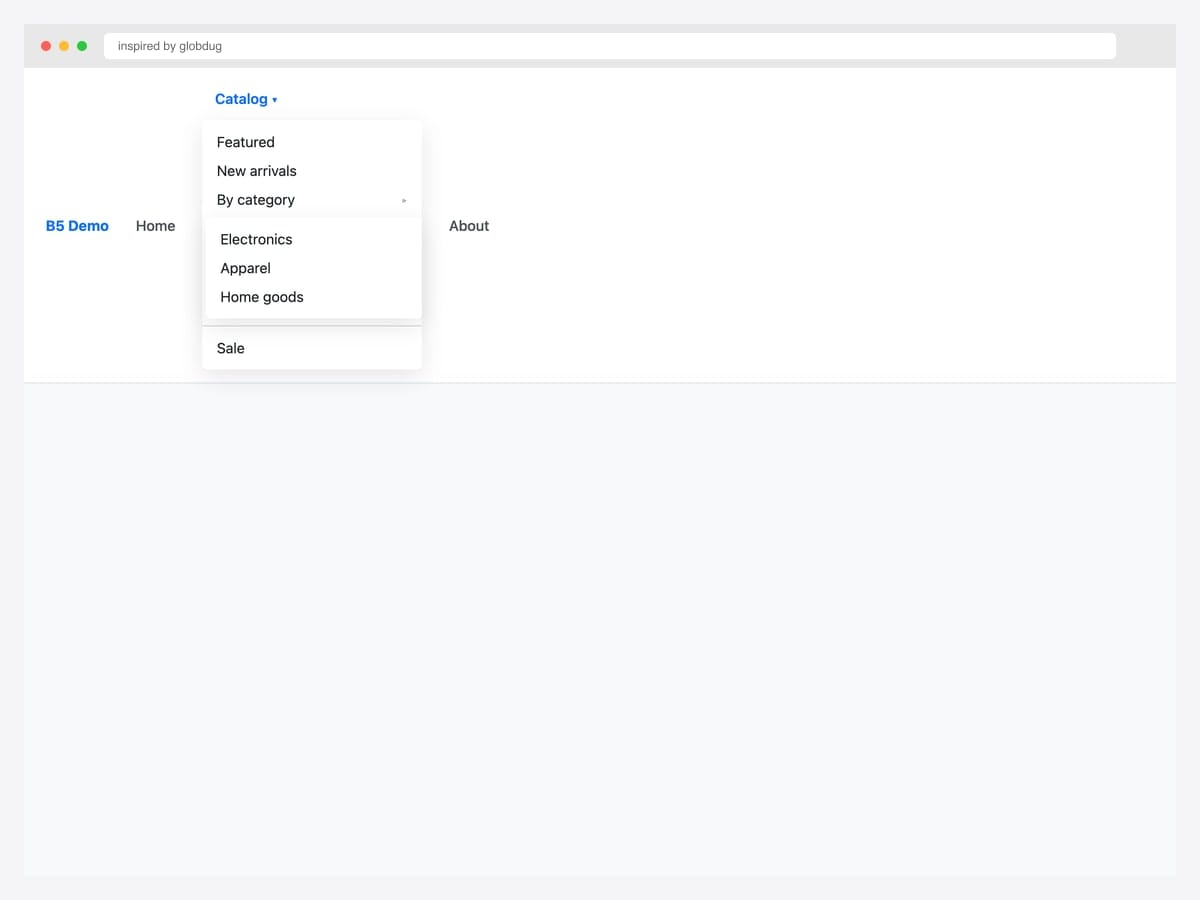
Inspired by globdug’s nested-on-hover pen, this navbar dropdown shows parent items with arrow indicators (▸) signaling “has submenu” — a visual cue most flyout patterns omit. Best fit for documentation sites and admin tools where users need to predict whether clicking will navigate or expand. Pure CSS — the chevron indicator is a ::after pseudo-element; the submenu’s right-flyout uses left: 100% on the nested .dropdown-menu. Submenus expand outside their parent boundary, so anchor the navbar above any overflow: hidden ancestor to avoid clipping — and verify the menu doesn’t extend off the viewport on smaller laptops (1280×800).
Inspired by: globdug · License: CodePen default (attribution required)
Source & details Original demo
9. Multilevel Responsive Mobile
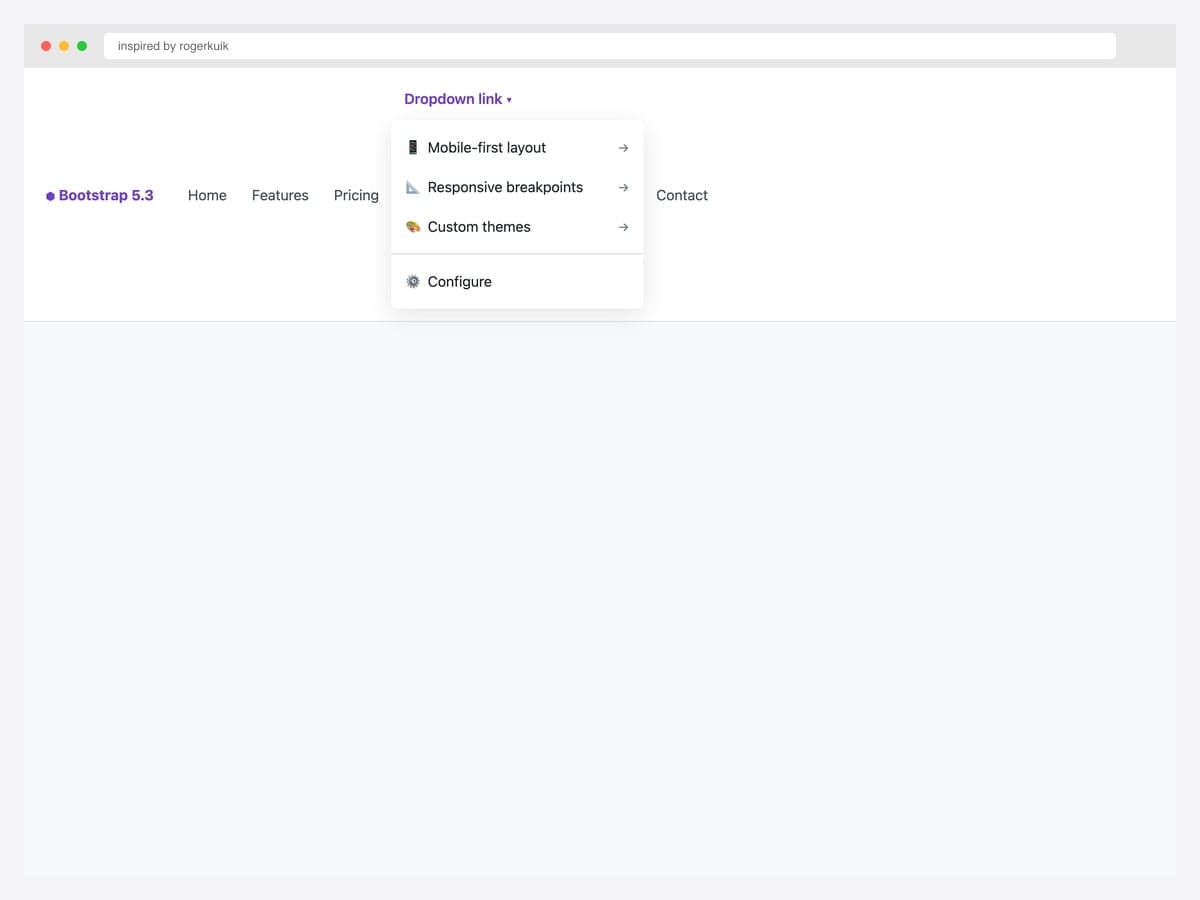
Inspired by rogerkuik’s responsive multilevel pen, this dropdown collapses inline on mobile (accordion-style) and flies out on desktop — solving the “deep menu hierarchy on small screens” problem without resorting to a separate mobile-only navigation pattern. Best fit for ecommerce, B2B SaaS, and any product whose desktop navigation needs three or more levels but where mobile users would drown in nested submenus. Vanilla JavaScript with Bootstrap 5.3 classes; the responsive collapse is driven by @media (max-width: 991px) queries that override the flyout positioning. Test the mobile collapse direction (down vs. up) against your viewport breakpoints — wrong defaults can cause menu items to overflow off-screen.
Inspired by: rogerkuik · License: CodePen default (attribution required)
Source & details Original demo
Account & profile menus
10. User Profile Navbar Dropdown
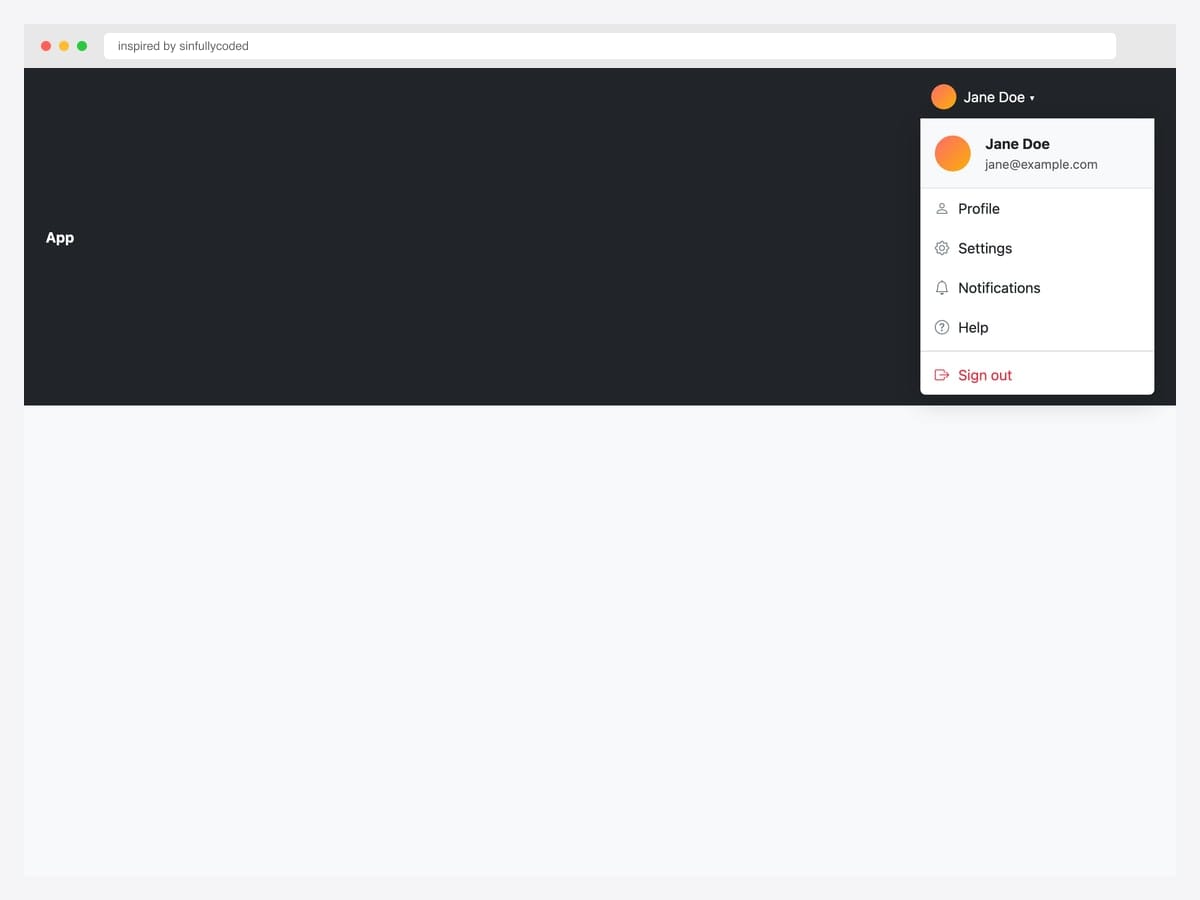
Inspired by sinfullycoded’s user-profile dropdown, this Gmail-style menu attaches to a dark navbar with an avatar trigger and reveals a profile header (avatar, name, email) above a divided action list. Best fit for any logged-in app — SaaS dashboards, admin panels, social products. Pure Bootstrap 5 with Bootstrap Icons; the header background uses .bg-light to separate it from the action items. Use role="menu" on the .dropdown-menu if your app needs strict ARIA semantics; otherwise Bootstrap’s default role="menu" implicit on <ul> children of .dropdown-menu is sufficient for most a11y audits.
Inspired by: sinfullycoded · License: CodePen default (attribution required)
Source & details Original demo
11. Avatar Profile Dropdown
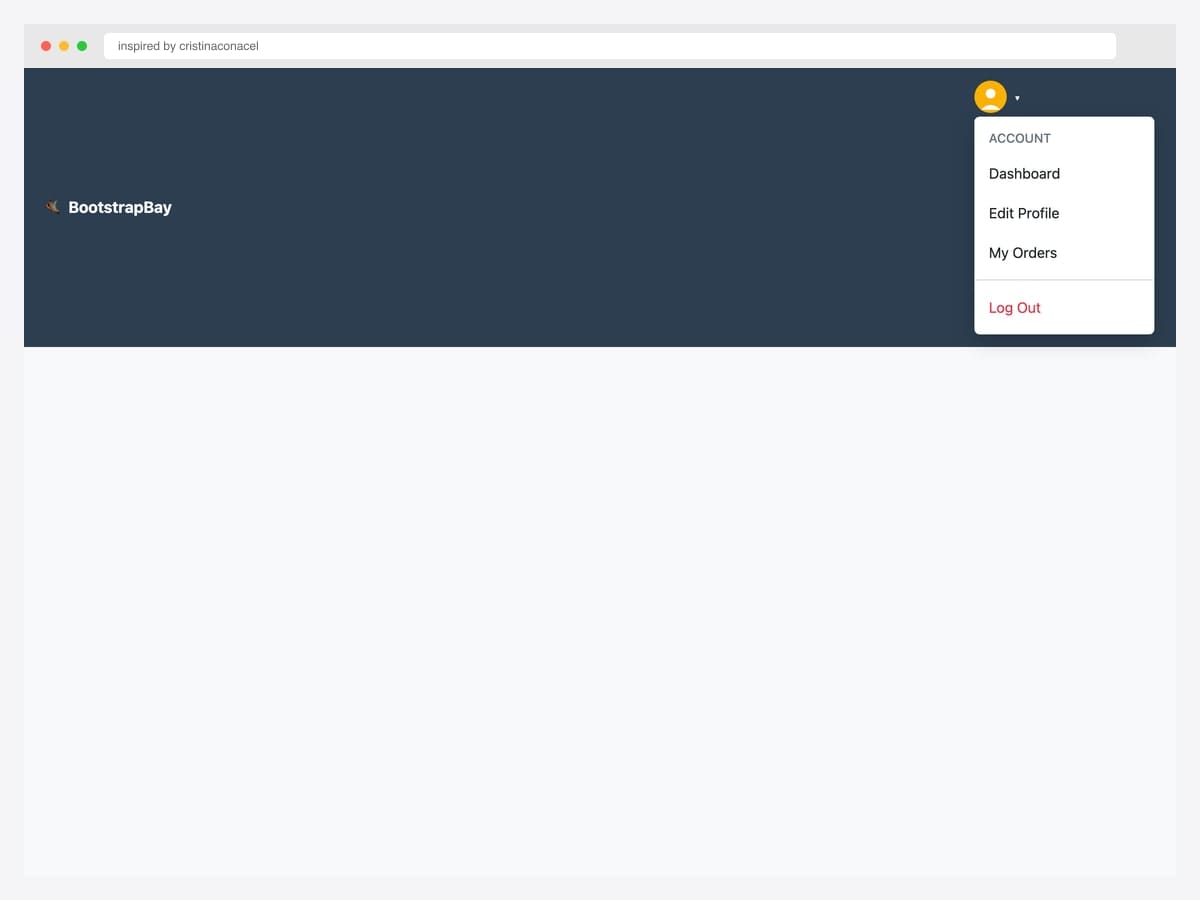
Inspired by cristinaconacel’s BootstrapBay avatar dropdown, this pattern shows a compact avatar trigger in a dark navbar with Account header, Dashboard / Edit Profile / My Orders items, and a danger-styled Log Out separator. Best fit for the classic SaaS chrome where the avatar IS the trigger (no name shown until expanded), maximizing horizontal space in the navbar. Bootstrap 4-era markup that ports to Bootstrap 5 with the data-toggle → data-bs-toggle swap. Avatar dropdowns rely on contrast — verify the avatar background contrasts with both the navbar (dark here) AND any browser autofill yellow tint (Chrome) that can wash out the trigger.
Inspired by: cristinaconacel · License: CodePen default (attribution required)
Source & details Original demo
12. Dropdown Menu UI
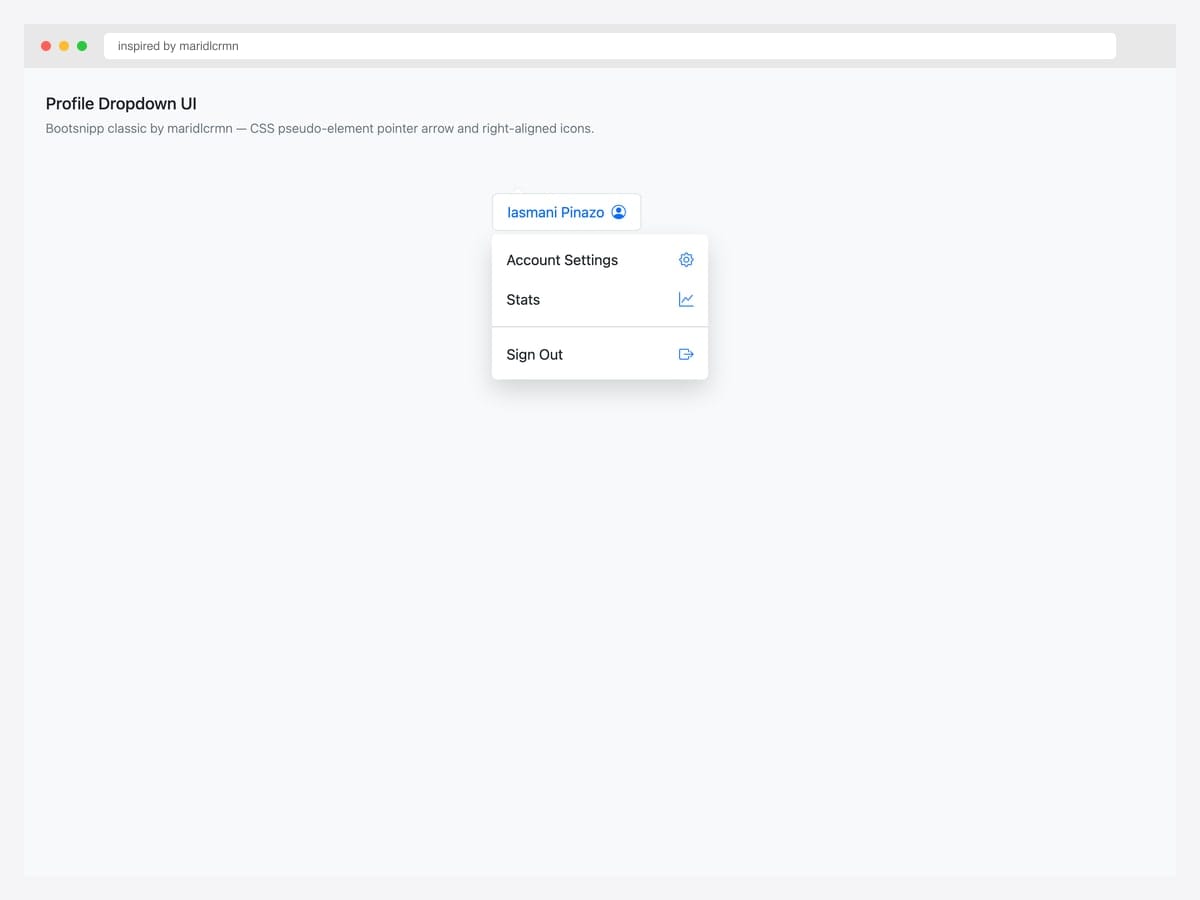
Inspired by maridlcrmn’s Bootsnipp classic (415 favs / 274K views), this dropdown adds a CSS pseudo-element pointer arrow above the menu and right-aligns icons next to each action — visual touches that make the dropdown feel like a polished popover rather than a generic menu. Best fit for product UIs where small visual refinements signal premium quality (Stripe Dashboard, Linear, Notion’s settings panels). Pure CSS — the arrow uses a ::before pseudo-element with border-triangle technique. The pointer arrow works at any trigger position; if you align the dropdown’s right edge to a trigger’s right edge, shift the arrow’s left value to match.
Inspired by: maridlcrmn · License: MIT (Bootsnipp default)
Source & details Original demo
13. Profile Dropdown Inspirations
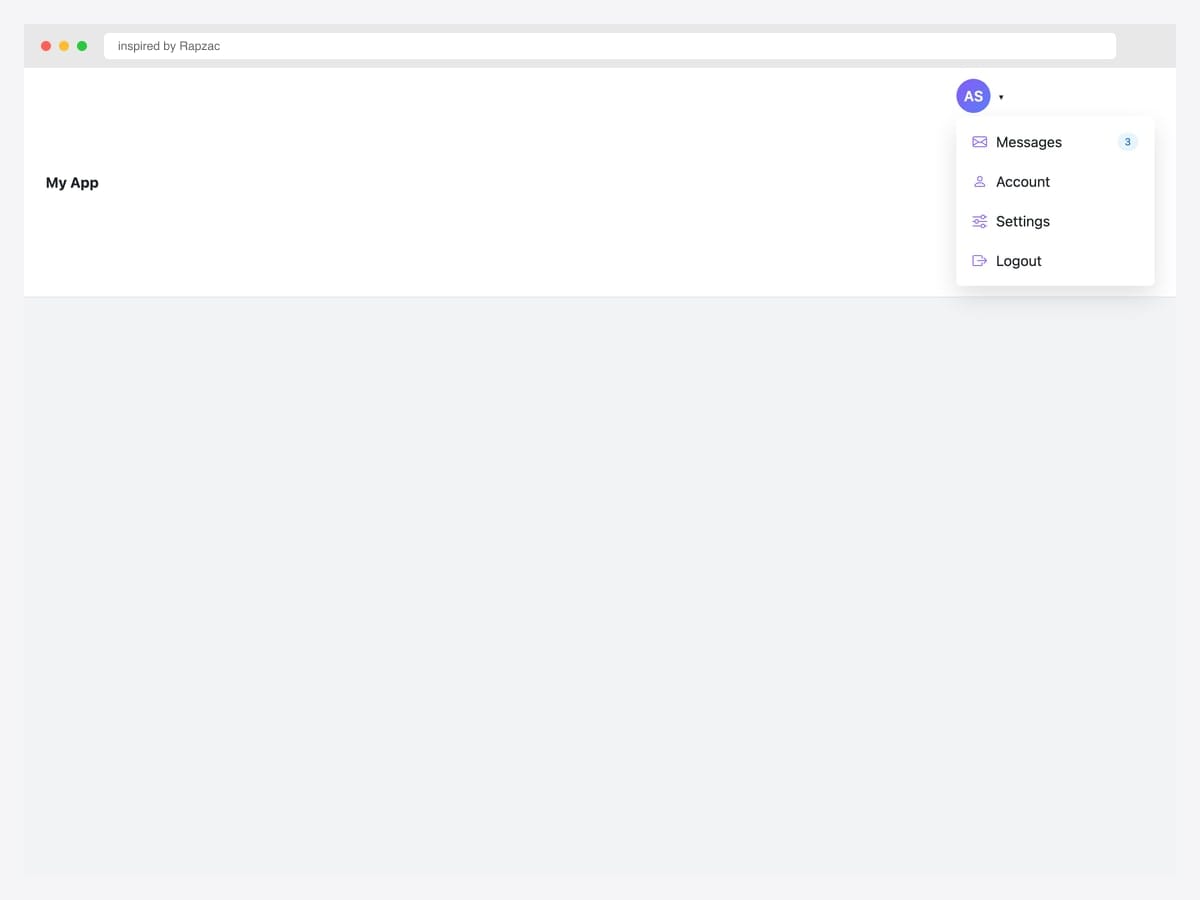
Inspired by Rapzac’s profile dropdown, this animated avatar menu shows initials in a purple gradient circle plus action items with right-aligned badges (e.g., “3” unread messages). Best fit for messaging apps, support tools, and any product where pending actions need visual emphasis next to navigation. Pure Bootstrap 5 with custom CSS for the badge pill and animation timing. The badge pill is a separate <span> with absolute positioning — for accessibility, also include the count in the screen-reader-only text on the action label so users with NVDA/JAWS hear “Messages, 3 unread” rather than just “Messages”.
Inspired by: Rapzac · License: CodePen default (attribution required)
Source & details Original demo
Action menus & contextual dropdowns
14. Three-Dots Kebab Dropdown
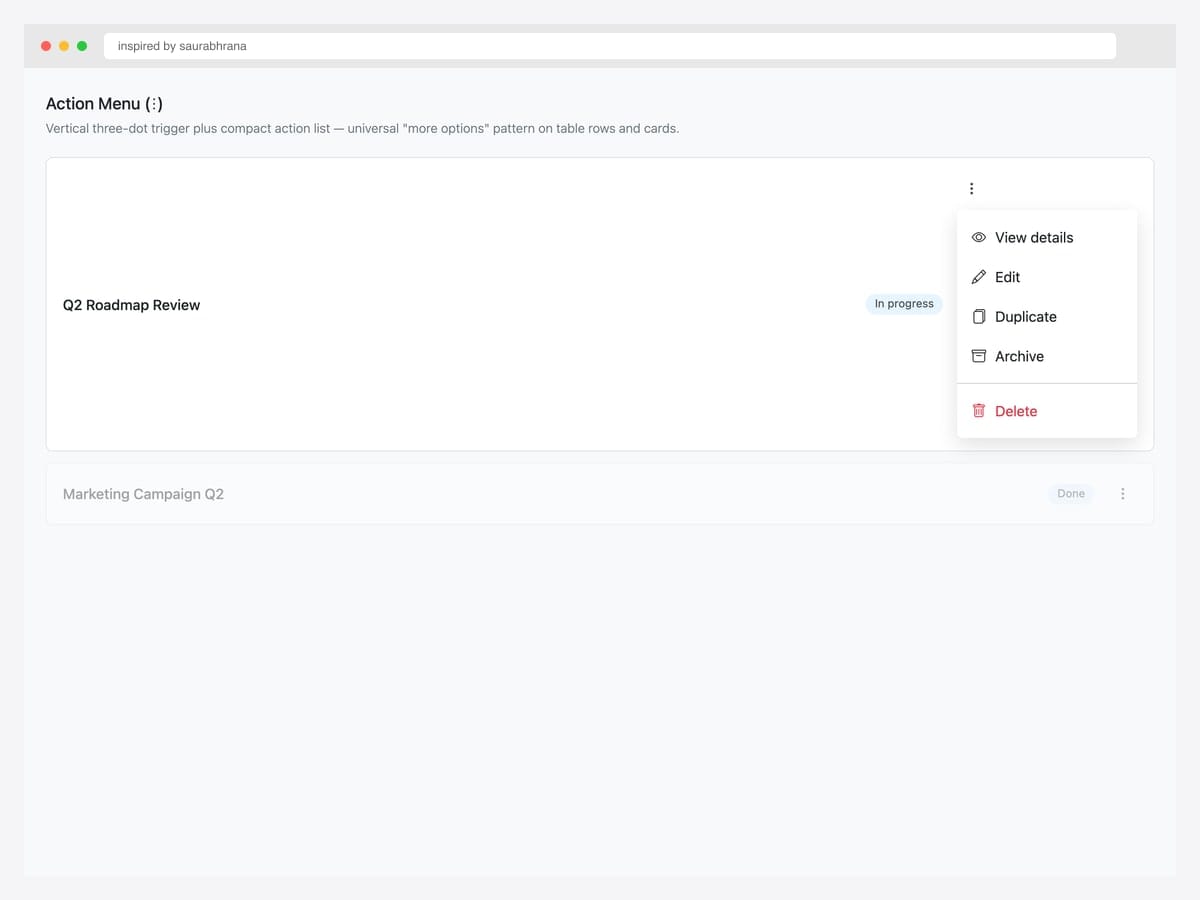
Inspired by saurabhrana’s three-dots pen, this kebab (⋮) action menu sits at the right edge of a task row and reveals five actions: View, Edit, Duplicate, Archive, plus a danger-styled Delete. Best fit for table rows, card grids, and any list interface where each row needs its own action menu without crowding the row with five buttons. Pure Bootstrap 5 utility classes (btn, dropdown-menu, dropdown-item); the kebab icon is Bootstrap Icons’ bi-three-dots-vertical. Critical: ensure the menu opens within the viewport bounds — for table rows near the bottom of the page, Bootstrap auto-flips the menu upward via Popper.js without any extra config.
Inspired by: saurabhrana · License: CodePen default (attribution required)
Source & details Original demo
15. Notifications Bell + Badge
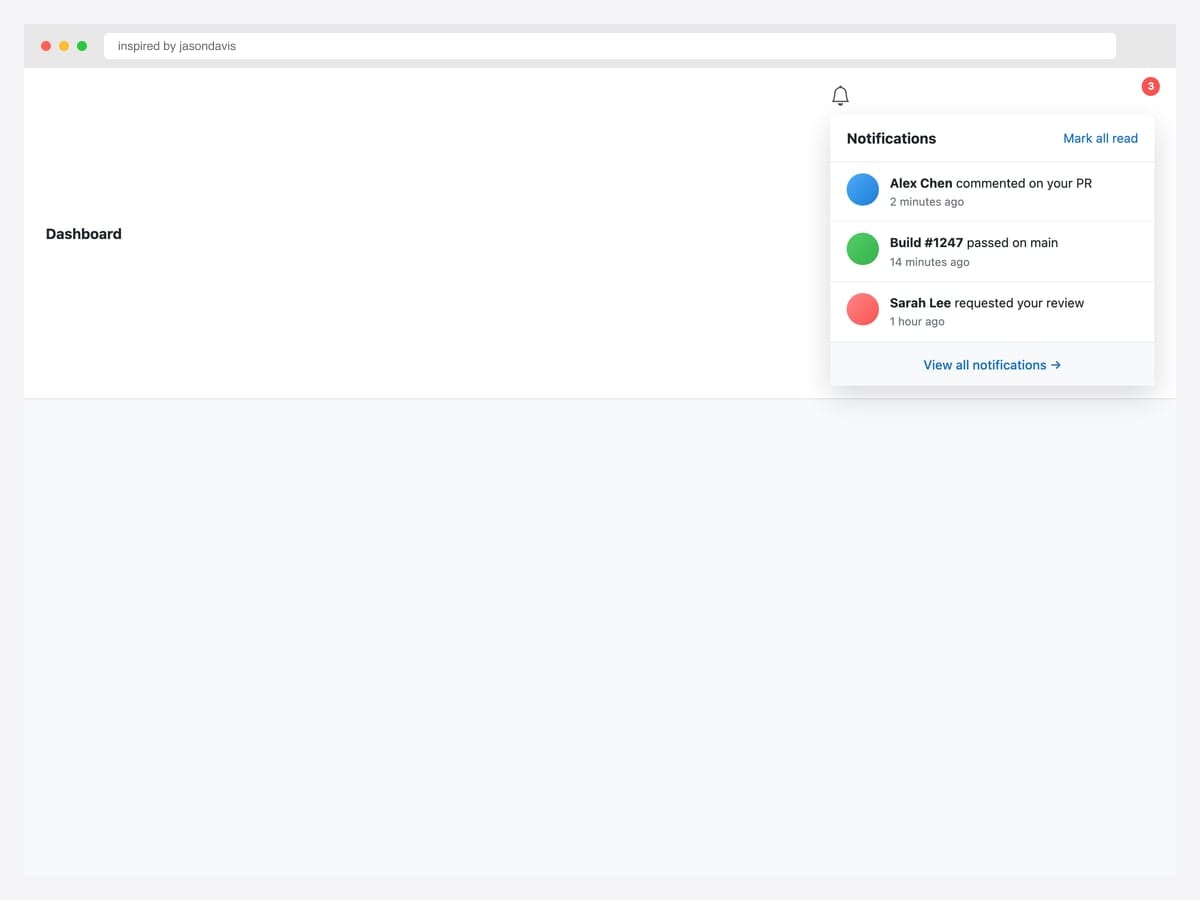
Inspired by jasondavis’s classic notification pen, this bell-icon dropdown shows a red count badge (3), a scrollable list of recent activity items with avatars and timestamps, plus a “View all” footer link. Best fit for any logged-in product with async events — comments, PR reviews, build status, mentions. Bootstrap 5 markup with custom CSS for the badge positioning and avatar circles. Reset the count badge after the user opens the menu (not on individual item clicks) — most products handle this via a single API call on show.bs.dropdown rather than tracking per-item read state, which avoids race conditions when notifications arrive while the dropdown is open.
Inspired by: jasondavis · License: CodePen default (attribution required)
Source & details Original demo
16. Cart Dropdown
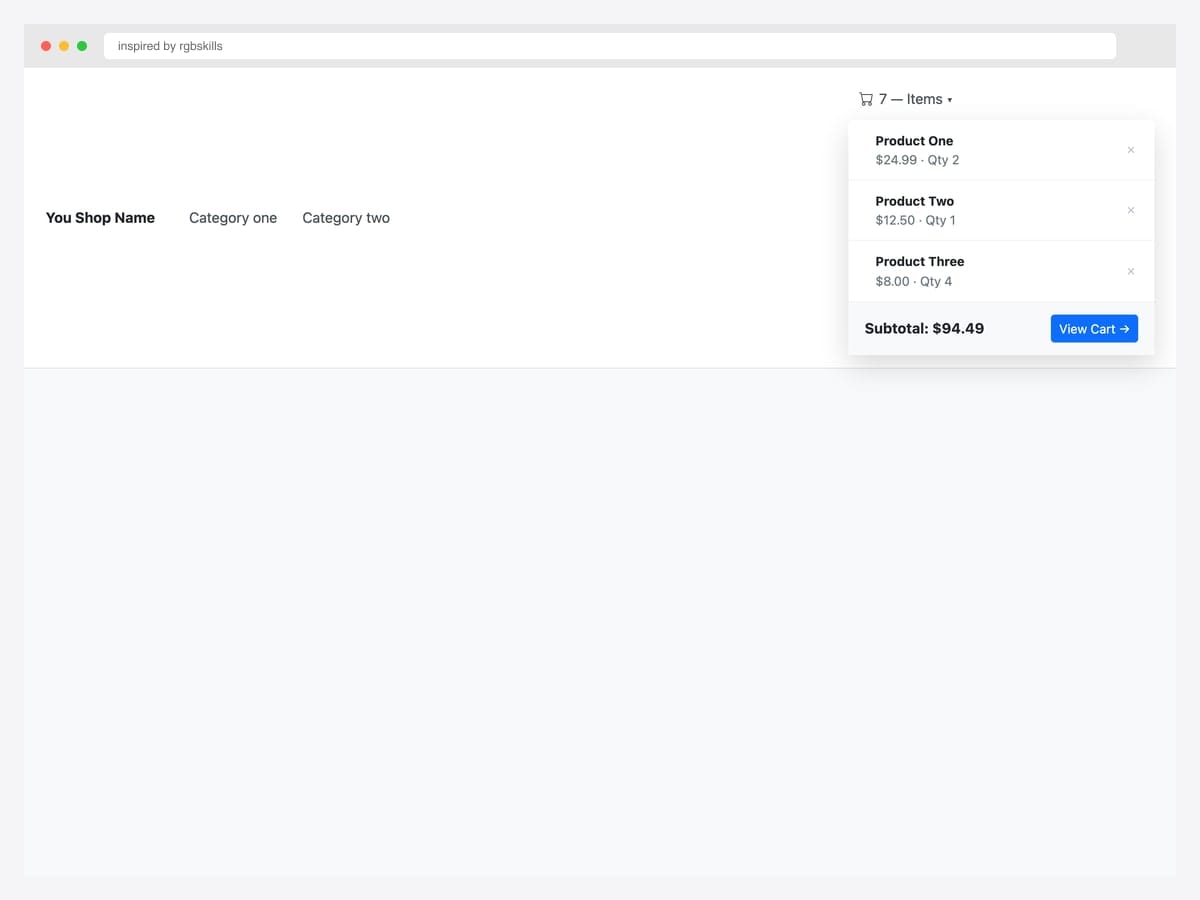
Inspired by rgbskills’s Bootsnipp cart dropdown, this e-commerce navbar pattern shows a mini-cart with product thumbnails, names, prices, quantity, per-item remove buttons (✕), and a Subtotal + View Cart footer. Best fit for ecommerce sites where users add items frequently and need to verify cart contents without leaving the current page. Bootstrap 3.3-era markup that works in 5 unchanged because it’s CSS-only. Hydrate the cart count and contents from localStorage or your cart API on every page load — for users with disabled JavaScript, the cart trigger still navigates to the full cart page when clicked (the dropdown gracefully degrades).
Inspired by: rgbskills · License: MIT (Bootsnipp default)
Source & details Original demo
17. Language Switcher with Flags
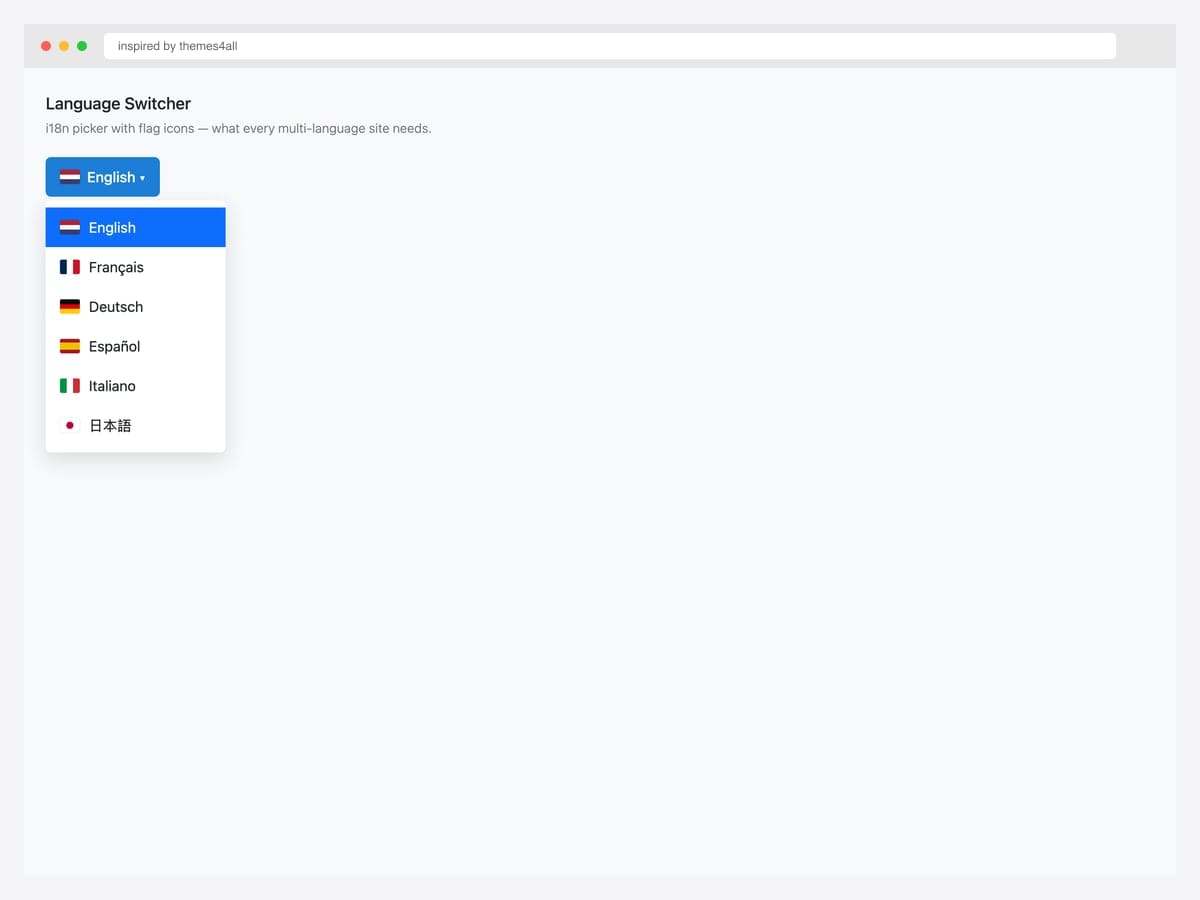
Inspired by themes4all’s flag-icon dropdown, this language switcher shows the currently selected language with a flag in the trigger button, then lists all available languages with their flags in the menu. Best fit for any multi-language site where users need to switch UI language and want visual confirmation of the choice (flags help non-Latin-script speakers). Custom CSS flag rendering — no flag-icon library dependency, just pure CSS gradients for the six flags shown. For RTL languages (Arabic, Hebrew), pair the language switch with a dir="rtl" attribute swap on <html> after selection; otherwise the language changes but the layout direction doesn’t.
Inspired by: themes4all · License: CodePen default (attribution required)
Source & details Original demo
Mega menus
18. BS5 Mega Menu Icon + Title + Description
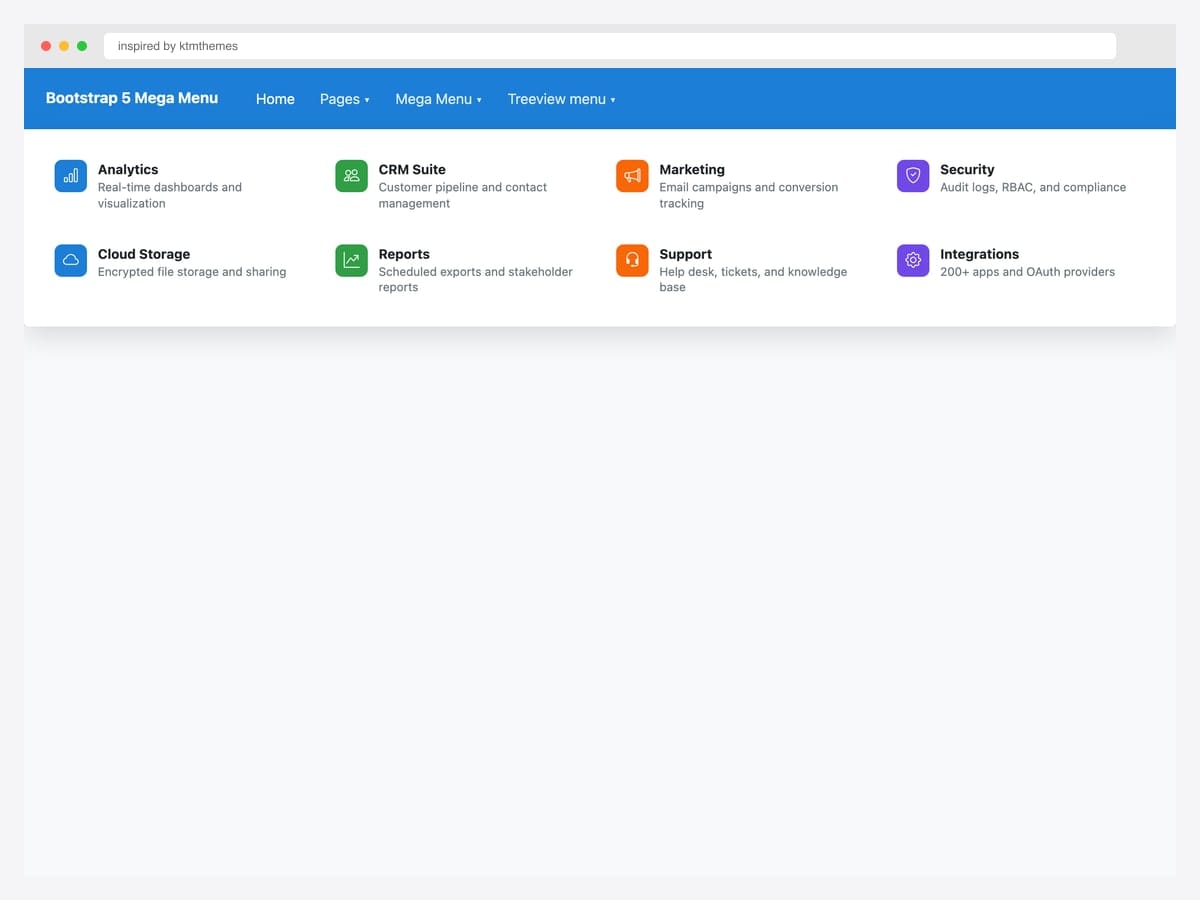
Inspired by ktmthemes’s BS5 mega menu, this layout shows eight rich items in two rows — colored icon tiles, bold titles, one-line descriptions. Best fit for B2B SaaS product navigation where users need to discover features (Analytics, CRM Suite, Marketing, etc.) rather than just navigate to known pages. Pure Bootstrap 5.3 with Bootstrap Icons; each tile uses row.g-3 for grid spacing and contextually colored icon backgrounds (bg-primary, bg-success, etc.). The description text is the differentiating element — keep it to one line (about 8-10 words) so the grid stays scannable. Longer descriptions push items below the fold and defeat the “scan everything at once” advantage of mega menus.
Inspired by: ktmthemes · License: CodePen default (attribution required)
Source & details Original demo
19. MDB Mega Menu — Mixed Media
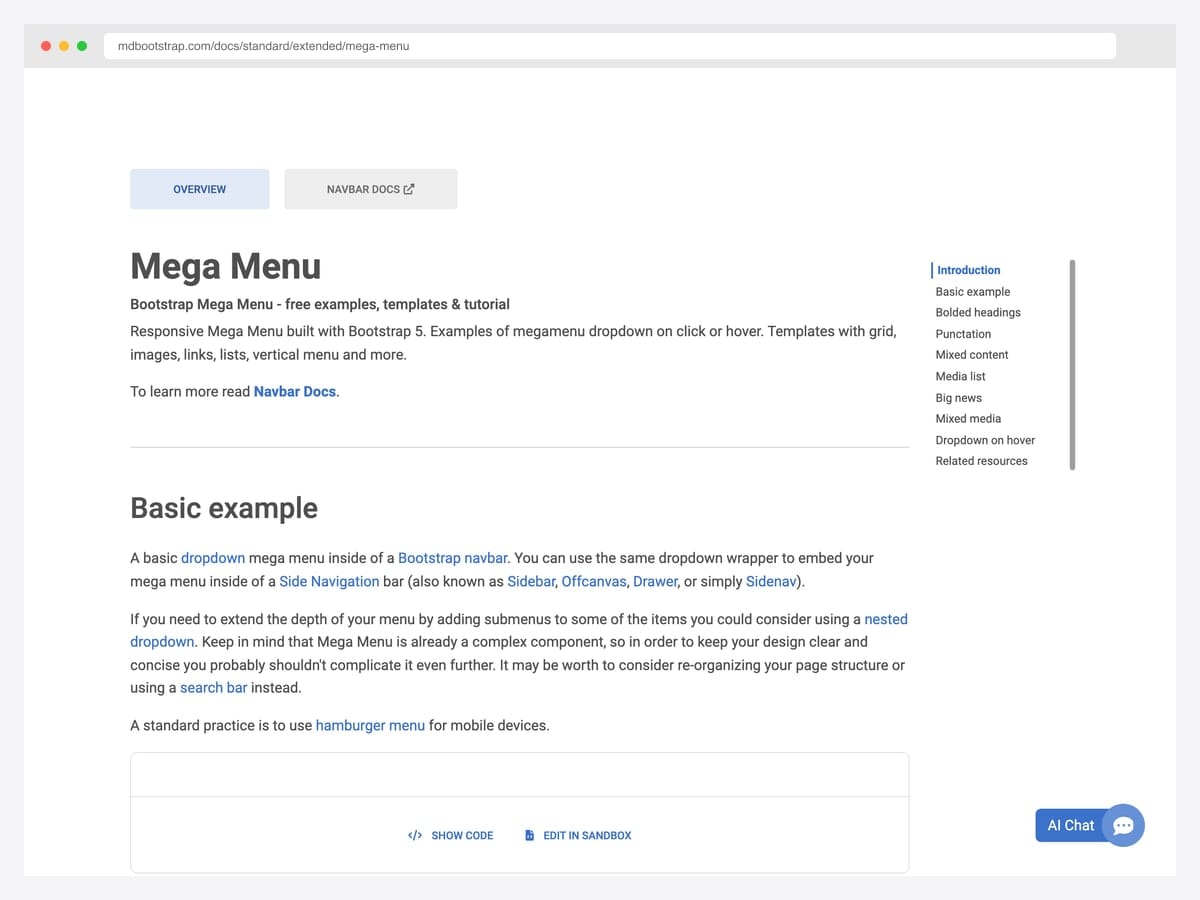
Bootstrap 5 mega menu documentation from MDBootstrap — their Bootstrap-Mega-Menu repo (MIT) ships responsive multi-column dropdowns with templates for grid layouts, image-rich menus, vertical menus, and dropdown-on-hover variants. Best fit for teams that want a battle-tested mega-menu component without writing the responsive collapse logic from scratch. Built on Bootstrap 5 with the kit’s alert SCSS partial that can be adopted standalone without pulling in the whole MDB UI Kit. The free tier covers all mega-menu variants — only the “Pro” templates require a paid license. Confirm via the GitHub repo’s LICENSE file rather than the rendered docs page, which doesn’t display license info prominently.
Inspired by: MDBootstrap · License: MIT (MDB Free)
Source & details Original demo
20. Responsive BS5 Mega Menu Icon Tiles
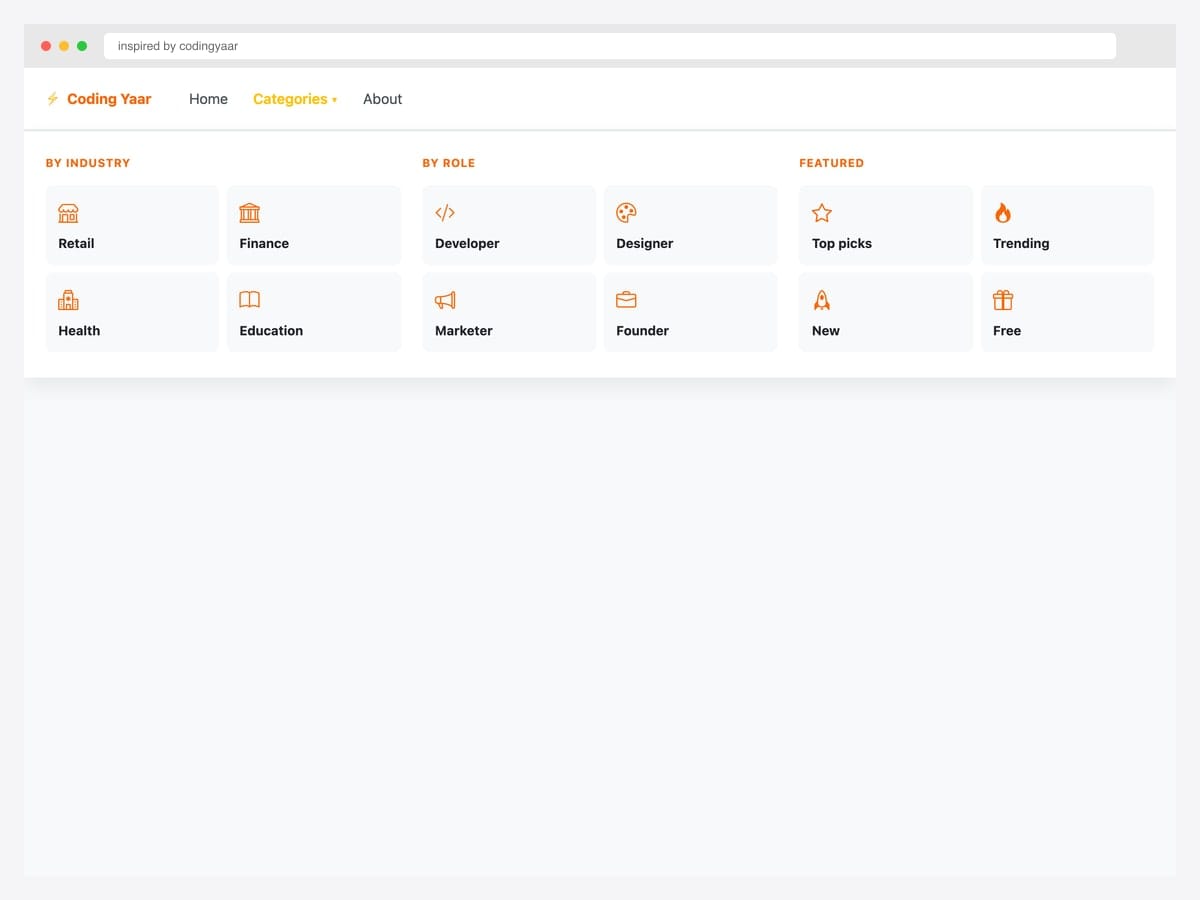
Inspired by codingyaar’s BS5 mega menu, this layout uses icon tiles in a 2-column grid per category (By Industry, By Role, Featured) — gracefully collapsing into an accordion on mobile. Best fit for ecommerce and content sites with cleanly grouped category structures (4-8 main categories, 3-8 sub-categories each). Pure Bootstrap 5 utility classes — no custom components. The tile-grid layout uses CSS Grid (grid-template-columns: 1fr 1fr) rather than Bootstrap’s flex grid, because two-column tiles inside three-column sections create alignment headaches with col-md-6. Override with CSS Grid and the layout stays predictable across viewport sizes.
Inspired by: codingyaar · License: CodePen default (attribution required)
Source & details Original demo
21. BS5 Mega Menu Multi-Column
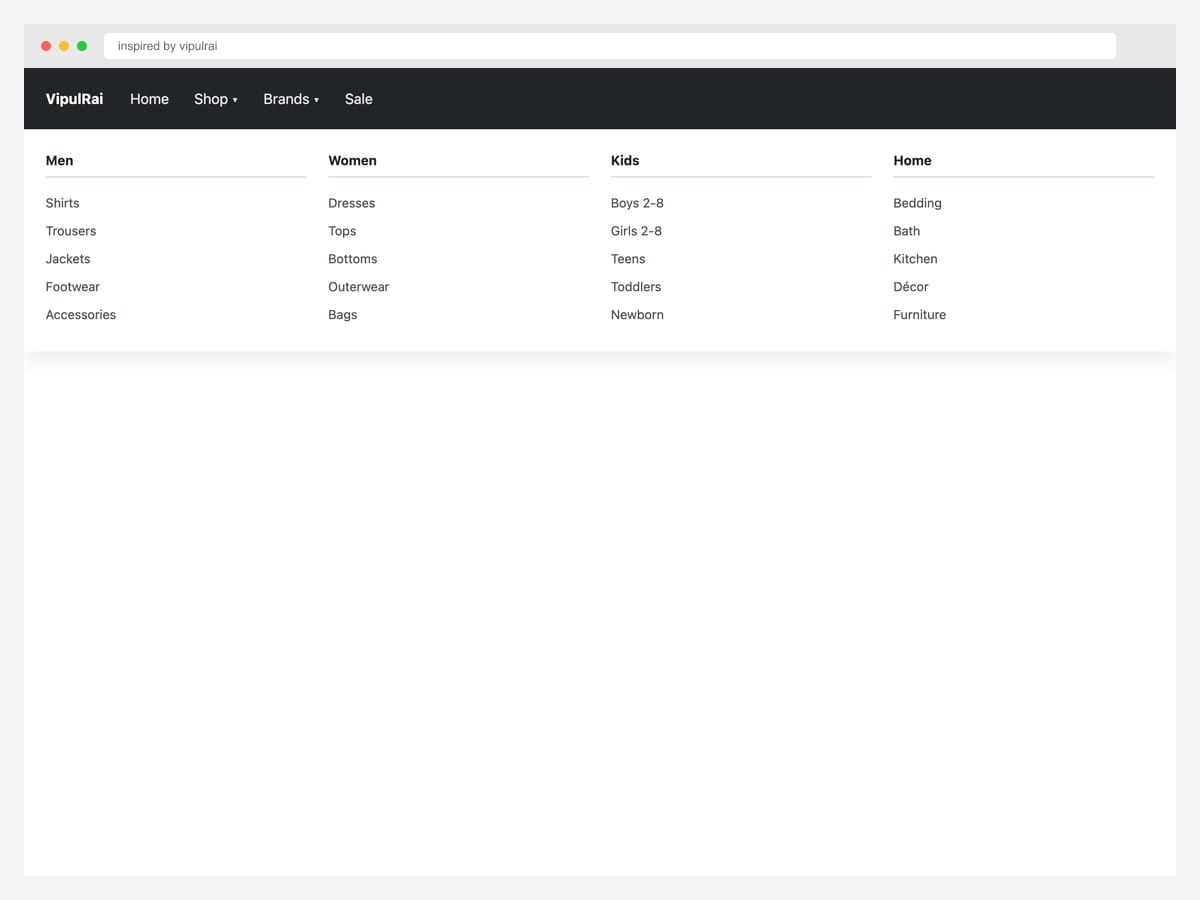
Inspired by vipulrai’s mega menu, this multi-column layout shows four product category sections (Men, Women, Kids, Home) — each with five sub-category links and a colored top border that matches the category. Best fit for apparel ecommerce, marketplaces, and any catalog site where the top-level navigation needs to mirror the URL hierarchy users will browse. Pure Bootstrap 5 utility classes — col-md-3 for the column layout, custom CSS for the top borders and hover states. The pattern works equally well horizontally (4 cols × 5 rows = 20 items) and vertically (4 rows × 5 cols) — pick the orientation that matches your category count and your audience’s reading direction.
Inspired by: vipulrai · License: CodePen default (attribution required)
Source & details Original demo
Form-field dropdowns
22. Dropdown with Checkboxes / Switches
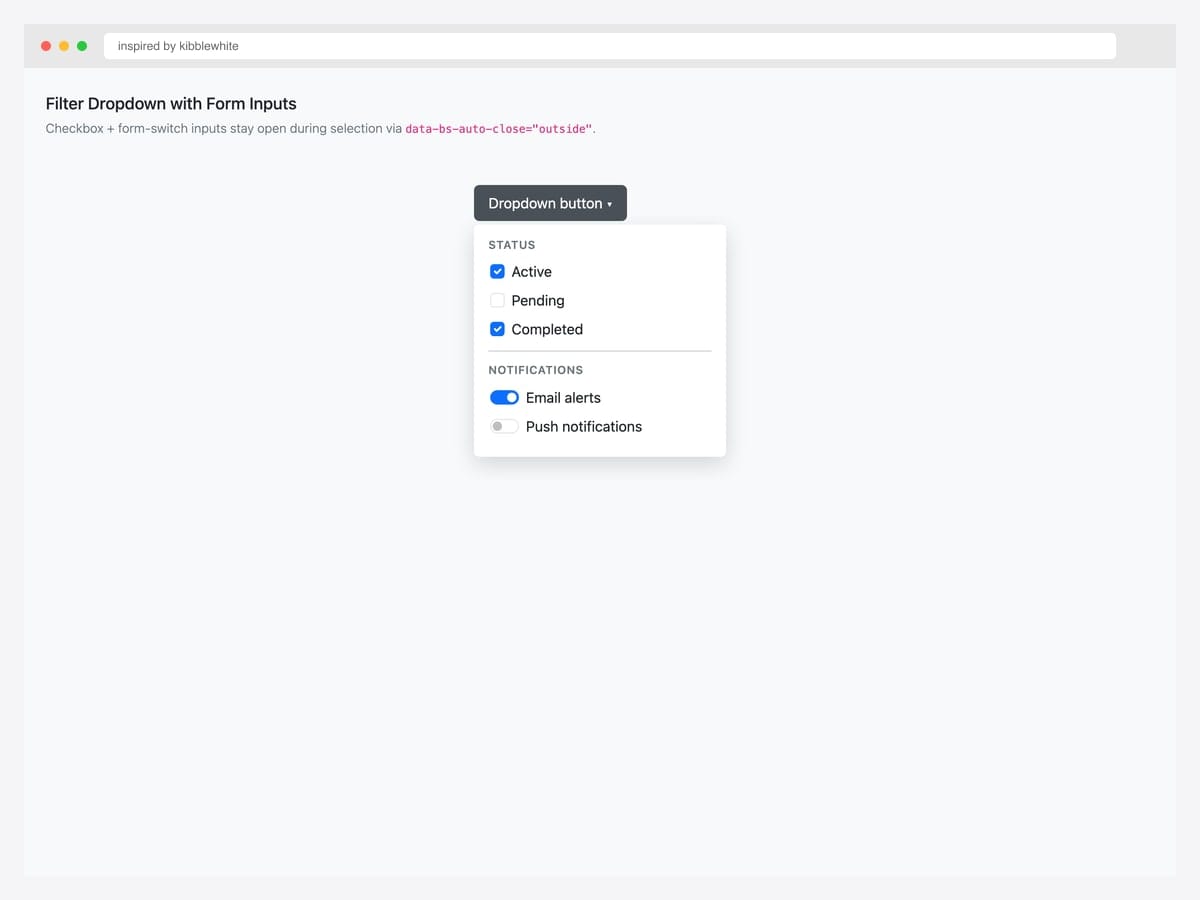
Inspired by kibblewhite’s filter-dropdown pen, this menu combines checkboxes (Status: Active / Pending / Completed) with form switches (Notifications: Email / Push) inside a single dropdown — staying open during selection via data-bs-auto-close="outside". Best fit for data-heavy interfaces — admin tables, analytics dashboards, search-result filtering. Pure Bootstrap 5 form classes (.form-check, .form-switch); the auto-close behavior is the critical differentiator. Group related filters with section labels (Status / Notifications) so users can scan logical chunks rather than a flat list of unrelated toggles. Apply filters on a “Apply” button click rather than per-toggle for performance.
Inspired by: kibblewhite · License: CodePen default (attribution required)
Source & details Original demo
23. Dropdown autoClose Behaviors
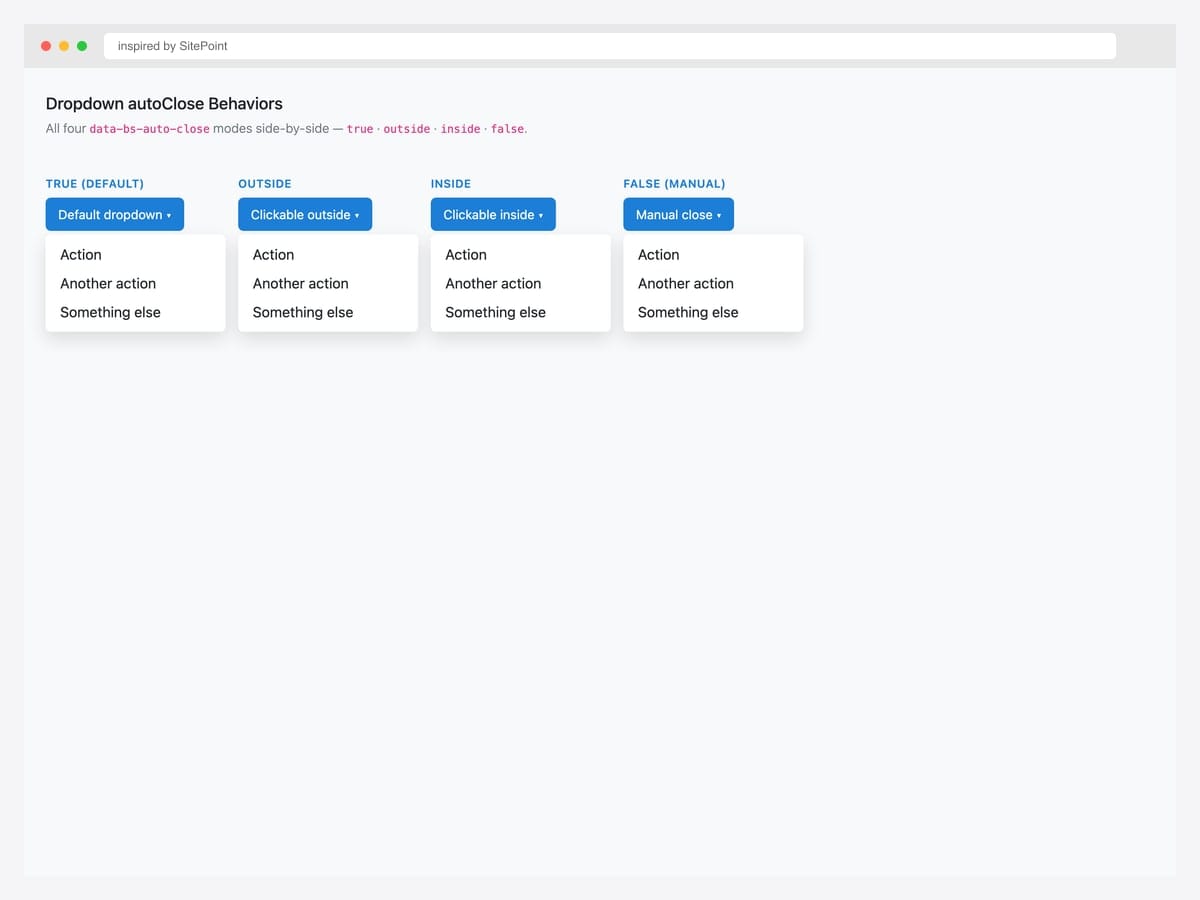
Inspired by SitePoint’s dropdown autoClose demo, this comparison shows all four data-bs-auto-close behaviors side-by-side: true (default — close on any click), outside (close only on outside click), inside (close only on inside click), and false (never auto-close; manual .hide() required). Best fit as a teaching reference for developers learning Bootstrap 5’s dropdown behavior options. Pure Bootstrap 5 — each variant just changes one data attribute on the trigger. Pick outside for filter dropdowns with multiple toggles, inside for menus with destructive actions that need user reflection, and false for tour/onboarding overlays where dismissal is controlled programmatically.
Inspired by: SitePoint · License: CodePen default (attribution required)
Source & details Original demo
24. Search Form Inside Dropdown
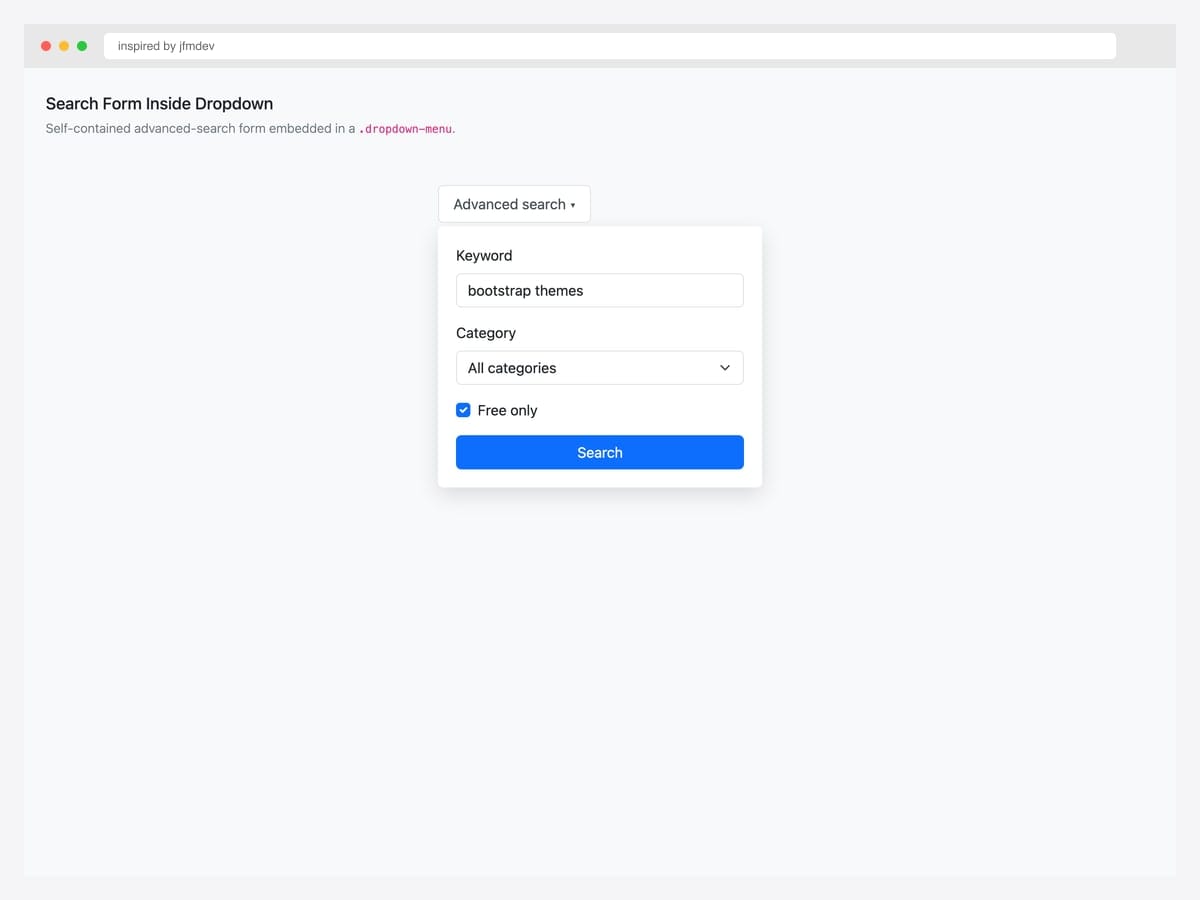
Inspired by jfmdev’s form-in-dropdown pen, this dropdown contains an advanced search form — keyword input, category select, “free only” checkbox, plus a primary submit button. Best fit for site-wide search interfaces where the dropdown holds form controls rather than navigation links. Pure Bootstrap 5 form classes; the dropdown stays open during input via data-bs-auto-close="outside". Forms inside dropdowns are tricky for screen readers — explicitly include aria-label on the dropdown trigger (“Open advanced search form”) so users with screen readers understand the dropdown expands a form rather than a list of links.
Inspired by: jfmdev · License: CodePen default (attribution required)
Source & details Original demo
Split buttons & directional variants
25. Split Button Dropdown Group
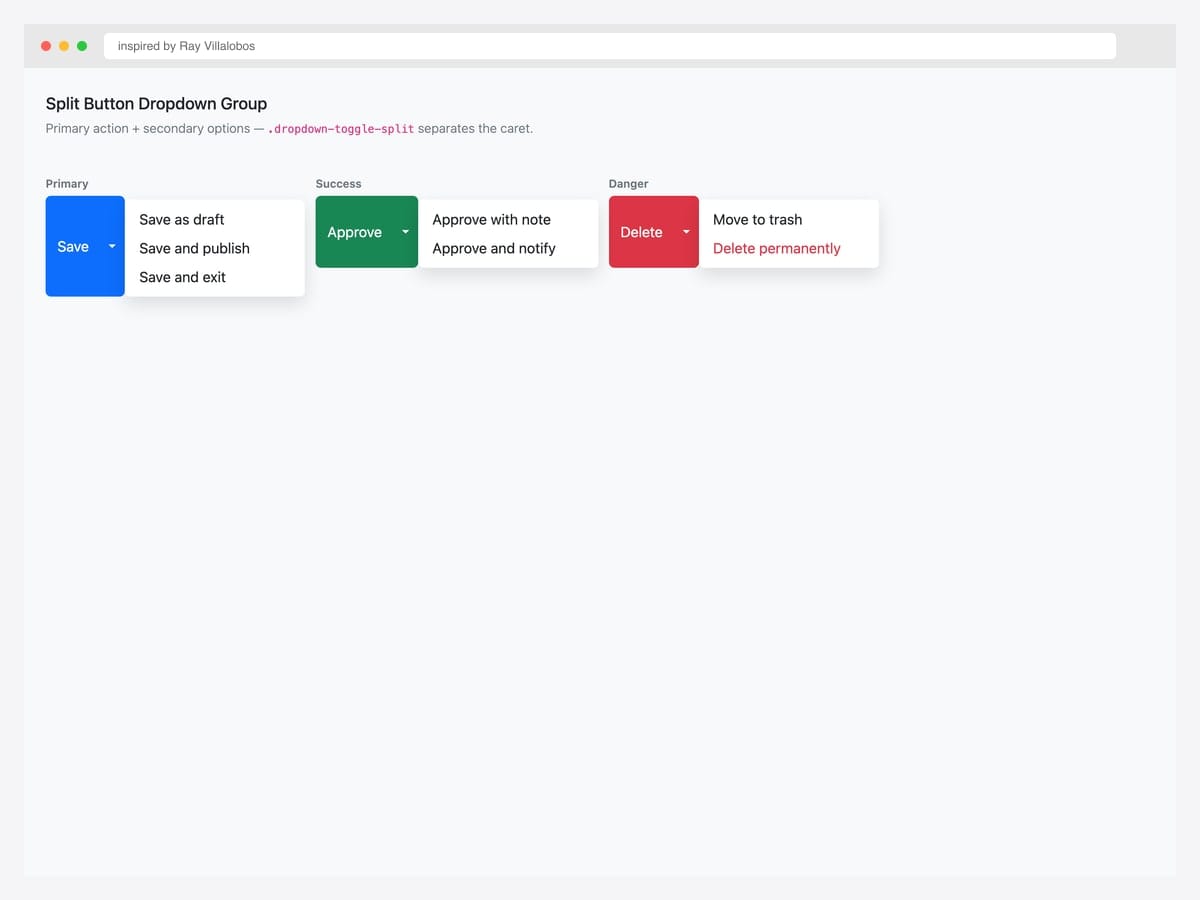
Inspired by Ray Villalobos’s LinkedIn Learning split-button pen, this group shows three Bootstrap 5 variants — Primary (Save / Save as draft / Save and publish), Success (Approve / with note / and notify), and Danger (Delete / Move to trash / Delete permanently). Best fit for forms with a primary action plus secondary variations — save dialogs, publish flows, destructive actions with safety options. Pure Bootstrap 5 — .btn-group wrapper, two buttons (main action + .dropdown-toggle-split caret). Include a screen-reader-only label on the split toggle (<span class="visually-hidden">Toggle</span>) so the toggle button has an accessible name even though it’s visually just a caret.
Inspired by: Ray Villalobos · License: CodePen default (attribution required)
Source & details Original demo
26. Dropdown Options (dropup / dropstart / dropend)
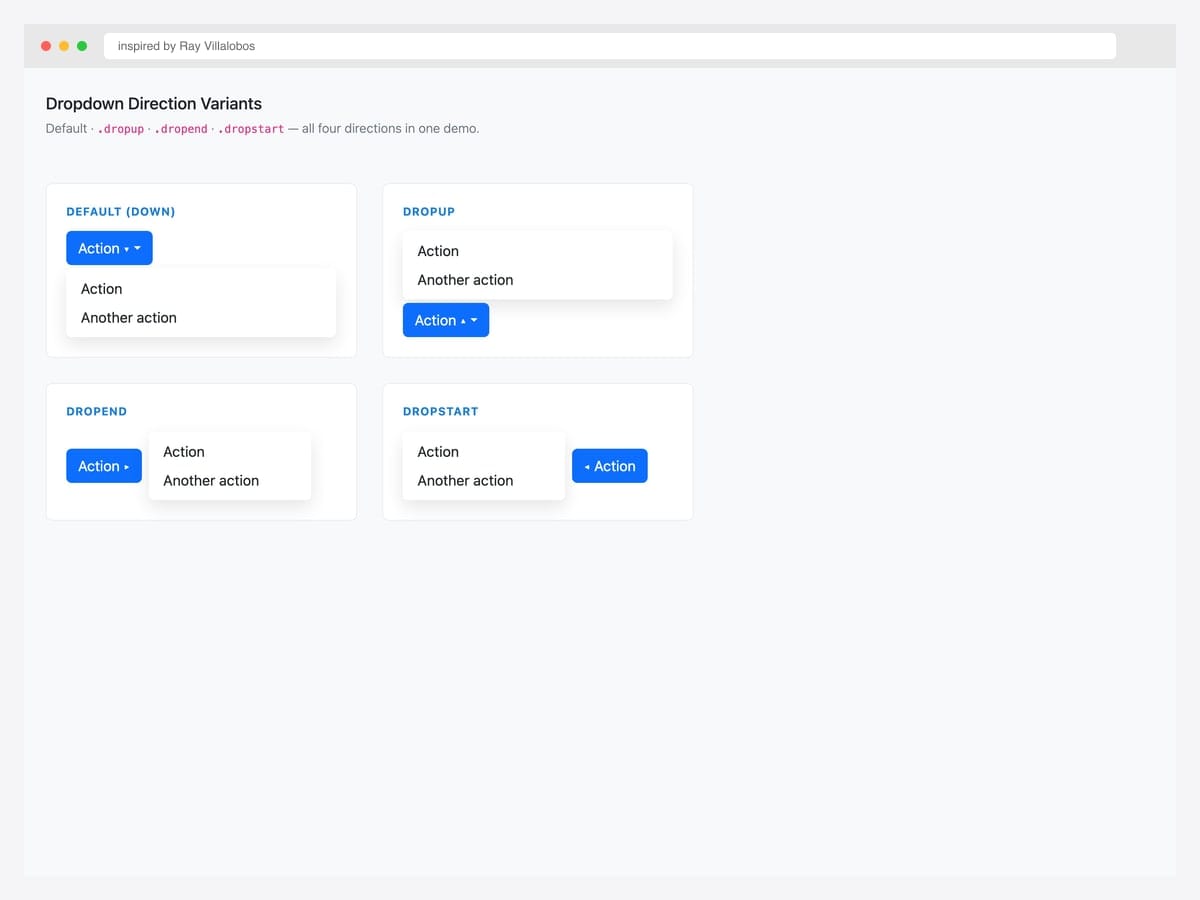
Inspired by Ray Villalobos’s BS5 dropdown options pen, this 2×2 grid shows all four directional variants in one demo — Default (down), Dropup, Dropend, and Dropstart. Best fit as a reference when you need to pick a direction based on the trigger’s position relative to the viewport edge. Pure Bootstrap 5 — each direction is just a different class on the wrapper (.dropdown, .dropup, .dropend, .dropstart). For dynamic position decisions, Bootstrap uses Popper.js automatically — set data-bs-display="dynamic" on the trigger and Popper will flip the menu when it would overflow the viewport. No manual direction logic required.
Inspired by: Ray Villalobos · License: CodePen default (attribution required)
Source & details Original demo
Advanced Bootstrap dropdown patterns
Three patterns the listicle items above hint at but rarely demo in isolation. Each one solves a specific production problem.
Pattern 1 — Hover-triggered dropdown with keyboard fallback. Bootstrap defaults to click for good reasons (keyboard accessibility, touch-friendly). But marketing/landing-page contexts often want hover-trigger nav menus. This pattern adds hover on top of click — keyboard and touch users still get the click behavior:
@media (hover: hover) and (min-width: 992px) {
  .dropdown.dropdown-hover:hover > .dropdown-menu {
    display: block;
  }
  .dropdown.dropdown-hover > .dropdown-toggle:active {
    pointer-events: none;
  }
}
Critical: gate this with @media (hover: hover) so touch devices keep click behavior. Otherwise mobile users tap the link and immediately follow it without seeing the dropdown.
Pattern 2 — Mega-menu dropdown. When a single dropdown needs 30+ items, the flat .dropdown-menu becomes unusable. Mega-menus widen the menu to multi-column grids:
<li class="nav-item dropdown position-static">
  <a class="nav-link dropdown-toggle" data-bs-toggle="dropdown" href="#">Products</a>
  <div class="dropdown-menu w-100 p-4" style="max-width: 1140px;">
    <div class="row">
      <div class="col-md-3">
        <h6 class="dropdown-header">By Category</h6>
        <a class="dropdown-item" href="#">Electronics</a>
        <a class="dropdown-item" href="#">Apparel</a>
      </div>
      <div class="col-md-3">...</div>
    </div>
  </div>
</li>
Key trick: position-static on the parent <li> lets the dropdown span the full container width. Otherwise the dropdown is anchored to the link.
Pattern 3 — Dropdown with embedded form. Filter dropdowns often need form controls (date range, price slider, checkboxes). Bootstrap 5 supports this via data-bs-auto-close="outside" — clicking inside the menu doesn’t close it; only clicking outside does:
<div class="dropdown">
  <button class="btn btn-outline-secondary dropdown-toggle" data-bs-toggle="dropdown" data-bs-auto-close="outside">
    Filters
  </button>
  <form class="dropdown-menu p-3" style="min-width: 320px;">
    <div class="form-check"><input class="form-check-input" type="checkbox"> In stock only</div>
    <button type="submit" class="btn btn-primary w-100">Apply</button>
  </form>
</div>
Dropdown vs Select vs Autocomplete — when to use which
| Dropdown (menu) | Select (<select>) | Autocomplete / Combobox | |
|---|---|---|---|
| Element | Custom (button + ul) | Native HTML <select> | Custom (input + suggestions) |
| Triggers actions | Yes (links/buttons) | No (selects a value) | No (selects a value, often filtered) |
| Searchable | No (without custom JS) | No (native only) | Yes — primary use case |
| Mobile UX | Custom — needs careful design | Native mobile picker | Custom — needs careful design |
| Use case | Nav menus, action menus | Form fields with finite options | Form fields with many options |
| Server submission | No | Yes (form input) | Yes (form input) |
When to choose what: Nav-bar menu → dropdown. Form field with under 20 options → select. Form field with 20+ options or freeform input → autocomplete. Looking for the form-input version? See our Bootstrap multiselect examples.
More 2026 dropdown snippets from Colorlib
Two more dropdowns from our 2026 snippets: a mini cart that opens from a header cart button, and a breadcrumb with a sibling-pages menu.
Shopping Cart V03: Mini cart dropdown from a header cart button with a badge count
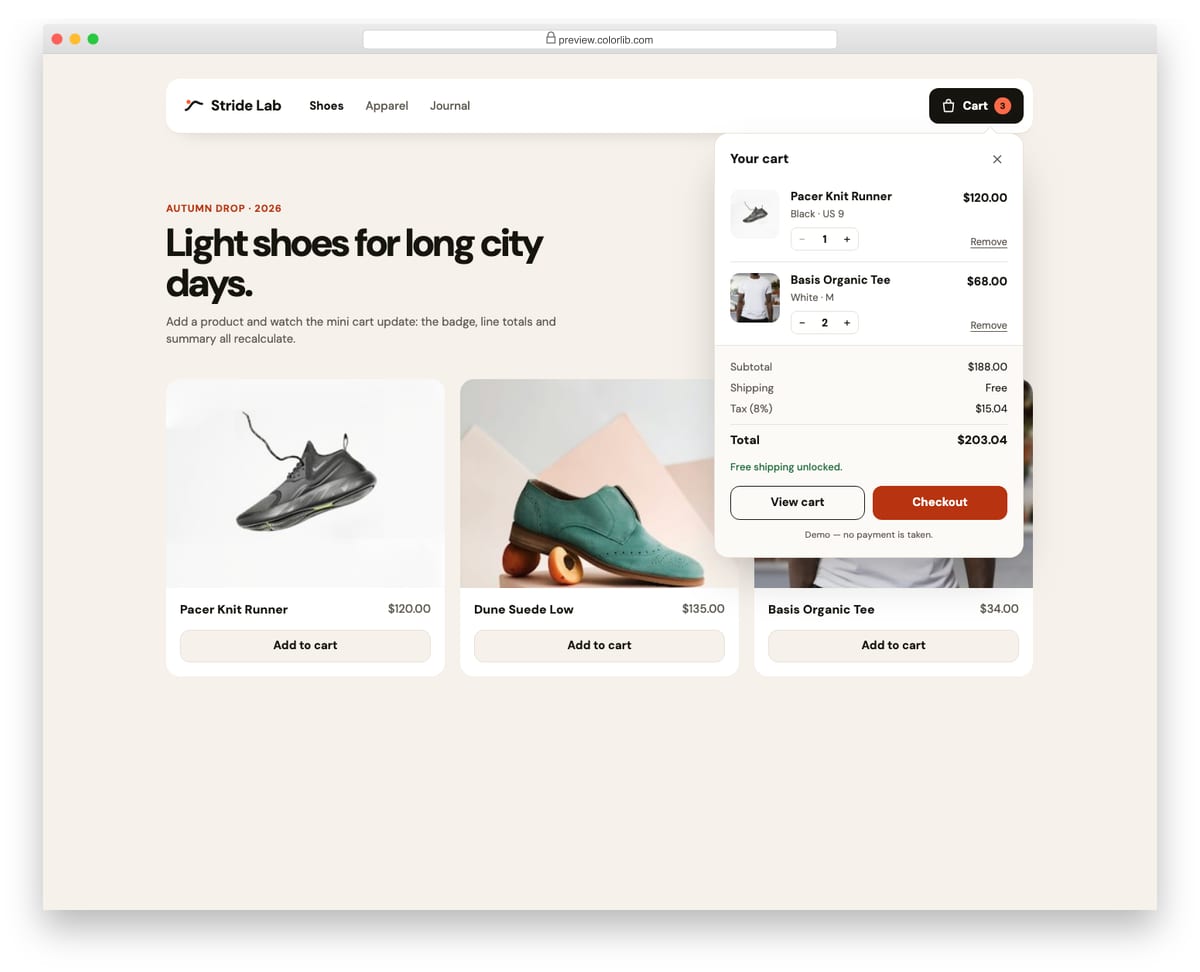
A store header with a cart button that opens a mini cart panel using the disclosure pattern. The panel lists line items with small quantity steppers, shows subtotal, shipping, tax and total, and offers View cart and Checkout buttons. Add to cart buttons on the demo product grid add new lines or raise quantities, and the badge count bumps as it changes.
Best for: store headers and quick cart previews. Plain HTML and CSS with a few lines of vanilla JavaScript, a 322 KB download, and it works on its own or inside a Bootstrap 4, 5 or 6 project.
Breadcrumb V07: Breadcrumb with a sibling-pages dropdown on the current level
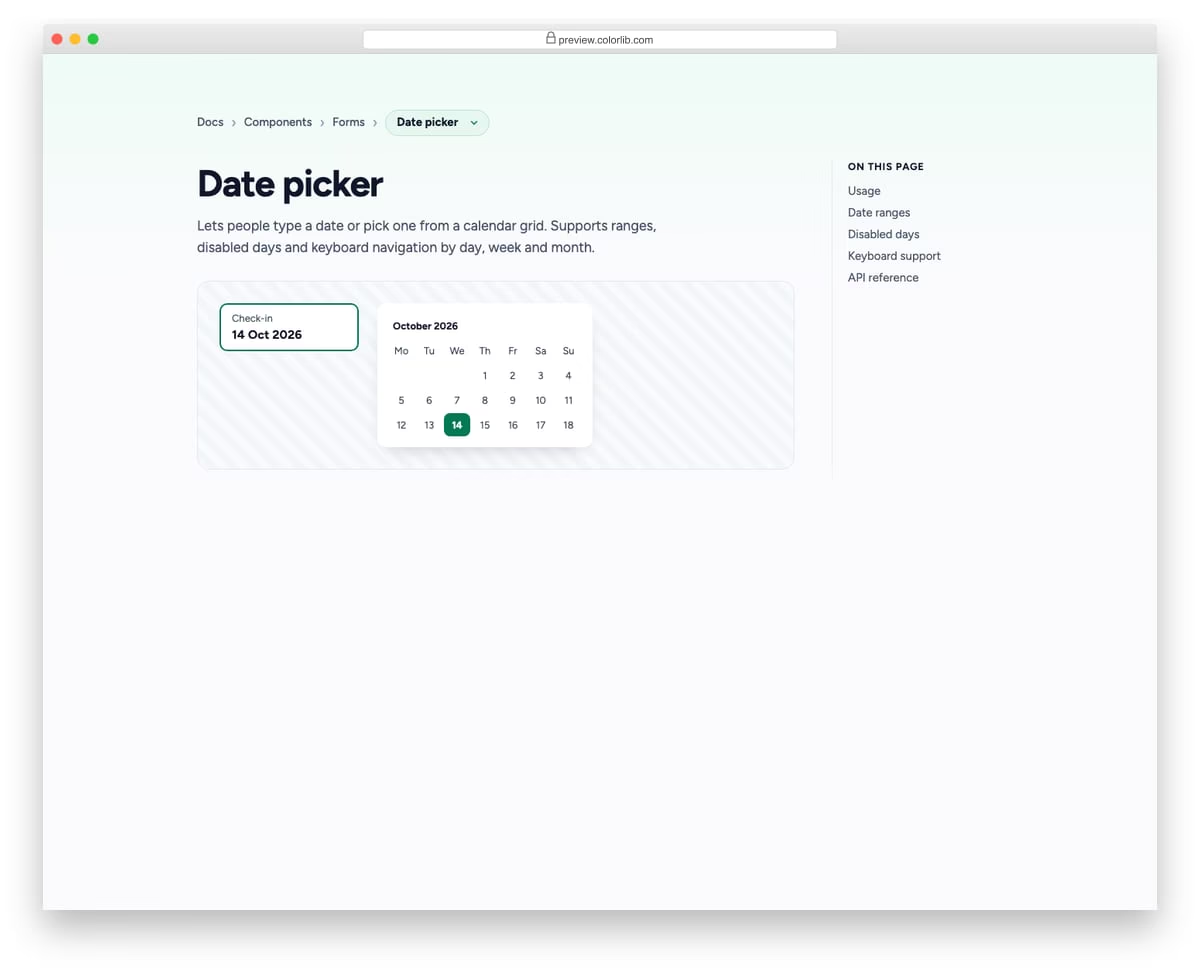
A documentation breadcrumb whose last level is a split pill: the current page link plus a small button that opens a menu of sibling pages in the same section. The menu follows the disclosure pattern, with arrow keys, Escape and outside clicks handled. It is shown on a component docs page with a preview and an on-this-page list.
Best for: documentation sites, component libraries and knowledge bases. Plain HTML and CSS with a few lines of vanilla JavaScript, a 127 KB download, and it works on its own or inside a Bootstrap 4, 5 or 6 project.
Frequently asked questions
What’s the difference between a Bootstrap dropdown and a select element?
A Bootstrap dropdown is a toggleable menu of actions (links, buttons) typically used in navigation or action menus. A <select> element is a native HTML form control that picks a single value from a list. Use a dropdown when items perform actions or navigate. Use a select when the user is choosing a value to submit with a form.
How do I open a Bootstrap dropdown on hover instead of click?
Bootstrap’s default click-trigger is accessibility-friendly (keyboard, touch). To add hover-trigger on desktop, use CSS gated by @media (hover: hover): .dropdown-hover:hover > .dropdown-menu { display: block; }. Always keep the click behavior as the fallback for keyboard and touch users. See the “hover dropdown” advanced pattern in this article for the full code.
How do I make a Bootstrap dropdown stay open when clicking inside it?
Set data-bs-auto-close="outside" on the trigger element. This makes the dropdown close only when you click outside of it — clicks inside the menu are ignored. Useful for filter panels with checkboxes, date pickers, or any dropdown containing form controls. The other valid values are "true" (default — close on any click), "inside" (close only on inside clicks), and "false" (never auto-close).
How do I position a Bootstrap dropdown to open upwards?
Use the dropup class on the wrapper instead of dropdown: <div class="dropup">. Bootstrap also offers dropstart and dropend for left/right-opening menus. For dynamic positioning that flips when near viewport edges, Bootstrap uses Popper.js automatically — no extra config needed.
How do I create a Bootstrap mega menu?
A mega menu is a full-width dropdown that uses a grid layout. Add position-static to the parent <li> so the dropdown can span the container width, then use .row and .col-md-* inside the .dropdown-menu. See the “mega-menu” advanced pattern in this article for working markup.
How do I create a split button dropdown?
Use the .btn-group wrapper with two buttons — the main action button and a .dropdown-toggle-split button. Add dropdown-toggle dropdown-toggle-split classes to the second button and data-bs-toggle="dropdown" for the menu trigger. Include <span class="visually-hidden">Toggle Dropdown</span> for screen readers.
Are Bootstrap dropdowns accessible?
Yes, when implemented with the documented markup. Bootstrap dropdowns include aria-expanded state management, keyboard navigation (arrow keys, Escape to close), focus management, and ARIA roles. The trigger element must include aria-expanded="false" initially. For custom triggers (non-button elements), add role="button" and tabindex="0" for keyboard access.
Are these Bootstrap dropdown examples free for commercial use?
Yes, under the licence noted with each example. The 20 Colorlib snippets are free under CC BY 3.0: use them in personal and commercial projects and keep the credit link. The curated examples show their own licence under each one (MIT, MDB Free, or CodePen’s default, which asks for attribution); follow the link to the original to confirm the terms before you ship.
Final thoughts
Bootstrap’s dropdown component is the foundation under almost every web app’s navigation chrome. The patterns above show the spectrum: from the canonical eight contextual variants in the docs to mega-menus with rich content tiles, from kebab action menus to user profile dropdowns with avatar headers. The picks worth committing to memory: the canonical Bootstrap docs reference (#5) as your baseline, the Gmail-style user profile pattern (#10) for any logged-in app, the mega menu with rich items (#18) for product navigation, and Bootstrap 5.3’s native dark-mode cascade (#4) for any product that supports theme switching.
If you’re building a form with many options and looking for the input version, see our Bootstrap multiselect templates. For navbars that need to integrate dropdowns alongside other elements, our Bootstrap navbar examples is the next stop.
Related collections: Bootstrap navbar examples · Bootstrap multiselect templates · Bootstrap form templates · Bootstrap buttons · Free website menu templates · Bootstrap snippet library

Related Posts

Comments (0)