
21 Best HTML & Bootstrap Footer Templates 2026
Welcome to our ultimate HTML footer templates guide!
A footer isn’t just the end of your page; it’s the last impression.
In this post, we’ve gathered the best HTML footer templates that are beautiful and functional.
Our selection features various styles and use cases, ranging from simple and clean to complex and feature-rich. Each template is fully customizable to fit your needs.
Blogs, corporate sites, eCommerce platforms, and more.
Each has social media integration, a contact information section, and creative copyright notices to make your site more functional and visually appealing.
In short, you’ll find the one that suits you – before you even get to the end of this post.
This post covers:
- Best HTML footer templates
- How To Make A Footer With An HTML Template
- FAQs About HTML Footer Templates
Best HTML Footer Templates
Now, let’s dive into the heart of our guide: The best HTML footer templates out there.
These carefully selected tools are designed to enhance both the beauty and practicality of your website’s bottom line.
Note: You may also be interested in checking these epic website footer examples.
Table of contents — all 21 footer templates
- uiCookies Footer Templates (8 templates)
- Bootstrap Footer V01
- Bootstrap Footer V02
- Bootstrap Footer V03
- Bootstrap Footer V04
- Bootstrap Footer V05
- Bootstrap Footer V06
- Bootstrap Footer V07
- Bootstrap Footer V08
- Bootstrap Footer V09
- Bootstrap Footer V10
- Bootstrap Footer V11
- Bootstrap Footer V12
- Bootstrap Footer V13
- Bootstrap Footer V14
- Bootstrap Footer V15
- Bootstrap Footer V16
- Bootstrap Footer V17
- Bootstrap Footer V18
- Bootstrap Footer V19
- Bootstrap Footer V20
uiCookies Footer Templates (8 templates)
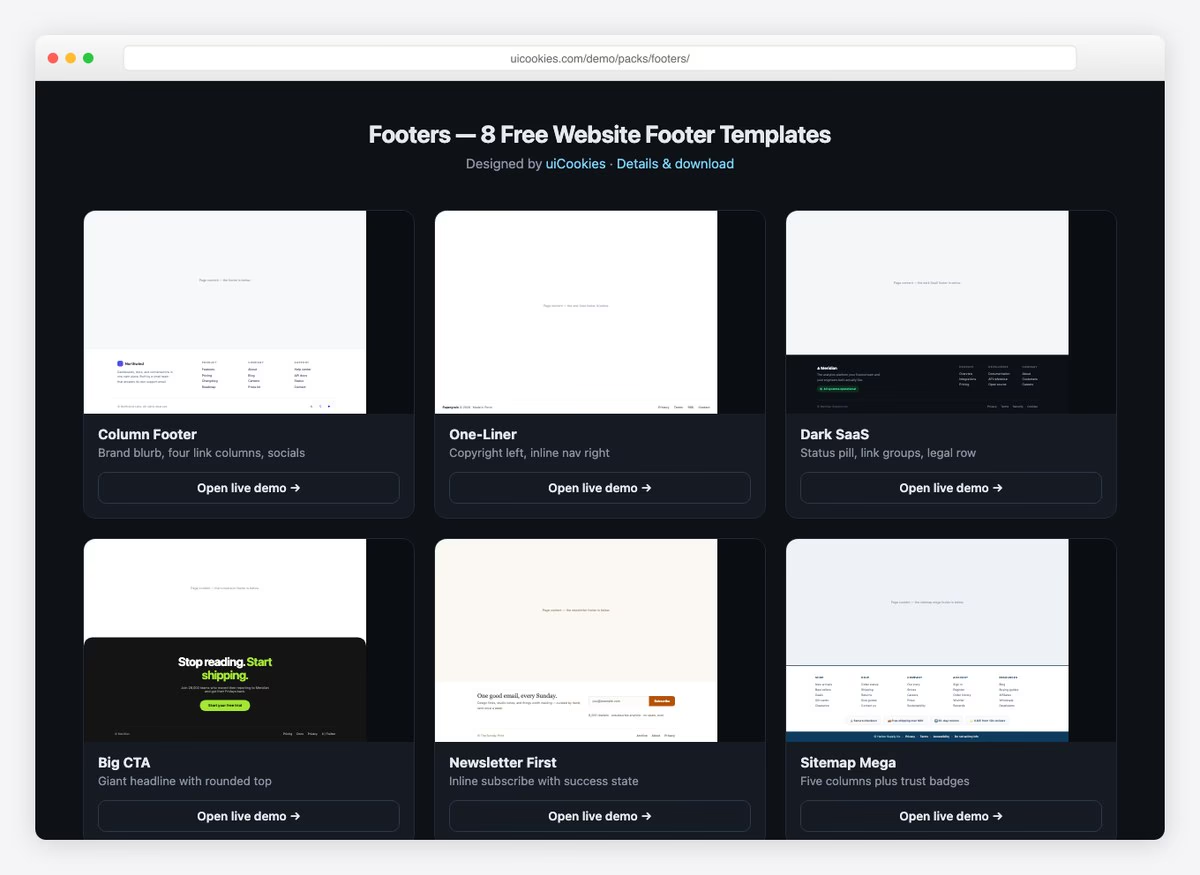
Eight footers covering the layouts most sites actually end up needing: a classic four-column footer, a one-line footer for small sites, a dark SaaS footer, a big call-to-action footer, a newsletter footer and an ecommerce mega footer.
Each is a single HTML file with the CSS inline and no framework requirement, so you can lift one footer out and paste it straight into a page. Free download from our own uiCookies library.
Bootstrap Footer V01
FreeHTMLBootstrapDark Mode · Best for: a dark footer with a call to action
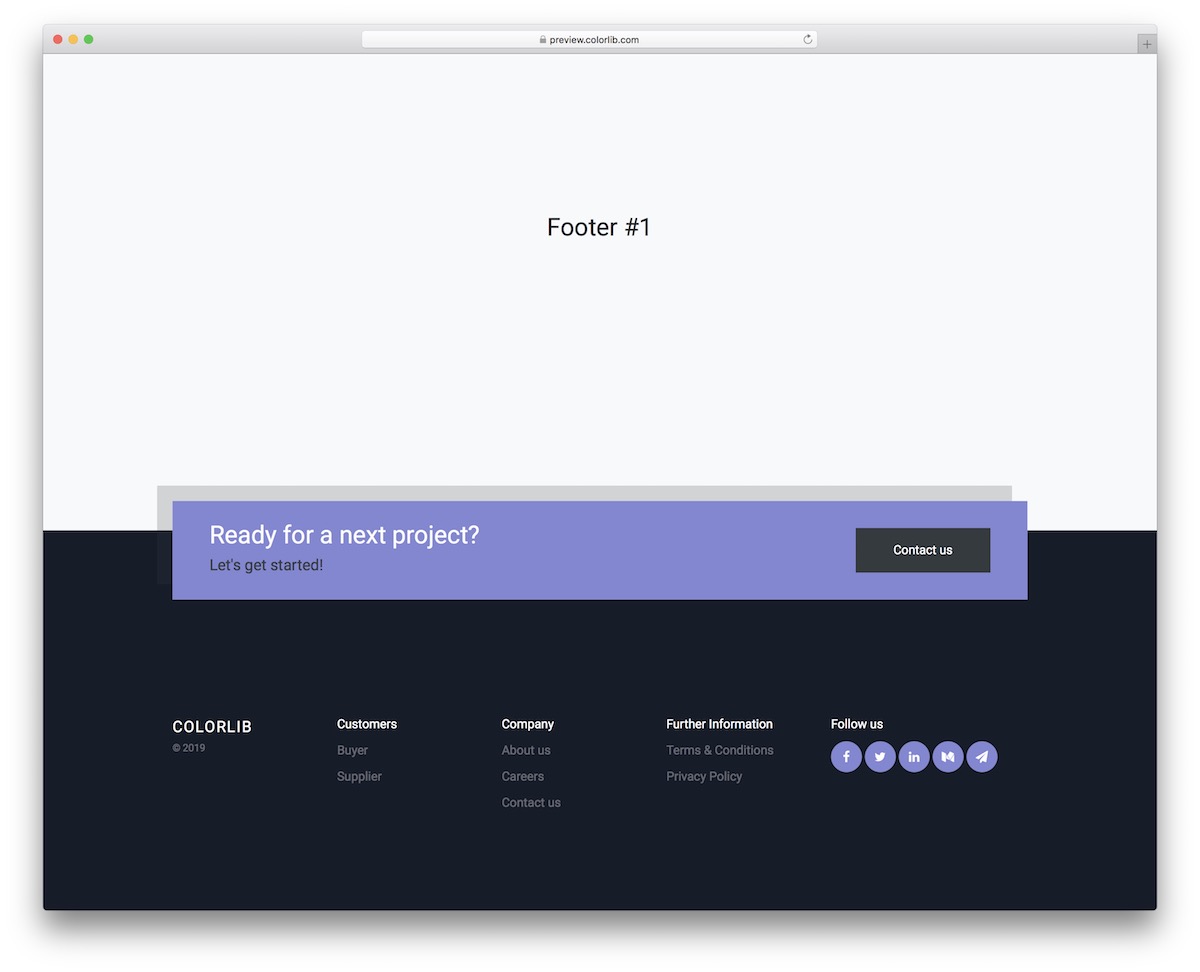
Dark purple panel with a call-to-action block sitting above the link columns. Columns cover the logo and company info, link lists, social media buttons and a copyright bar — paste the markup in and swap the labels. Need the pages above it too? Start from our website templates.
Bootstrap Footer V02
FreeHTMLBootstrap · Best for: footers with social feed widgets
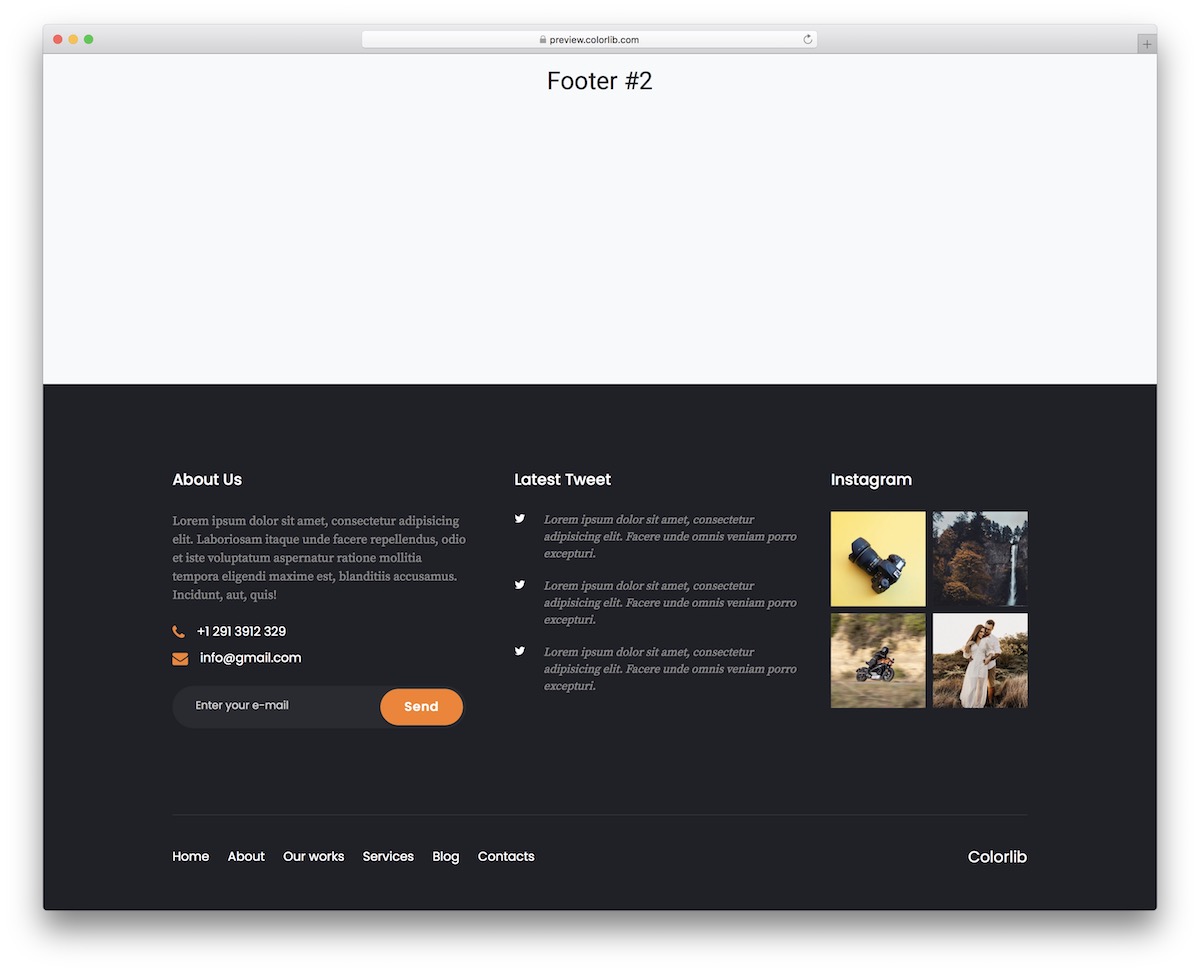
Built around social feeds: Twitter and Instagram blocks sit beside the contact and newsletter columns. You supply the feed back end; the markup covers an about block (see these ‘About Me’ page examples), a newsletter form, a bottom nav row and clickable phone and email links.
Bootstrap Footer V03
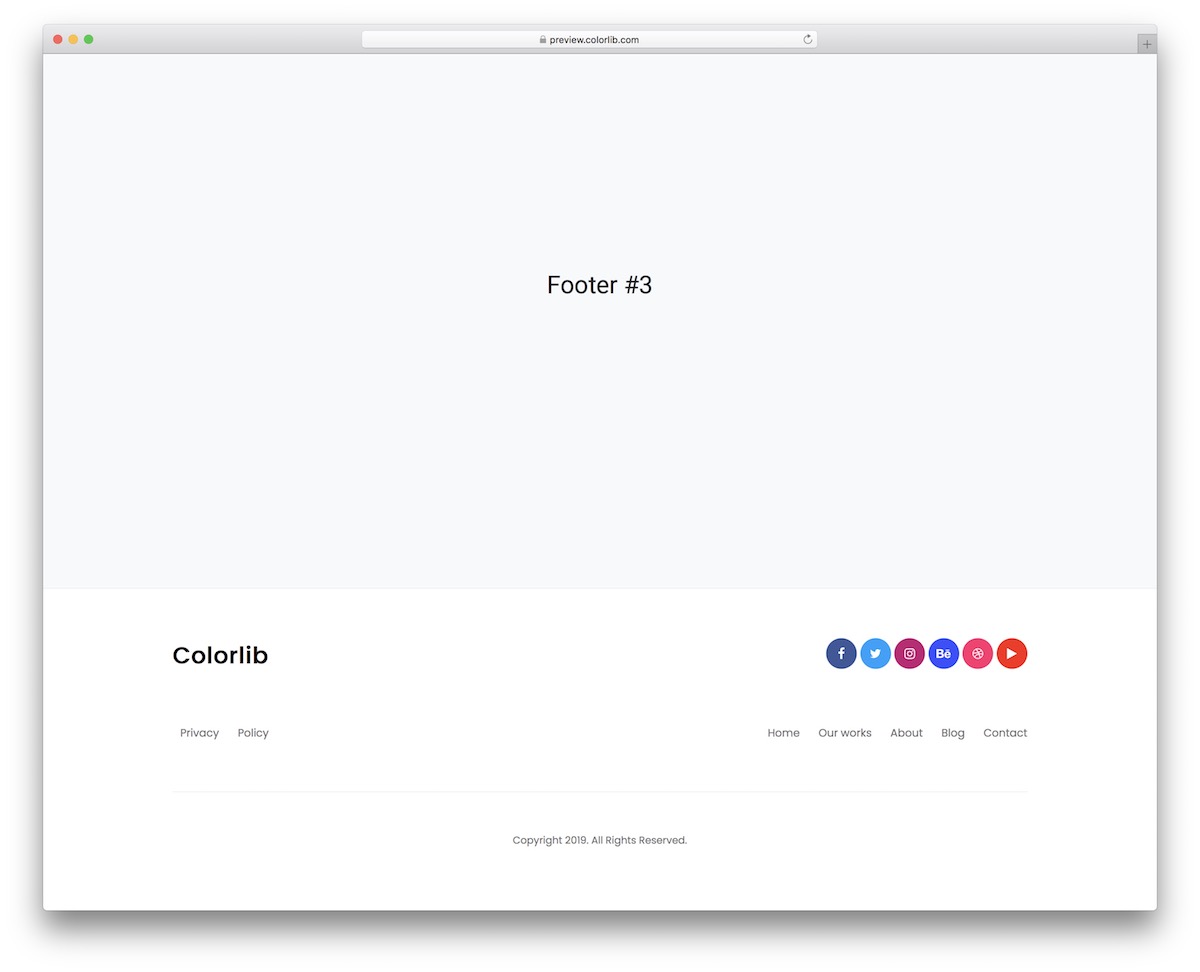
FreeHTMLBootstrap · Best for: a minimal single-row footer
Barely-there footer: logo, one link row, social icons, copyright. It is built to drop in as shipped — change the logo and the copyright line and the job is done.
Bootstrap Footer V04
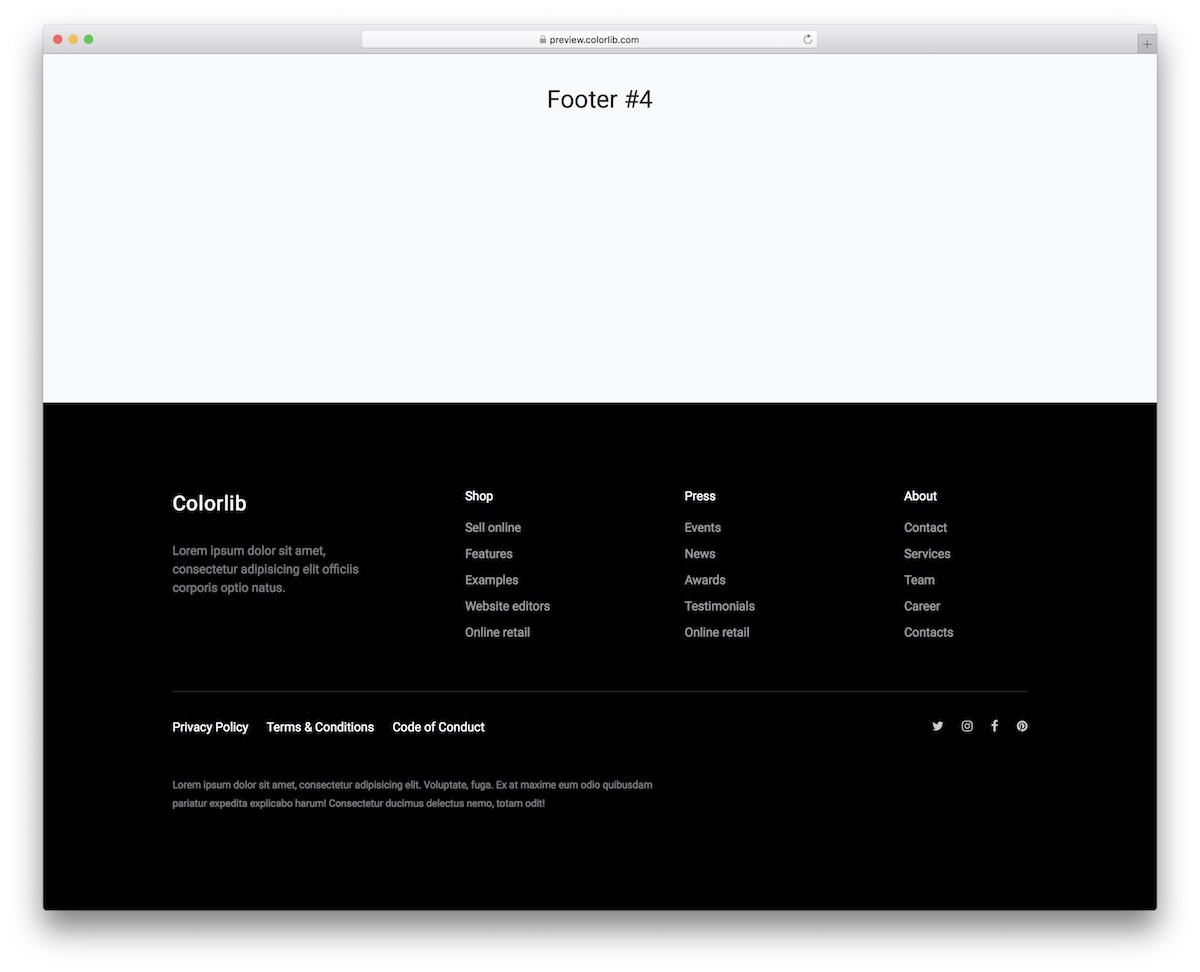
FreeHTMLBootstrapDark Mode · Best for: a dark four-column footer
Four columns on a black background: logo, a short about paragraph and two link lists. Below them sit social icons and the policy links most sites are expected to carry.
Bootstrap Footer V05
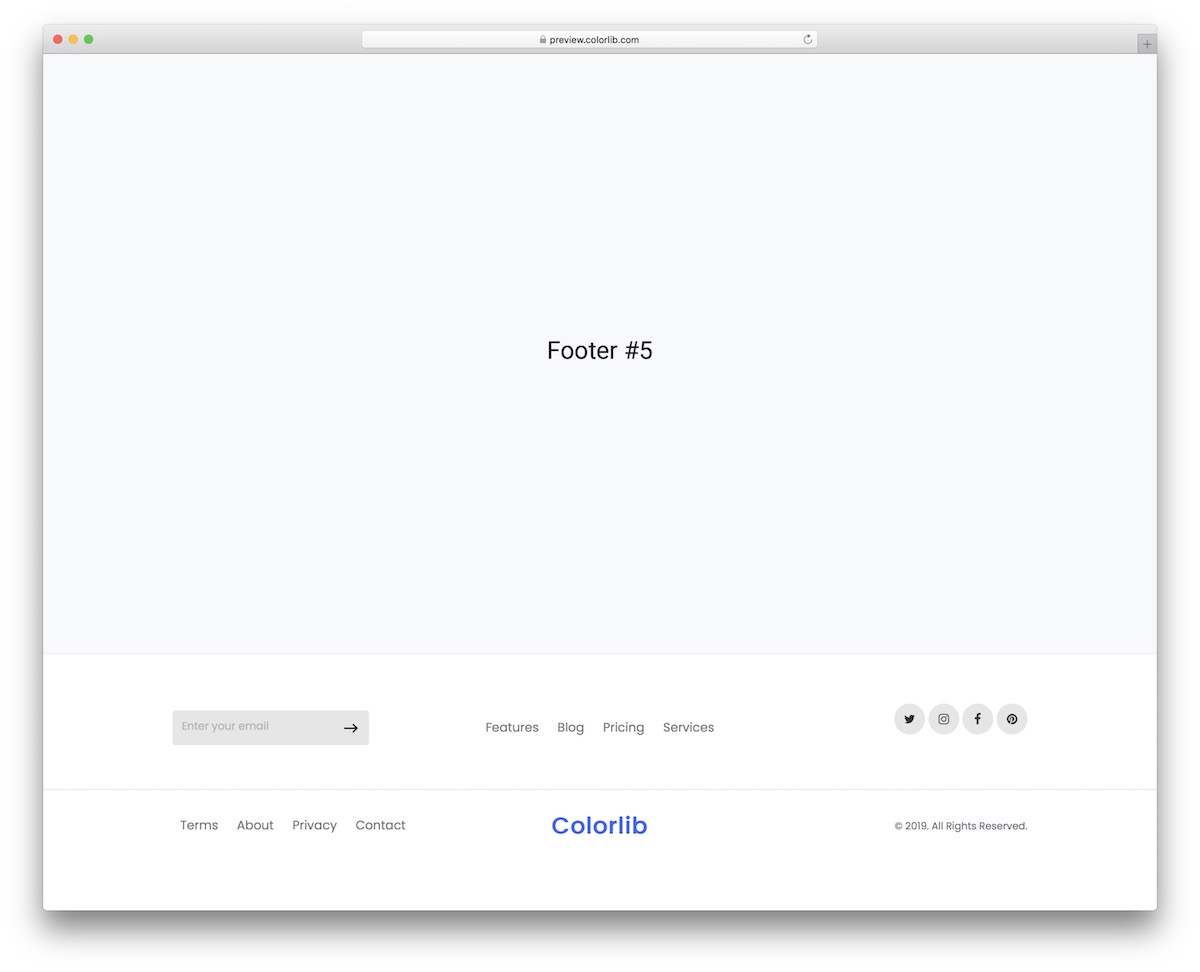
FreeHTMLBootstrap · Best for: a compact light footer
Light and compact enough that it does not add a second screen of scrolling. It carries a logo, a nav row, an email opt-in and a copyright line, and nothing beyond that.
Bootstrap Footer V06
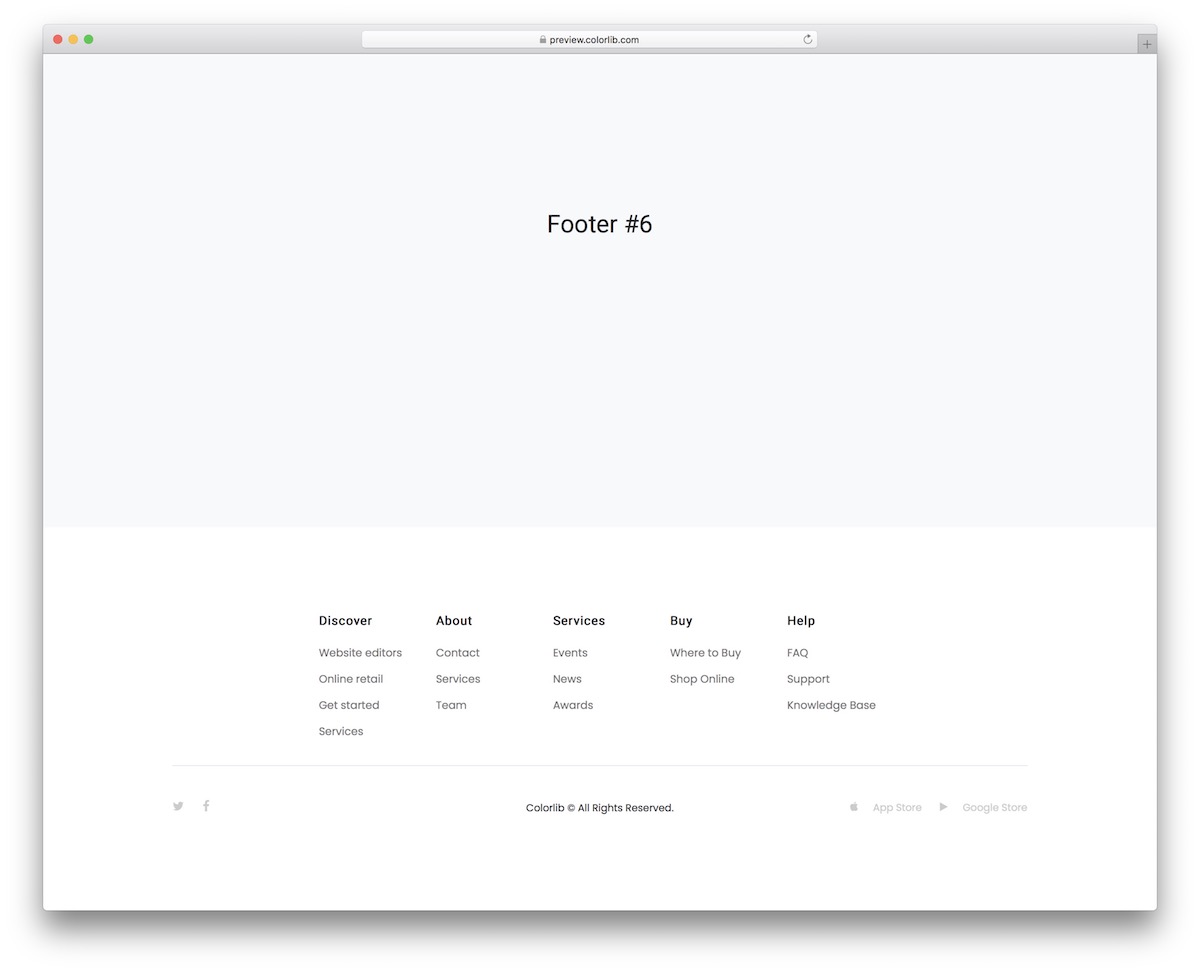
FreeHTMLBootstrap · Best for: apps with store download badges
The only footer here with app store download buttons in the bottom bar. Above them sit several link columns and a social icon row, which keeps a large menu readable.
Bootstrap Footer V07
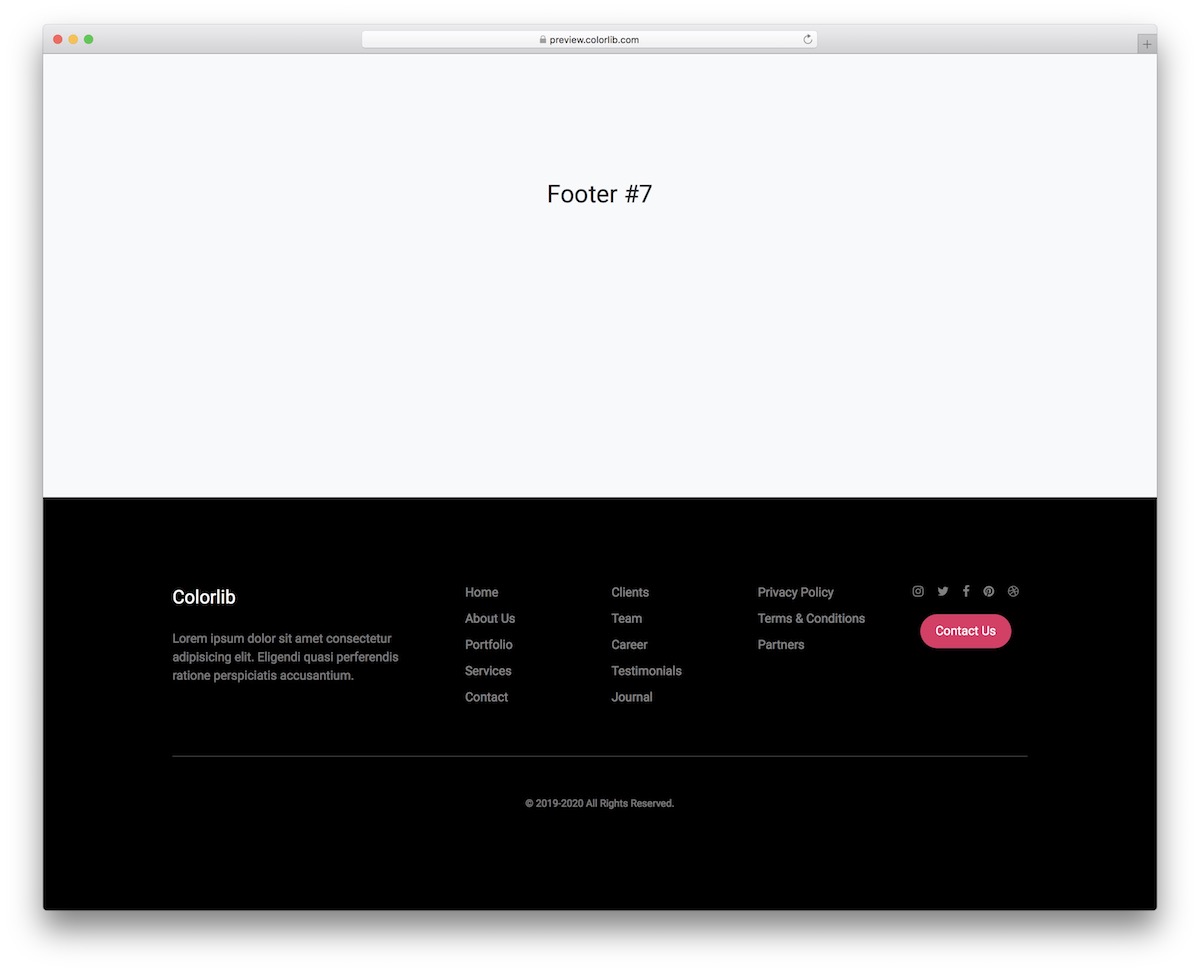
FreeHTMLBootstrapDark Mode · Best for: a dark multi-column footer
Dark, multi-column, with a short about block and a call to action at the end of the row. Link lists and social icons fill the remaining columns, and the structure holds on small screens.
Bootstrap Footer V08
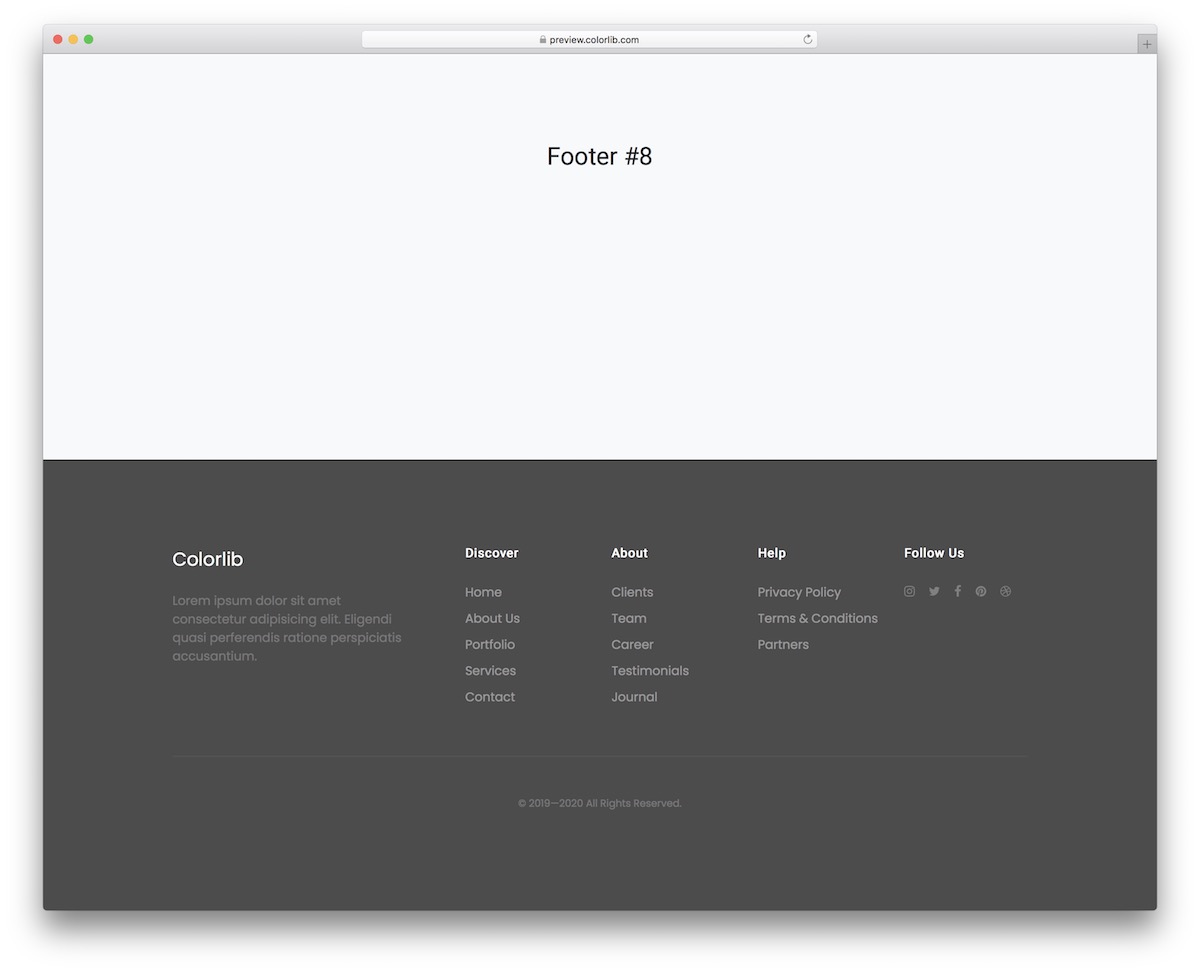
FreeHTMLBootstrap · Best for: sites between light and dark
A grey middle ground for pages where neither a white nor a black footer looks right. The structure stays minimal, so it drops into most colour schemes with only a background change.
Bootstrap Footer V09
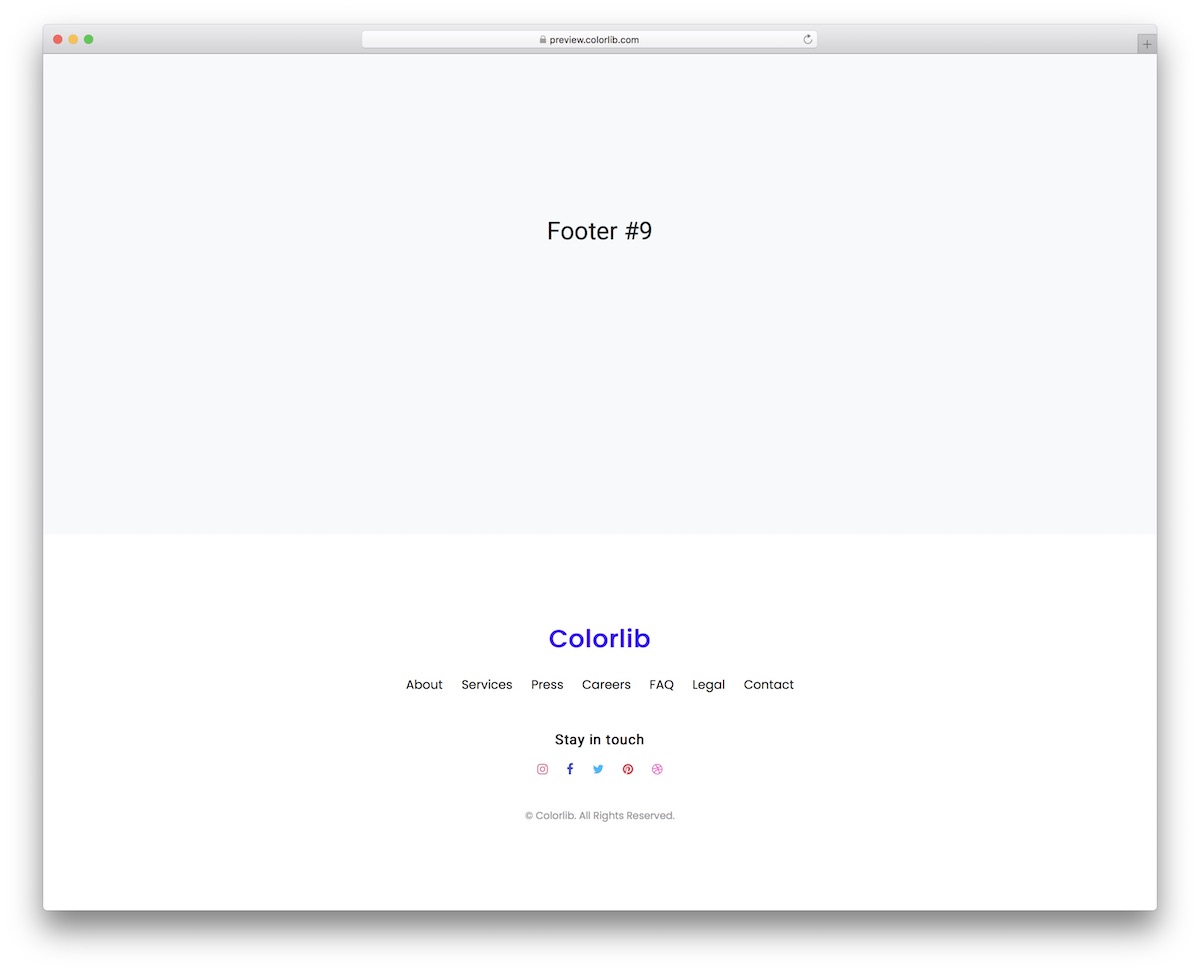
FreeHTMLBootstrap · Best for: the smallest possible footer
Essential links and social icons, and that is the whole component. Useful when the footer should not compete with the content above it.
Bootstrap Footer V10
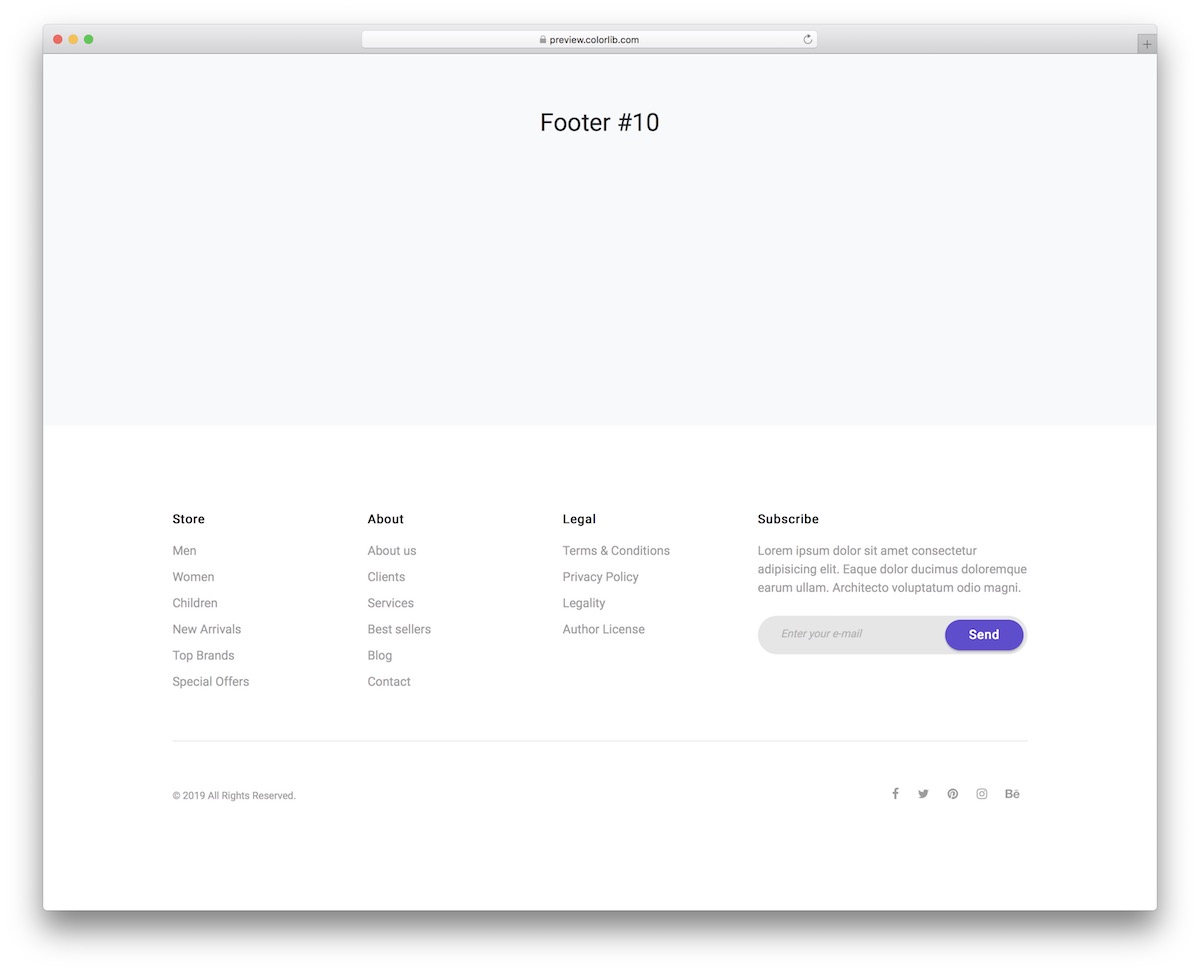
FreeHTMLBootstrap · Best for: collecting email subscribers
Newsletter-first: the subscribe form gets its own persuasive line above it. Three link columns sit alongside, and the rounded form styling reads closer to an app than a web form.
Bootstrap Footer V11
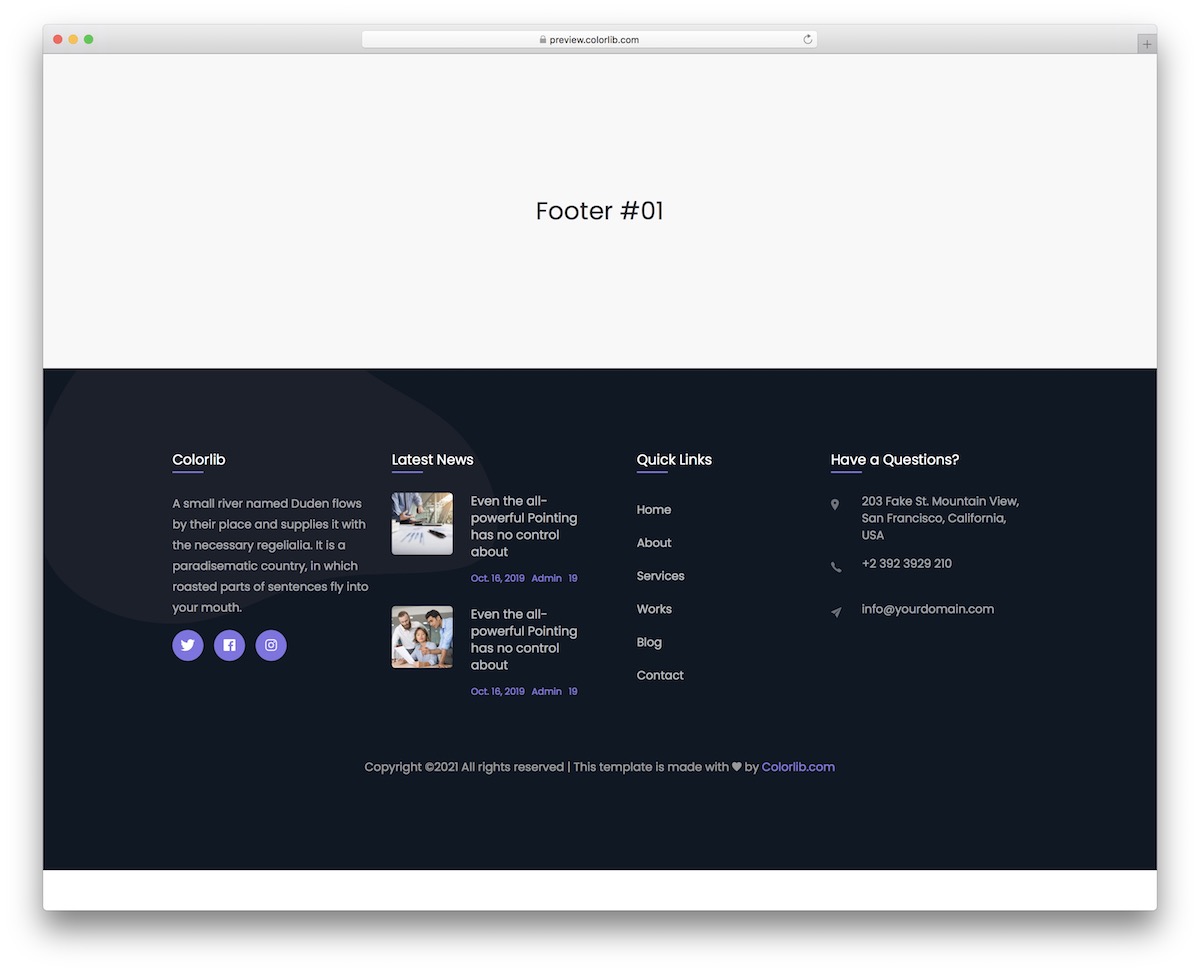
FreeHTMLBootstrap · Best for: a mega-footer with a news column
A mega-footer: social, latest news, business details and quick links each get their own section. Expect to change the colours to match your brand; the structure itself works straight out of the file.
Bootstrap Footer V12
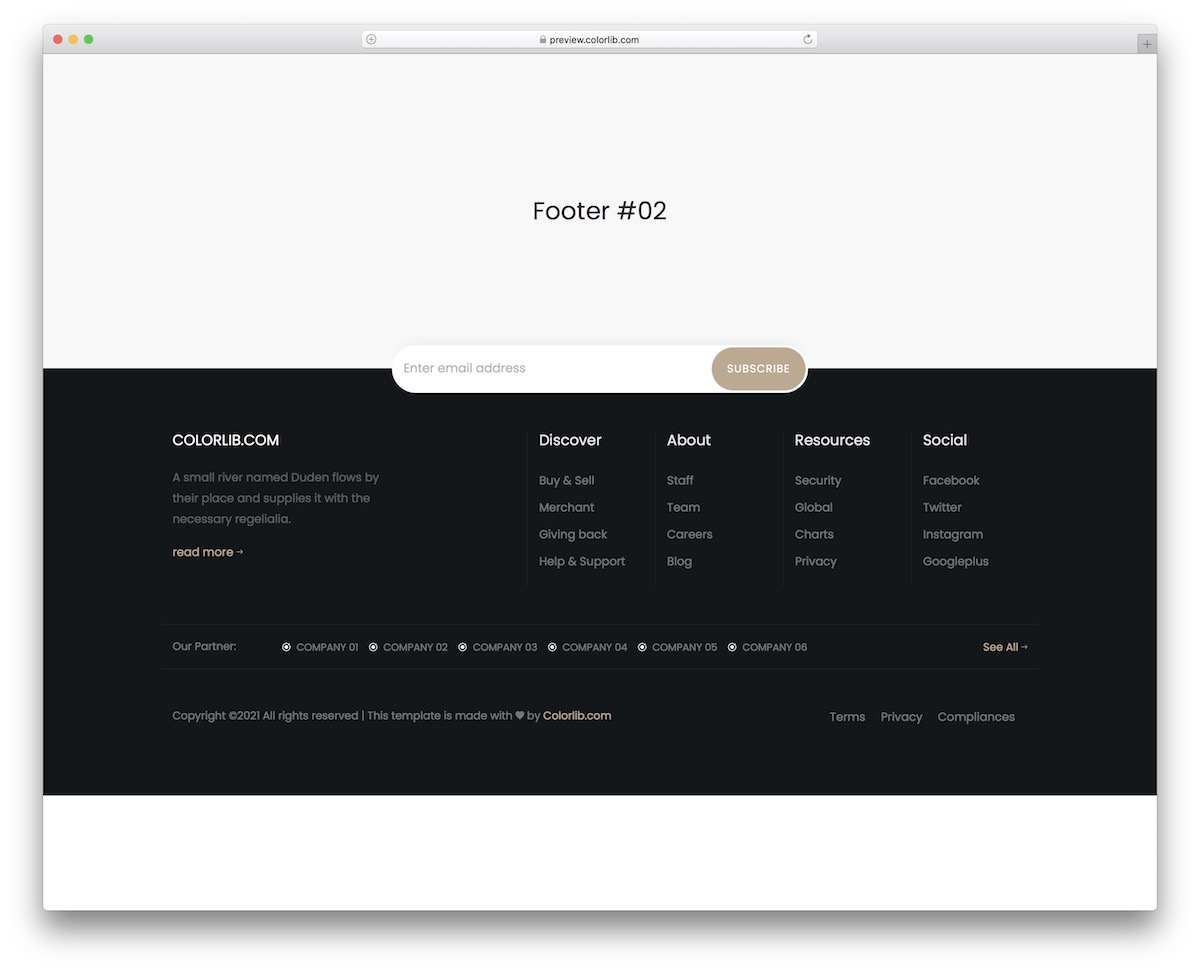
FreeHTMLBootstrapDark Mode · Best for: a dark footer with a partners row
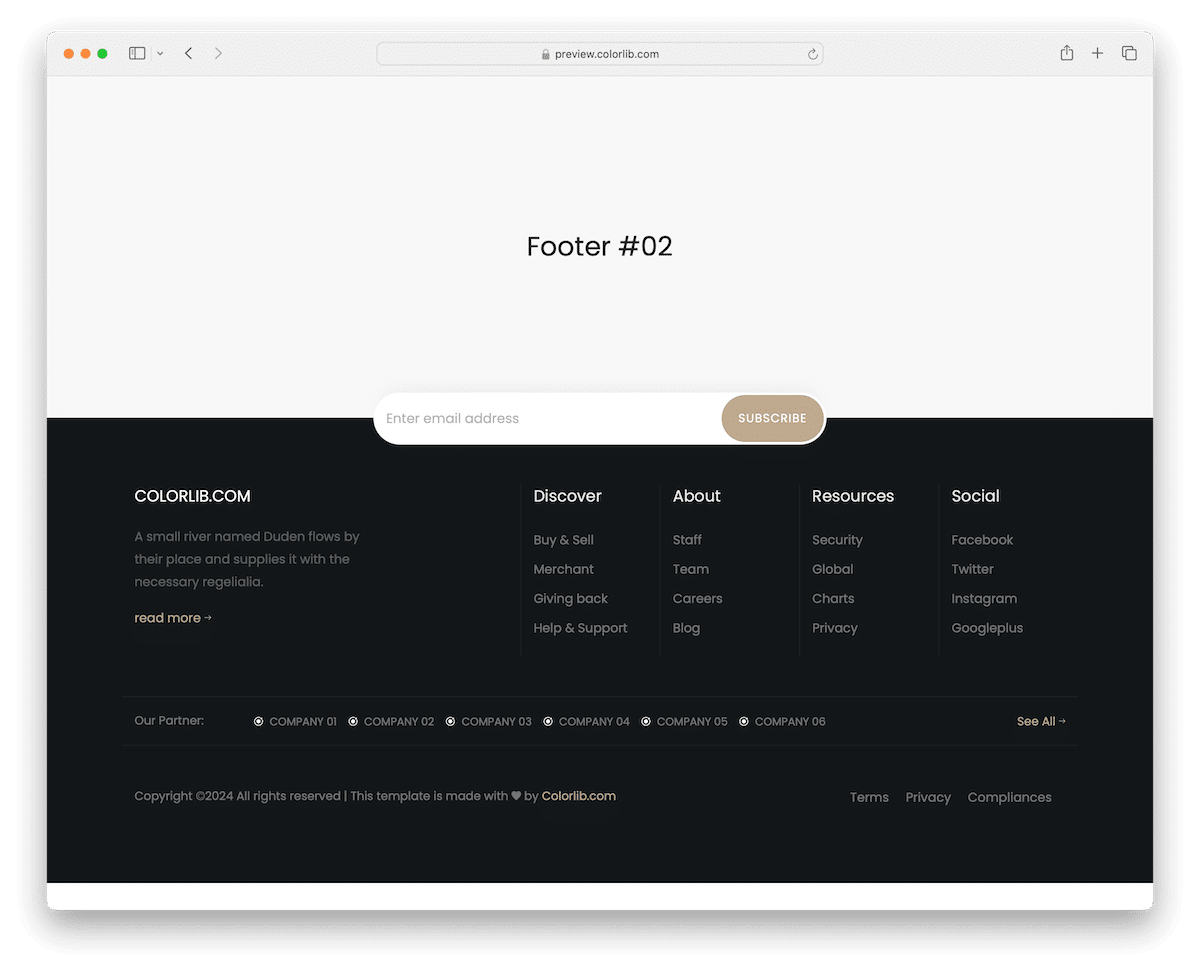
Dark with gold detailing, and a newsletter bar straddling the seam between page and footer. It also carries a partners section alongside the navigation and social links, which few footer snippets bother with.
Bootstrap Footer V13
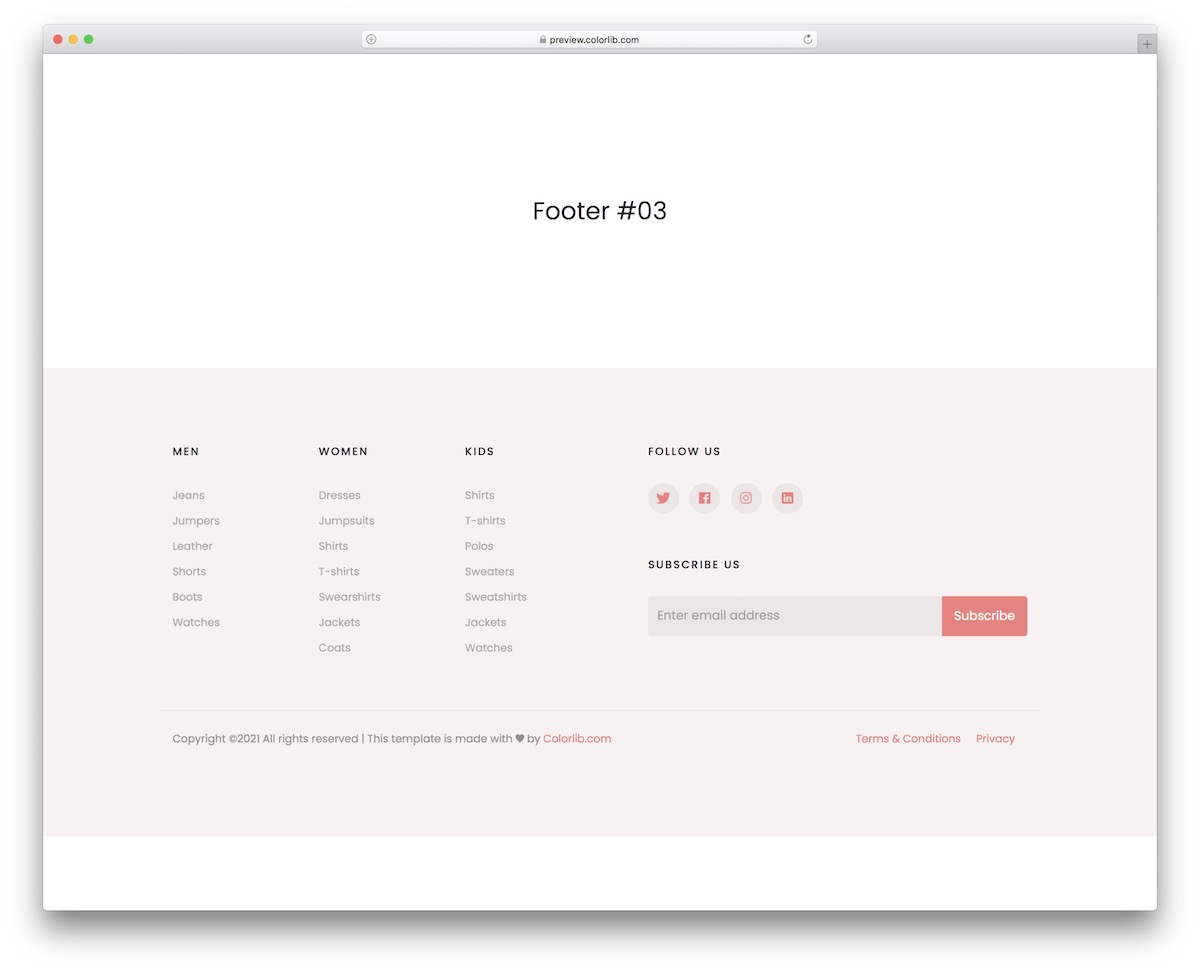
FreeHTMLBootstrap · Best for: lifestyle blogs and small shops
Softer, lighter styling pitched at lifestyle blogs and small eCommerce sites. Social buttons and a subscription widget are built in; everything else is a colour change away.
Bootstrap Footer V14
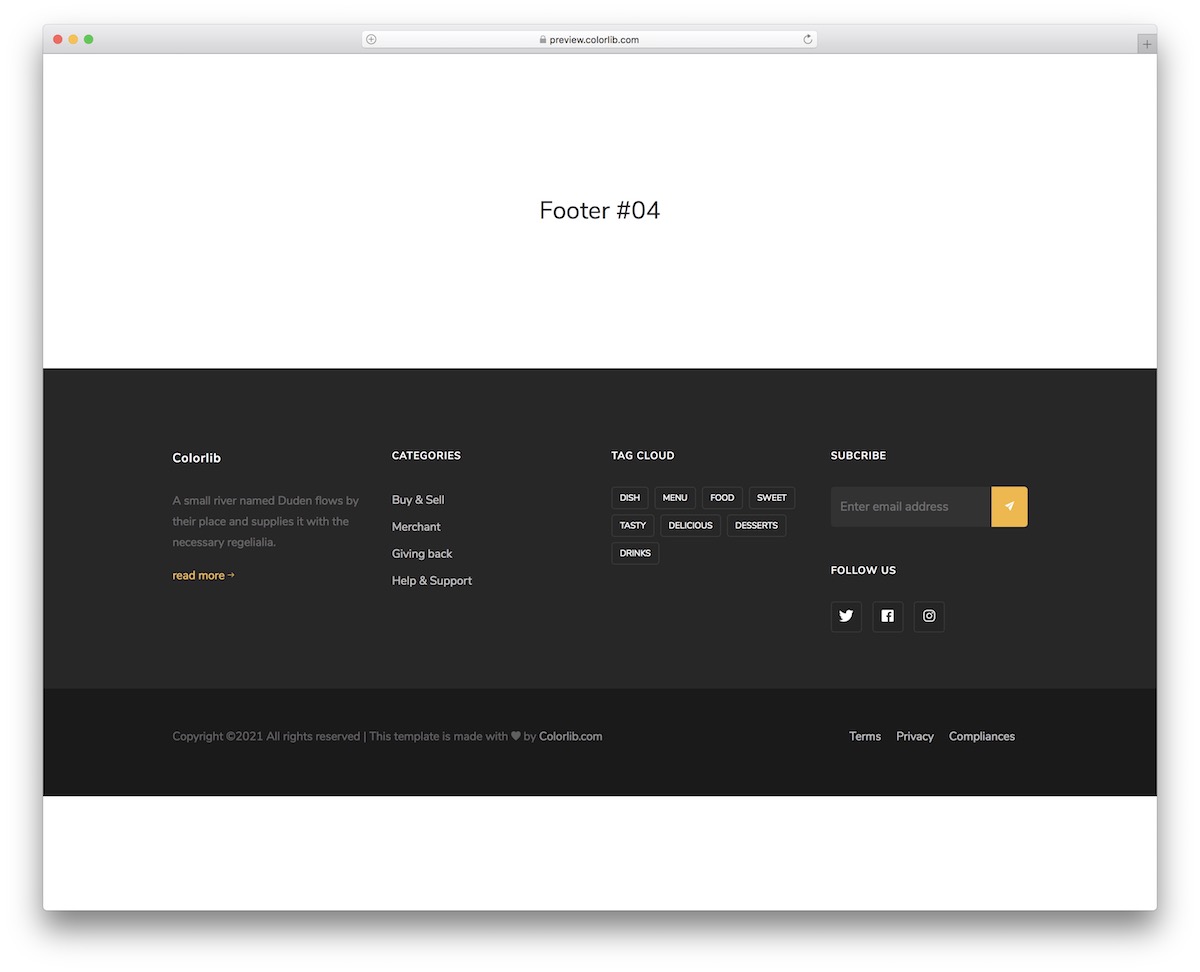
FreeHTMLBootstrap · Best for: blogs with tags and categories
The blog-shaped footer: about, categories and tags share the row with a subscribe form. The bottom bar holds the copyright line plus terms of service and privacy links.
Bootstrap Footer V15
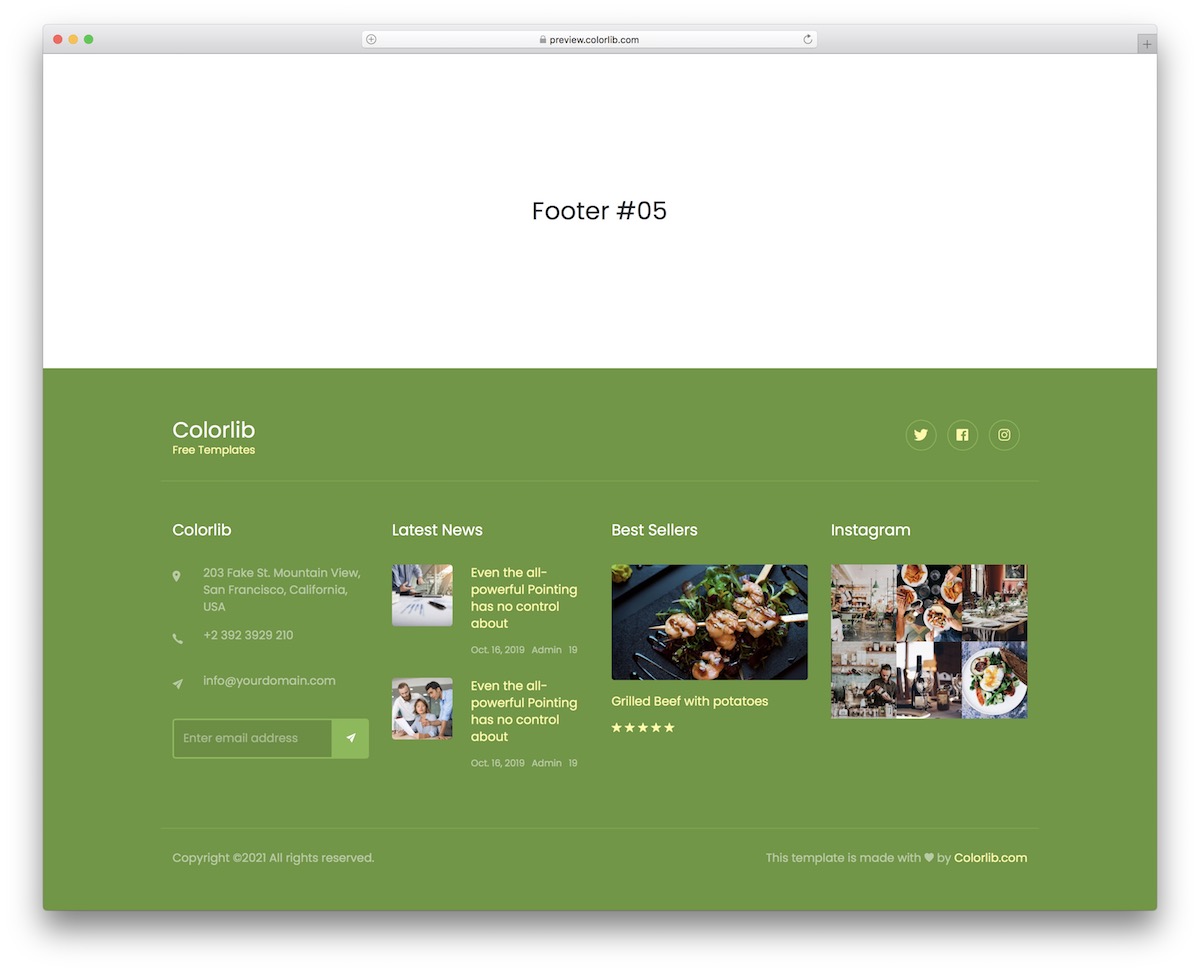
FreeHTMLBootstrap · Best for: restaurants and food blogs
Four columns built for a food business: company info, news, an Instagram strip and a bestsellers list. A subscribe form is included, and the green background is a single colour change if it does not suit the brand.
Bootstrap Footer V16
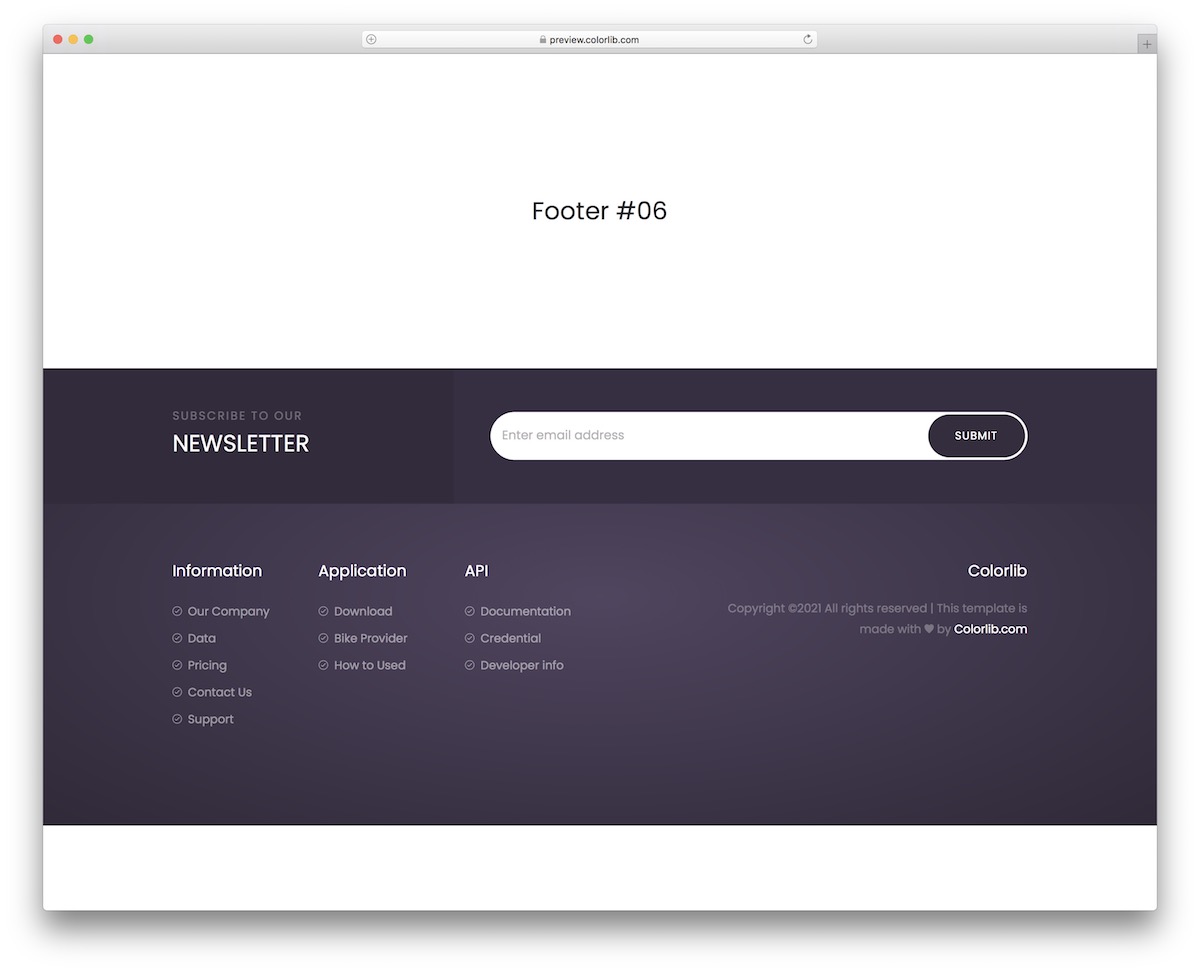
FreeHTMLBootstrapDark Mode · Best for: a dark footer that pushes signups
The opt-in bar runs nearly the full width, so the newsletter is impossible to miss. The rest is a dark, fluid layout that scales down without the columns collapsing awkwardly.
Bootstrap Footer V17
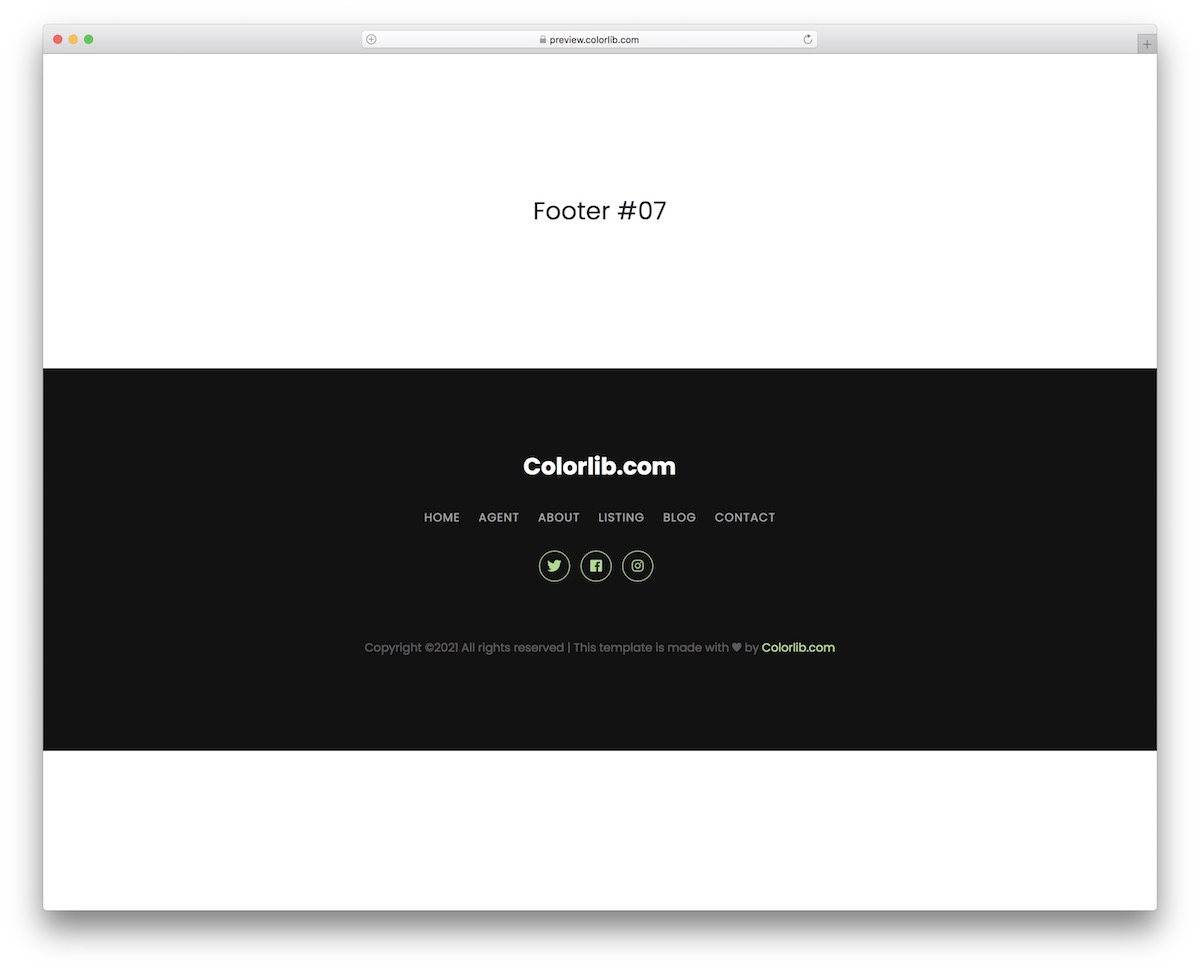
FreeHTMLBootstrapDark Mode · Best for: a name, links and social icons
Site name, one nav row and bright social icons on a dark bar. There is very little to configure, which is the point of picking this one.
Bootstrap Footer V18
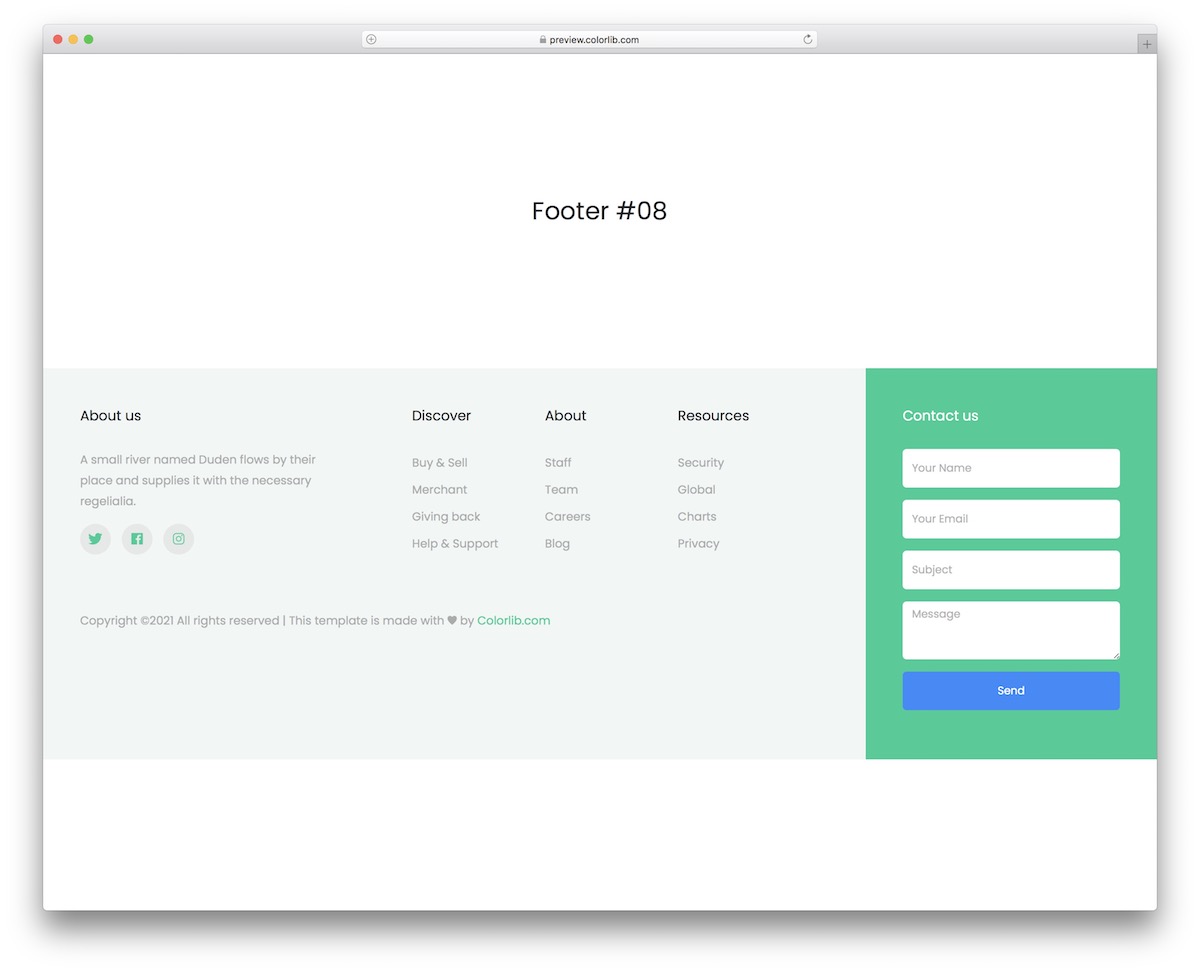
FreeHTMLBootstrap · Best for: footers that collect messages
The one with a contact form built into the footer itself. If you would rather link out than collect messages here, these free contact form templates cover the standalone versions.
Bootstrap Footer V19
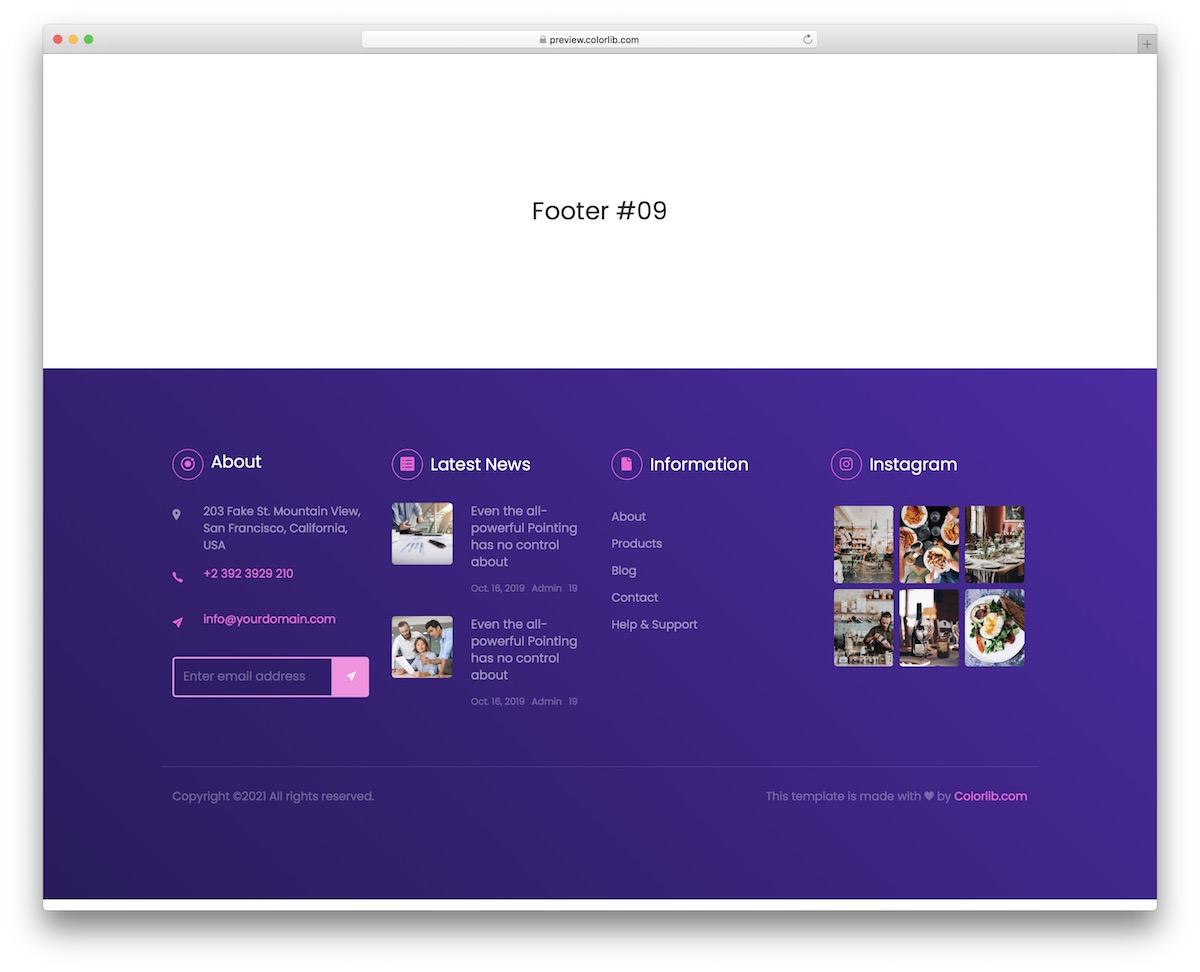
FreeHTMLBootstrap · Best for: a colourful four-column footer
Purple instead of the usual black or white, with four named columns: about, latest news, links and an Instagram feed. Phone and email can be made clickable, and the subscription form can be switched on or dropped.
Bootstrap Footer V20
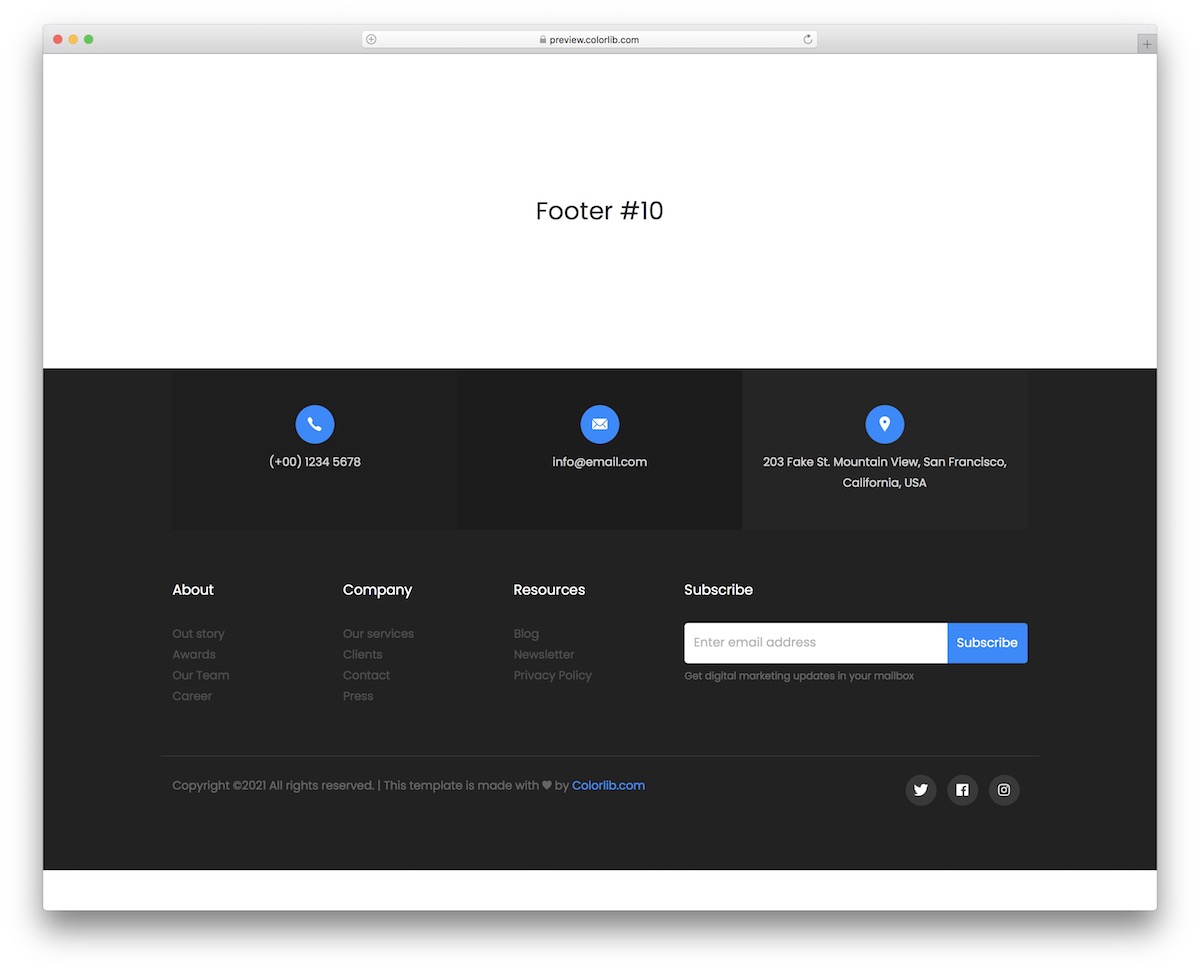
FreeHTMLBootstrap · Best for: contact details above the links
Contact details and a business address take the top row, with three link columns beneath them. A wide subscribe form and a set of social icons in the bottom corner close the component out.
How To Make A Footer With An HTML Template
Creating a website footer with an HTML template is easy.
Here’s a 7 step guide to get you started:
- Choose a template: Pick an HTML footer template that matches your website’s style and needs. There are many free and paid options online. Look for responsive templates that match your website’s design. Hint: Pick one from above.
- Download the template: Once you’ve chosen a template, download it. The template will usually come in a ZIP file with HTML, CSS and possibly JavaScript.
- Extract and organize files: Extract the ZIP file to a folder on your computer. Organize the files in a way that makes sense to you, usually with separate CSS, JavaScript and image folders.
- Open the HTML file: Open the HTML file from the template in a text editor or an Integrated Development Environment (IDE). If you don’t have one, basic editors like Notepad (Windows) or TextEdit (Mac) will work, but for better functionality, you can use an IDE like Visual Studio Code or Sublime Text. Here are some of the tools we used to create these footer HTML templates.
- Customize the footer: Find the footer section in the HTML file. It’s usually marked with a “<footer>” tag. Change the content by changing text, links, social media icons or contact details. Remember to save.
- Link CSS and JavaScript (if applicable): Make sure the CSS and JavaScript files are linked correctly in your HTML file. These links are typically placed in the “<head>” section for CSS and immediately before the closing “</body>” tag for JavaScript. If the paths are incorrect, adjust them to match your file structure.
- Test and upload: Test the footer in various web browsers (such as Chrome, Firefox, and Safari) to ensure it appears and functions as expected. Once happy, upload the files to your website’s server using FTP or your web hosting provider’s file manager.
HTML Footer Template FAQs
What should I put in an HTML footer?
An HTML footer usually has contact information, copyright notices, links to important pages like privacy policy or terms of service, social media icons and sometimes an about section or newsletter signup form.
How do I make my HTML footer responsive?
Create a responsive footer by utilizing CSS media queries to adjust the layout according to various screen sizes. Use flexible grid layouts and flexible images. Use frameworks like Bootstrap for easier responsive design.
Do I need a footer on every page?
Not necessary but highly recommended. Footers provide a consistent place for important information and links to help user navigation and experience.
How can I make my website footer look good?
Create a footer that looks good by having a clean and organized design. Use colors and fonts that match your website’s design. Add elements like icons, a small logo, or even subtle animations.
Do I need to update my website footer regularly?
Not always, but the information in the footer should be updated. This includes updating copyright dates, making sure links are working and relevan,t and updating contact information or social media links when needed.

Related Posts



Comments (0)