
South documentation
How to take a real estate site from install to listings, in the order you will need it. South is a free block theme for agents and agencies; South Listings adds the properties and the search.
Written for South 1.0.0 and South Listings 1.0.1 on WordPress 7.1.
The short version
- Install and activate the South theme, then the South Listings plugin. The theme builds your Home, About, Contact and Blog pages on its own. Install
- Optionally import the demo homes to see everything working, then replace them with your own. Demo content
- Add your agents, then your properties. Agents · Add a property
- Change the contact details, hours and copy on the pages by clicking the text and typing. Home page and sections
- Send yourself a test enquiry from the contact page and a property page. Enquiries
- Pick colours and fonts if South’s brown is not yours. Colours, fonts and dark mode
Install the theme and the plugin
South is two downloads, both buttons at the top of this page: the theme (south.zip) and the South Listings plugin (south-listings.zip). Do not unzip them — WordPress installs the zip files.
- Appearance → Themes → Add New Theme → Upload Theme, choose
south.zip, install and Activate. - Plugins → Add New Plugin → Upload Plugin, choose
south-listings.zip, install and Activate.
Activating the theme creates Home, About, Contact and Blog pages from South’s patterns, sets Home as the front page and Blog as the posts page, and fills the header menu. It never changes pages you already had.
Why a separate plugin? Your properties are content, and content should not disappear when you change theme. With the plugin, homes, agents and the search stay put whatever theme the site uses. Without it, South still works as an agency site: its property sections are simply left out.
Demo content
To see South as it looks in the live demo, go to Properties → Demo content and click Import demo content.
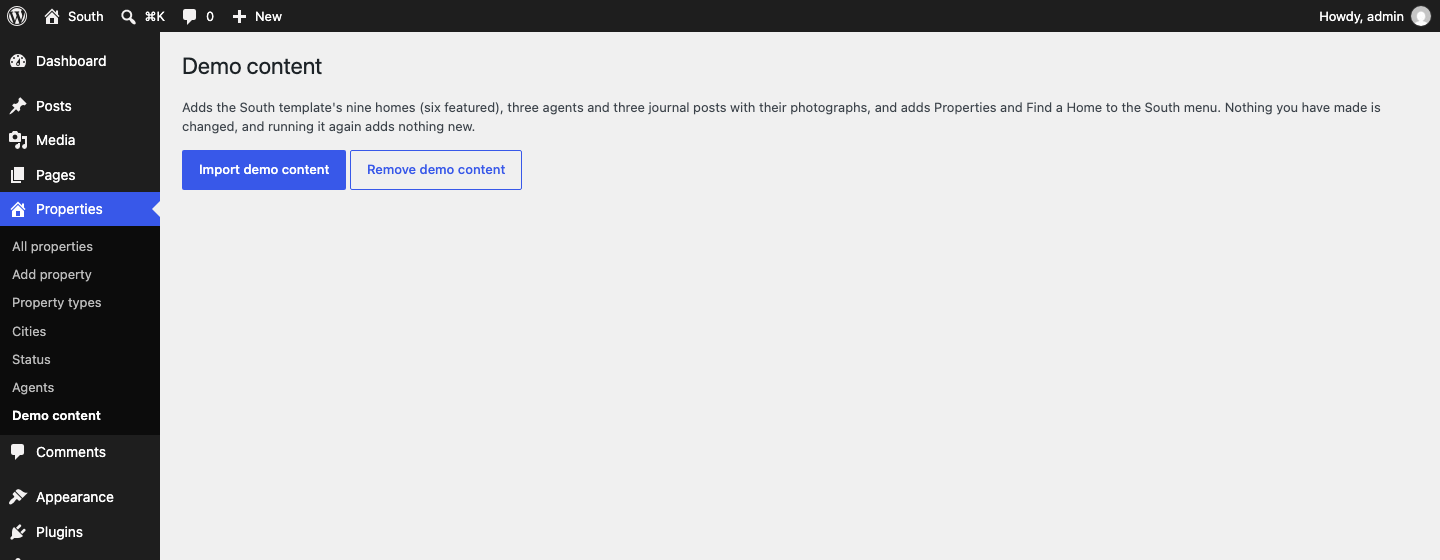
It adds the template’s nine homes (six of them featured), three agents and three journal posts with their photographs, and puts Properties and Find a Home in the menu. It creates no user accounts; the journal posts are attributed to you. Running it again adds nothing new.
When you are ready for your own listings, Remove demo content deletes exactly what the import added — the homes, agents, posts and their photographs — and nothing else.
Add a property
Go to Properties → Add property.
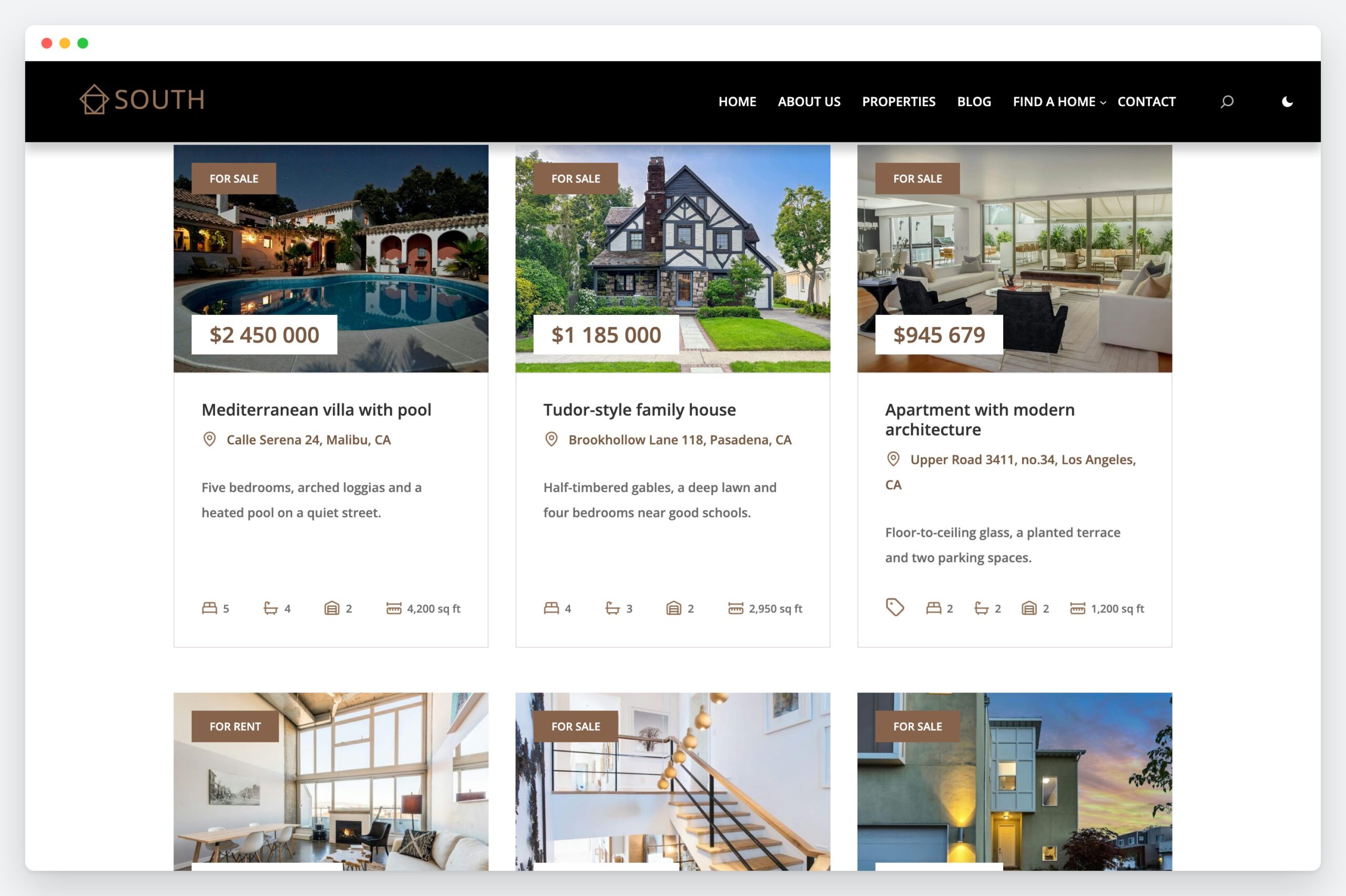
- Title — the name on the card and the page, for example “Mediterranean villa with pool”.
- Description — write it in the editor like any post.
- Featured image — the card photo and the photo at the top of the property page.
- Excerpt — the one or two lines under the address on the card.
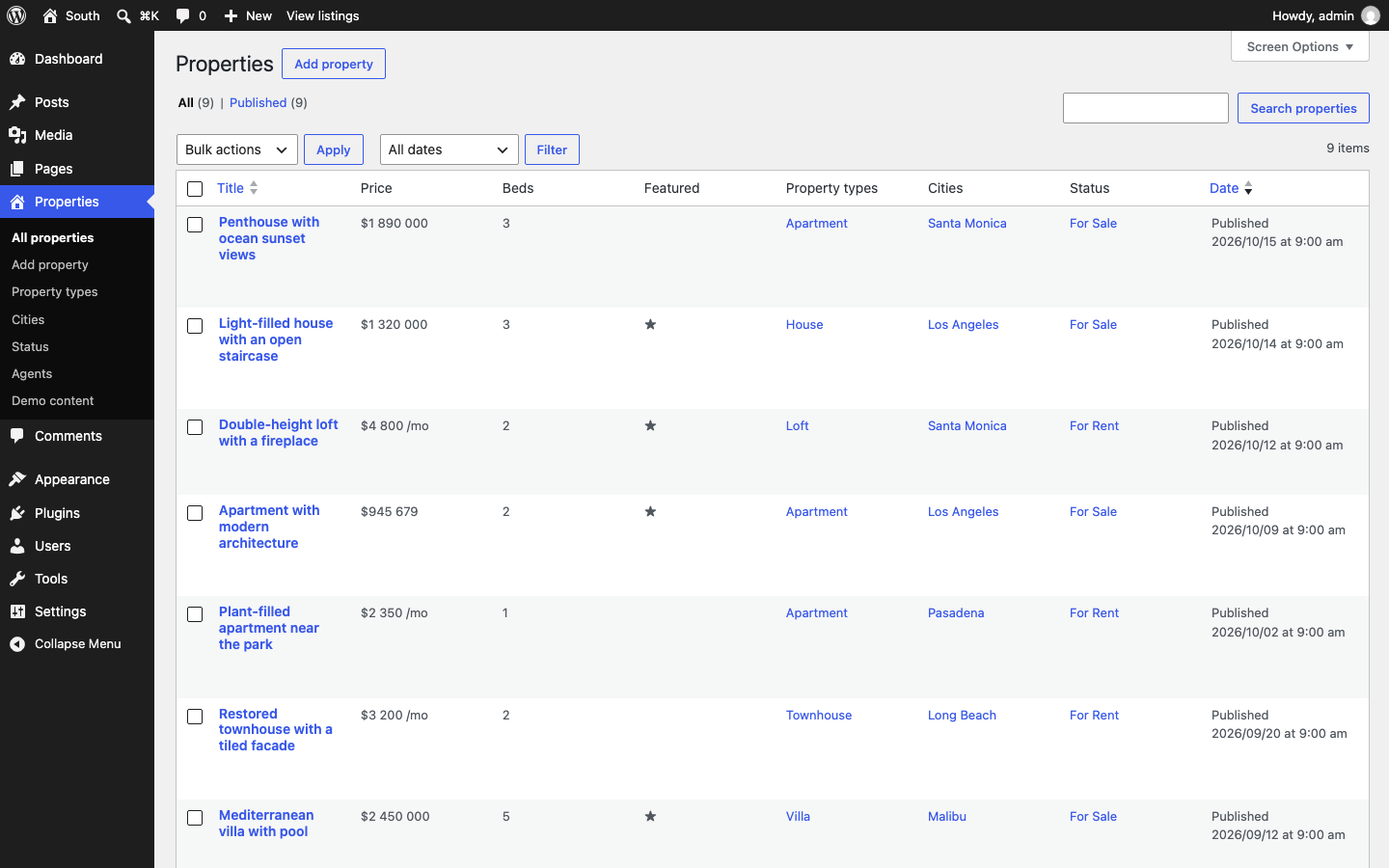
- On the right: Status (For Sale or For Rent), Property types and Cities. These are what the search filters on.
- Below the editor: Property details, with everything else.
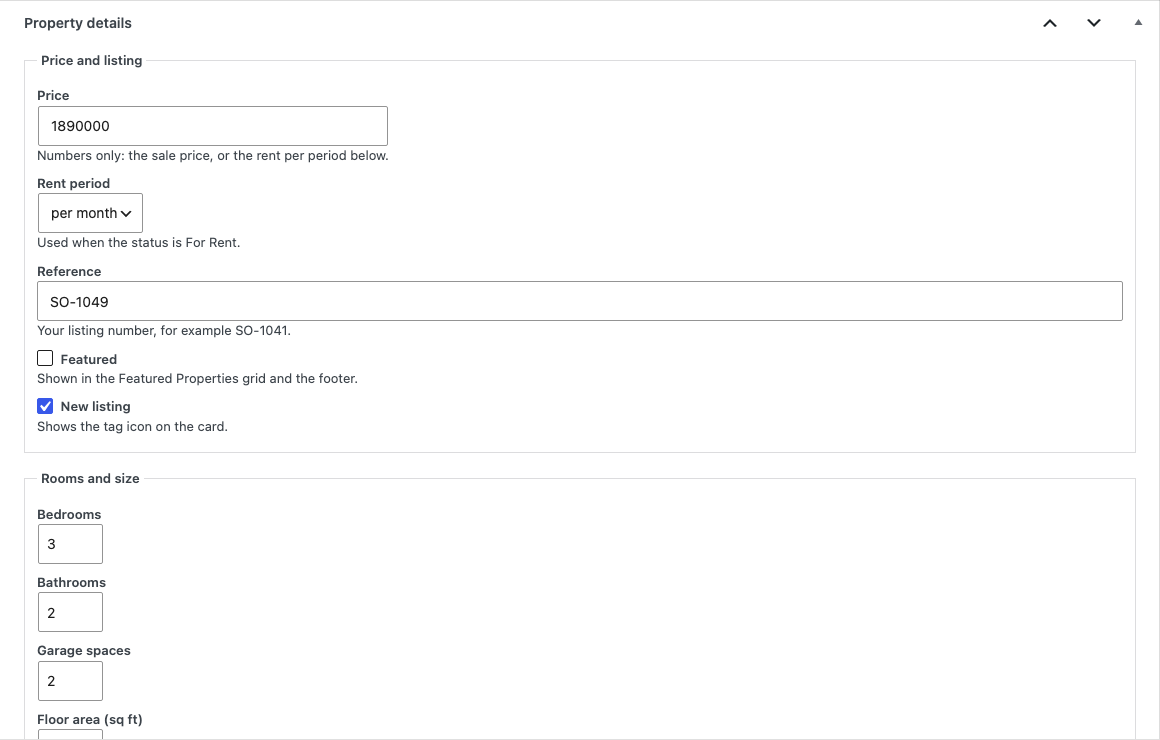
The fields
| Group | Fields |
|---|---|
| Price and listing | Price (numbers only — the sale price, or the rent per period), rent period, reference, Featured (shows the home in the Featured Properties grid and the footer), New listing (adds the tag icon on the card) |
| Rooms and size | Bedrooms, bathrooms, garage spaces, floor area in sq ft, year built |
| Location | Address, neighbourhood, latitude and longitude (for the map) |
| More | Outdoor space, view, furnished, pets, features (one per line), rooms and sizes, a gallery, and the agent |
Agents
Agents live under Properties → Agents. Each one has a name, a role (for example “Realtor”), a phone number and an email address; the portrait is the agent’s featured image. Choose the agent in a property’s details, and their card and an enquiry form appear beside that property’s description.
The property search
The search box under the hero and on the Properties page filters by keyword, city, type, sale or rent, garages, bedrooms, bathrooms, floor area and year built, and More filters adds price, rent, outdoor space, view, furnished and pets. Results can be sorted, shown as a grid or a list, and paged six at a time.
The search runs on ordinary address parameters, so it works with JavaScript turned off, and any search can be bookmarked or linked to. With JavaScript, results update without reloading the page and the Back button still works. You can link straight to a search, for example from a menu or a button:
/listings/?city=malibu
/listings/?status=for-rent&beds=2
/listings/?type=house&area_min=2000&sort=newest
| Parameter | Meaning |
|---|---|
q |
Keyword |
city, type, status |
The slug of a city, property type or status (for-sale, for-rent) |
beds, baths, garages |
At least this many |
area_min, area_max, year_min, year_max |
Floor area and year-built ranges |
max_price, max_rent |
Upper price or rent |
sort |
Order of the results |
To show a different number per page, add this to a child theme or a small plugin:
add_filter( 'south_listings_per_page', function () {
	return 9;
} );
Home page and sections
Every section on South’s pages — the hero with the search box, Featured Properties, the rent call to action, testimonials, the agent band, the team, contact details and the journal — is a pattern. Open a page in the editor and click any text to change it. To add a section, open the block inserter, choose Patterns and look under the South categories.
Featured Properties shows the homes you ticked Featured, newest first. In the editor its preview shows the newest homes, because the “featured only” rule runs on the site rather than in the editor.
The header and footer are template parts: Appearance → Editor → Patterns → Template parts.
Enquiries
The contact page and every property page carry an enquiry form. It validates on the server, is protected against spam by a nonce and a hidden field, and works with JavaScript off. Enquiries go to the site’s admin email address (Settings → General). An enquiry from a property page says which home it was about.
If your site cannot send email, install an SMTP plugin; South uses WordPress’s own mail function. To send enquiries somewhere else — a CRM, a spreadsheet, a webhook — add this to a child theme or a small plugin. Returning true tells South the enquiry is handled, and it sends no email of its own:
add_filter( 'south_enquiry_handlers', function ( $handled, $enquiry ) {
	// $enquiry: name, phone, email, message and, from a property page, property (its ID).
	wp_remote_post( 'https://example.com/webhook', array( 'body' => $enquiry ) );
	return true;
}, 10, 2 );
Prefer a form plugin? Contact Form 7, WPForms, Gravity Forms, Fluent Forms, Forminator and Ninja Forms are styled to match.
Colours, fonts and dark mode
Go to Appearance → Editor → Styles. South ships eight colour palettes — South, Terracotta, Olive, Harbour, Sage, Charcoal, and the dark Midnight and Graphite — and five type pairings, based on Open Sans, Montserrat and Playfair Display. Every palette is checked for readable contrast before release.
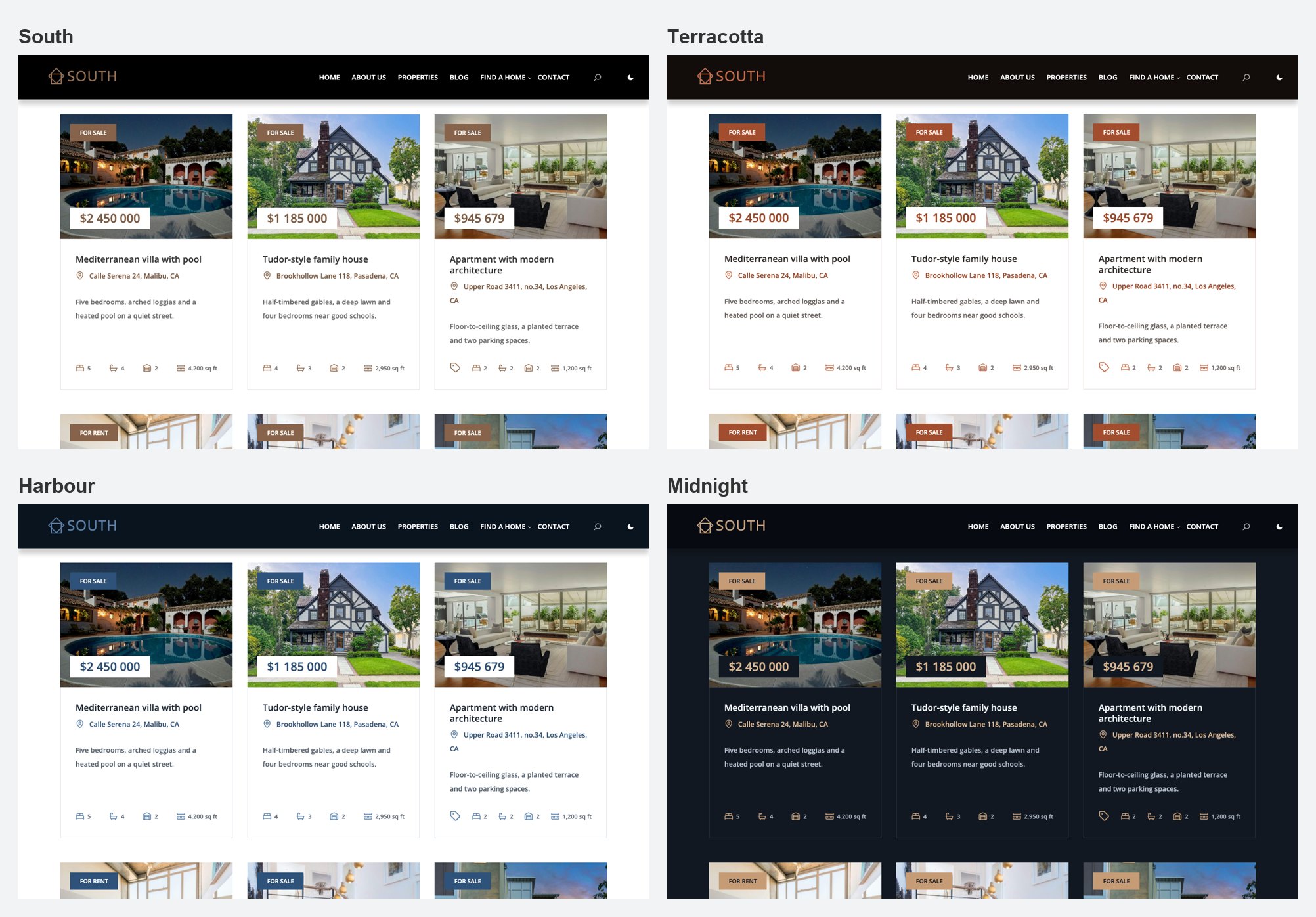
The moon icon in the header switches the site to dark mode for that visitor; it follows their system setting until they choose. To remove the switch:
add_filter( 'south_enable_dark_mode', '__return_false' );
Maps
A property shows a map once it has a latitude and longitude in its details. The map is OpenStreetMap and loads only when the visitor clicks Show map, so no API key is needed and nothing is requested before the click. It shows the neighbourhood rather than the door: the note under it says the agent shares the exact address when a viewing is booked.
Updates and privacy
South and South Listings are not in the WordPress.org directory, so they check updates.colorlib.com twice a day and updates appear in Dashboard → Updates like any other. The check sends the product and its version, the WordPress and PHP versions, the locale, whether the site is a multisite, and an identifier made from the site’s address with the site’s own secret key, which cannot be turned back into the address. To switch it off for both:
add_filter( 'south_check_for_updates', '__return_false' );
Still stuck?
Ask on the Colorlib support forum. Include your WordPress and PHP versions, what you did, and what you expected to happen — a screenshot helps.